 DocumentFlow Desk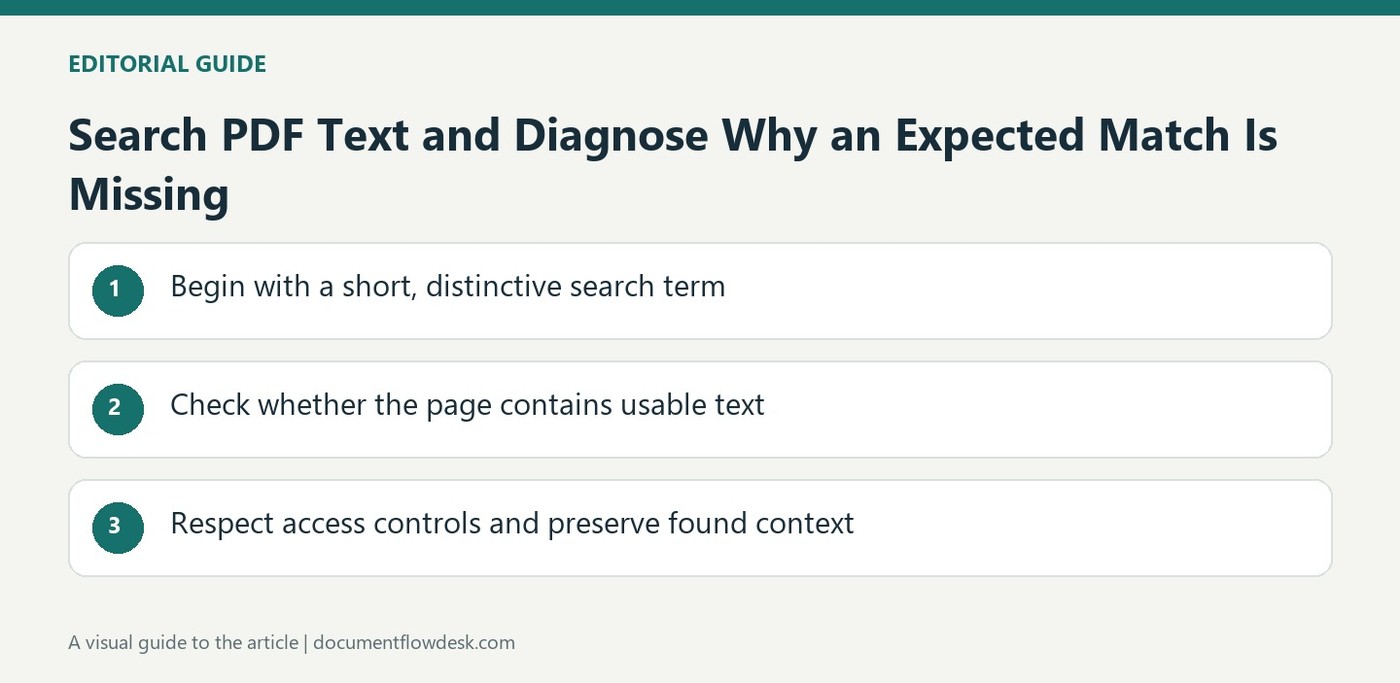
Begin with a short, distinctive search term
The source describes Ctrl+F on Windows and Cmd+F on Mac in common PDF viewers. Enter a distinctive word or phrase and move through matches with the available navigation controls. If a phrase fails, try a shorter part or a nearby term. Line-end hyphenation, punctuation and case-sensitive settings can influence results. Keep the search scope clear, particularly when an application can search either the current file or a folder. Finding no match for one exact phrase is not sufficient proof that the relevant passage does not exist.
Check whether the page contains usable text
Try selecting a sentence and copying a small sample. A page that is only a scanned image generally needs OCR before its visible words become searchable text. An encoding problem can instead produce meaningless copied characters or inconsistent search behavior even when the page looks normal. The article suggests OCR or conversion as possible repair routes. Review any recognized output against the original, since creating a text layer can introduce errors. Keep the original PDF available so a newly searchable version does not become an unquestioned replacement for the source.
Respect access controls and preserve found context
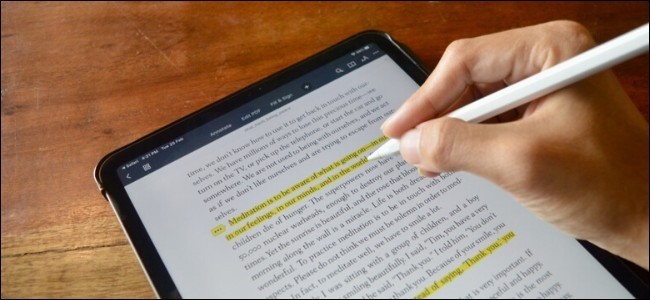
If the file is restricted, obtain the required password or authorized copy rather than treating every search problem as a technical obstacle to bypass. For multiple files, a supported folder-search feature can avoid merging solely for discovery. If combining documents is appropriate, retain clear source identities and page boundaries. After locating the passage, a highlight or note can make it easier to revisit, but review the exported annotation. Keep enough surrounding text to understand the match, especially when the same term appears in definitions, examples and operative instructions with different meanings.
Classify the failure before changing the document
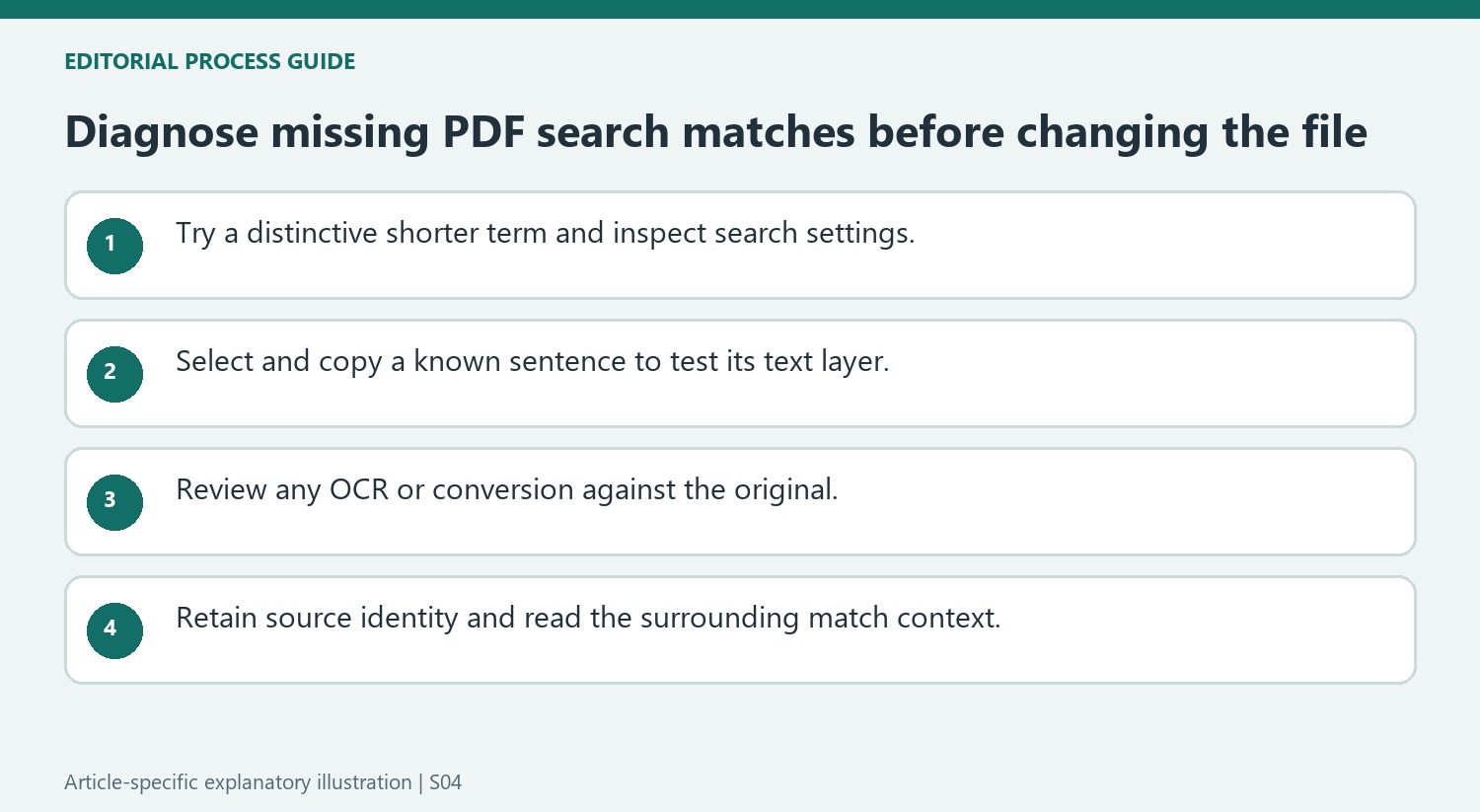
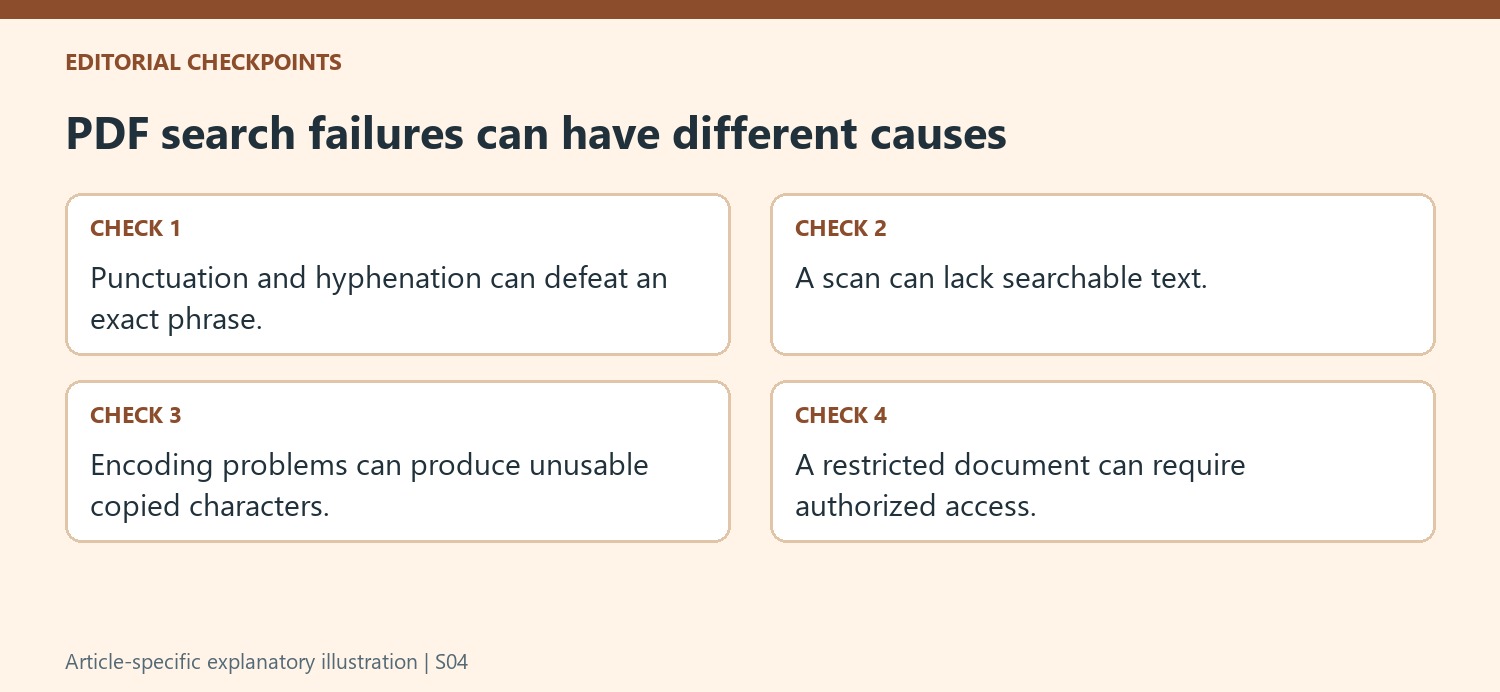
A missing exact phrase can result from punctuation, line breaks or hyphenation, even when the underlying text is searchable. Start with a distinctive shorter term and inspect any case-sensitive option. This tests the query without changing the source. If other words are found normally, the failure may concern the particular phrase rather than a general inability to search the PDF.
Try selecting and copying a small sentence. A scanned page can lack a usable text layer, while a page with encoding issues can copy as unexpected symbols. Those are different clues and can require different repair choices. Keep the original file intact while testing a searchable or converted copy so the new text can be checked against the visible source.
Review OCR as newly recognized text rather than unquestioned evidence
OCR interprets image content and supplies a text layer for searching. After processing, search for a known word and compare the found location with the original page. Check names, figures and punctuation that matter to the task. A search result can be convenient while still containing a recognition error, and a missed result can reflect that error rather than the absence of the visible wording.
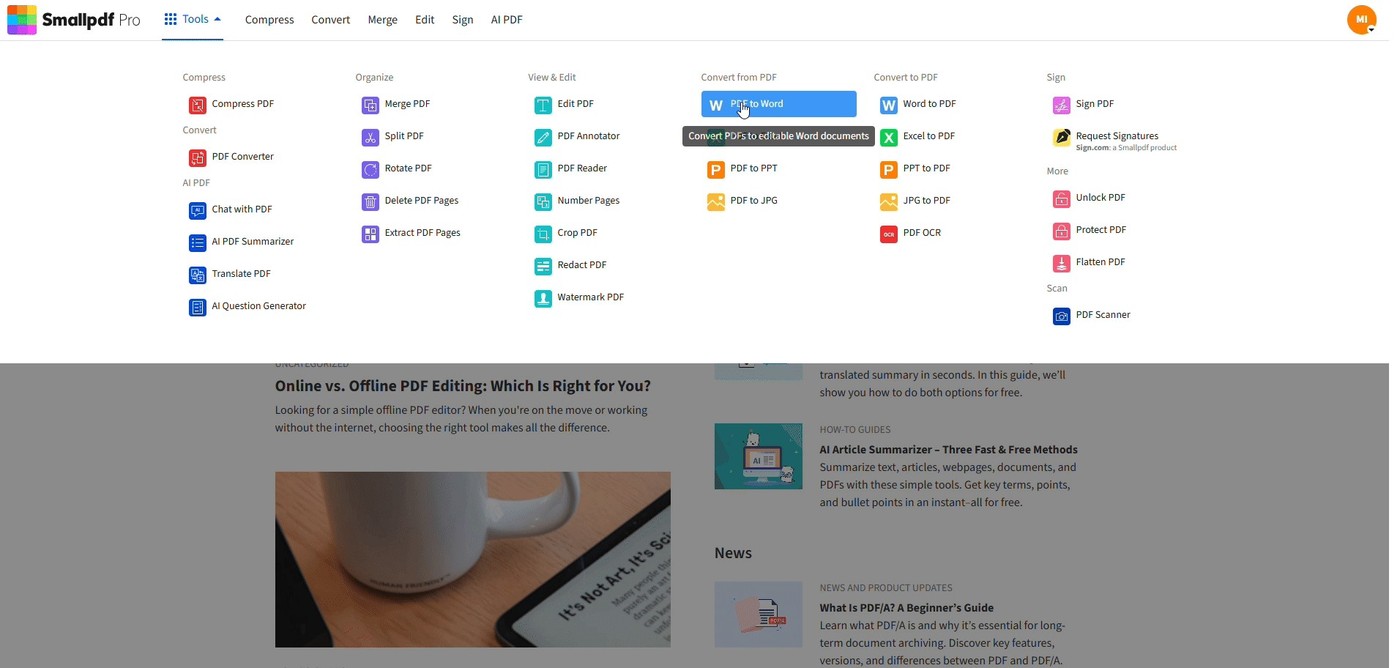
Conversion to Word is another route described by the source, but it reconstructs content in a different format. Inspect reading order and layout before using the converted file as a search reference. For restricted documents, obtain the required access through the permitted workflow. A search problem is not a reason to assume that every document control should be removed or that an unauthorized copy is appropriate.
Keep source identity and surrounding meaning when searching many files
A supported folder-search feature can find terms across PDFs without combining them. If a combined searchable document is genuinely useful, preserve the source identities and page boundaries so a match can be traced to its original file. Read the surrounding passage before drawing a conclusion, since the same term can appear in a definition, example or operative instruction. Highlights and notes can help revisit the location, but inspect the saved annotation and keep enough context to explain what the found wording actually means in that section.
References
- How To Search a PDF for Words or Phrases | Smallpdf. Smallpdf; David Beníček.





Comments
0