 DocumentFlow Desk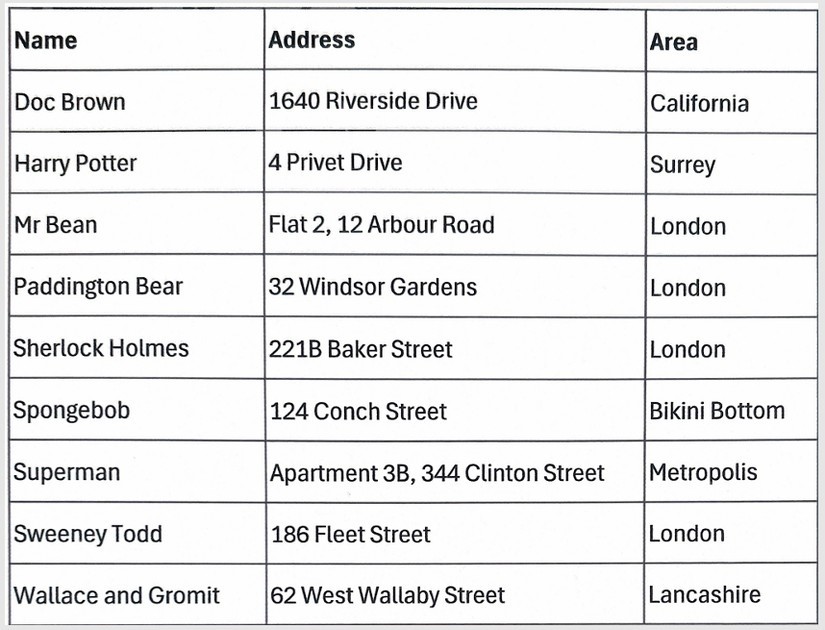
Prepare a clear image and preserve its original layout
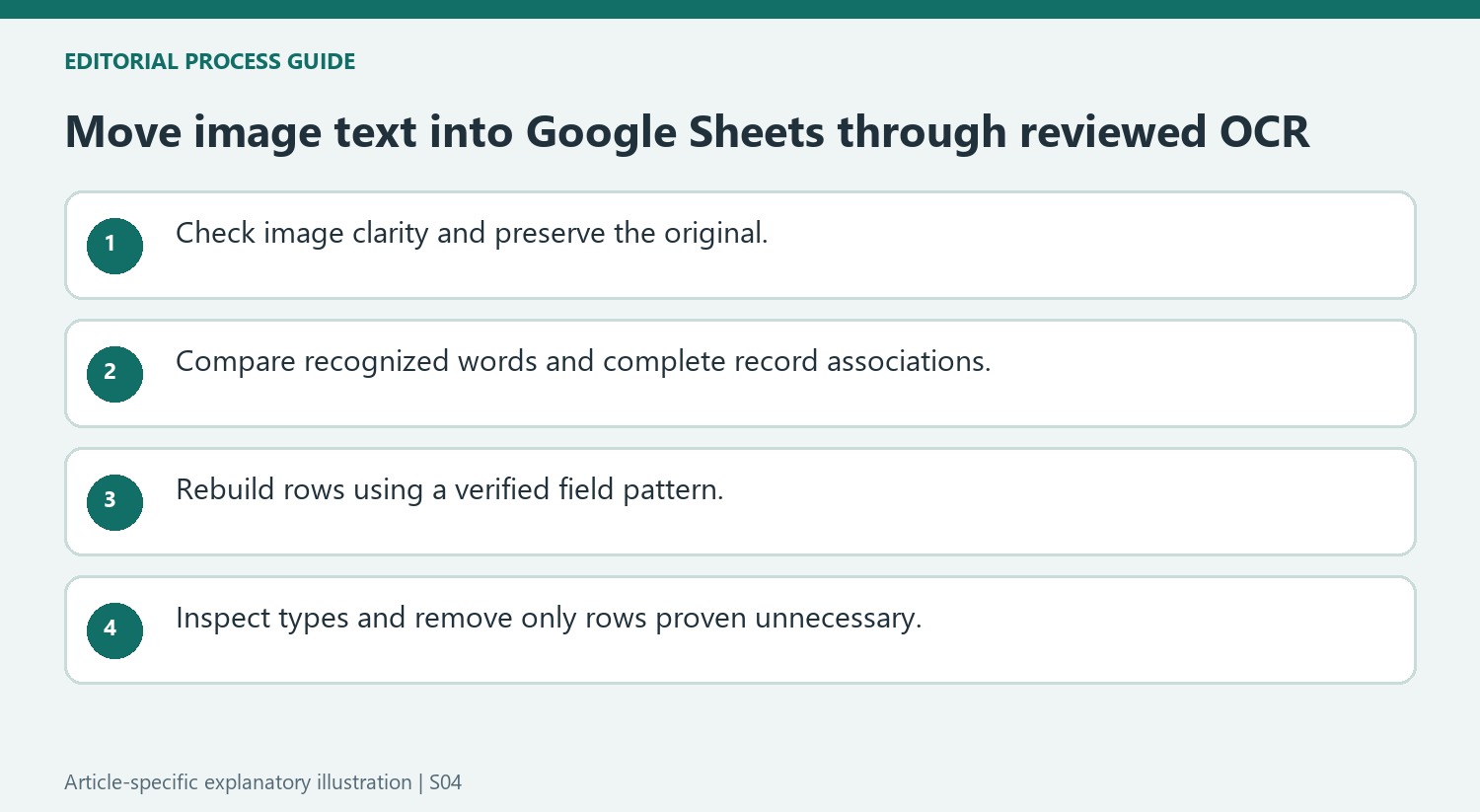
The source recommends a readable, correctly oriented image with clear text and minimal blur or shadow. Keep the original available for comparison and upload the intended file to Drive. Image text is not the same as selectable character data, so ordinary copying may not retrieve the words. The recognition workflow interprets those pixels into text. That interpretation depends on scan quality and layout, making it important to verify the output rather than treating a successful conversion as evidence that every name, number and field relationship is correct.
Open the image with Docs and review the extraction
Use Open with, Google Docs on the uploaded image. The article describes a new document containing the image and recognized text. Compare the extracted material with the source before transferring it to Sheets. Headers can appear in unexpected positions, and adjacent columns can become a single list or mixed sequence. Correct identified errors while keeping the record boundaries understandable. A conversion that recognizes individual words accurately can still associate an address with the wrong person if the original page structure was interpreted incorrectly.
Rebuild spreadsheet fields from verified record boundaries
Copy the reviewed text into Sheets using Values only when source formatting is unnecessary. Then organize the fields according to the actual record pattern. The tutorial demonstrates transposing a repeated sequence, but that is appropriate only when every record follows the expected structure. Do not remove apparent duplicates merely to eliminate blank rows if legitimate records can repeat. Check row alignment, headings and stored types before applying table formatting or calculations. Retain the scan and recognized text until the final spreadsheet has been verified against representative original records.
Check recognition accuracy and record association separately
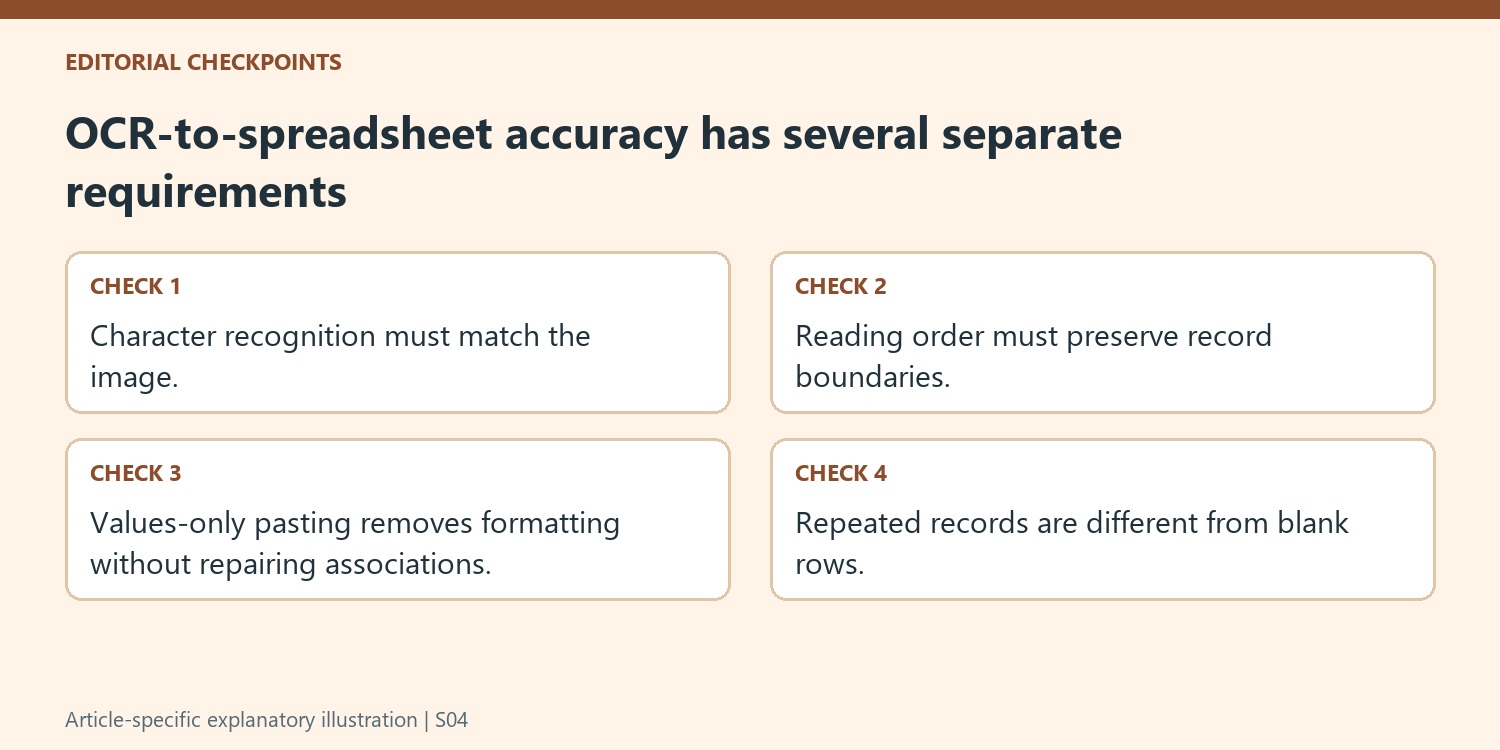
A clear scan helps the recognizer identify characters, but accurate words can still be placed in the wrong order. Compare a complete record with the original image, not just a few isolated names. An address associated with the wrong person is a structural error even if every individual word was recognized correctly. Review any point where the source has multiple columns or a changing line count.
Headers and footers can also enter the extracted sequence among the data values. Identify them deliberately before transferring the text to Sheets. Keep the original image and the recognized document available together so a questionable field can be checked without guessing. A successful Open with Docs operation establishes that recognition ran, not that its output is already a reliable table.
Rebuild rows from an explicit field pattern
The tutorial demonstrates transposing a repeated sequence of values into columns. That works only when the assumed record pattern holds throughout the data. If one address wraps to an extra line or a field is absent, a fixed-size grouping can shift every following value into the wrong row. Check the first, middle and last records and inspect any irregular source entry separately.
Values-only pasting removes source formatting but does not repair those relationships. After transfer, verify the column headings, stored types and alignment of each field within a row. Names, postal codes and numeric amounts can need different treatment. Formatting the result as a table is useful only after its underlying records have been reconstructed correctly and their meaning remains traceable to the image.
Do not use duplicate removal as a substitute for identifying blank rows
The source example uses a duplicate-removal step during cleanup, but real datasets can legitimately contain repeated records or values. Identify actual blank rows instead of assuming duplicates are unwanted. Before removing anything, compare the candidate rows with the source and preserve a working copy. Then confirm the record count and inspect representative entries after cleanup. The final spreadsheet should retain the intended information, with every row representing a known source record rather than merely producing a visually compact table after a sequence of automatic transformations. Verify at least one complete original record from image through final spreadsheet.
References
- How to Turn an Image Into Google Sheets Data With OCR in Google Drive. How-To Geek; Tony Phillips.




Comments
0