 DocumentFlow Desk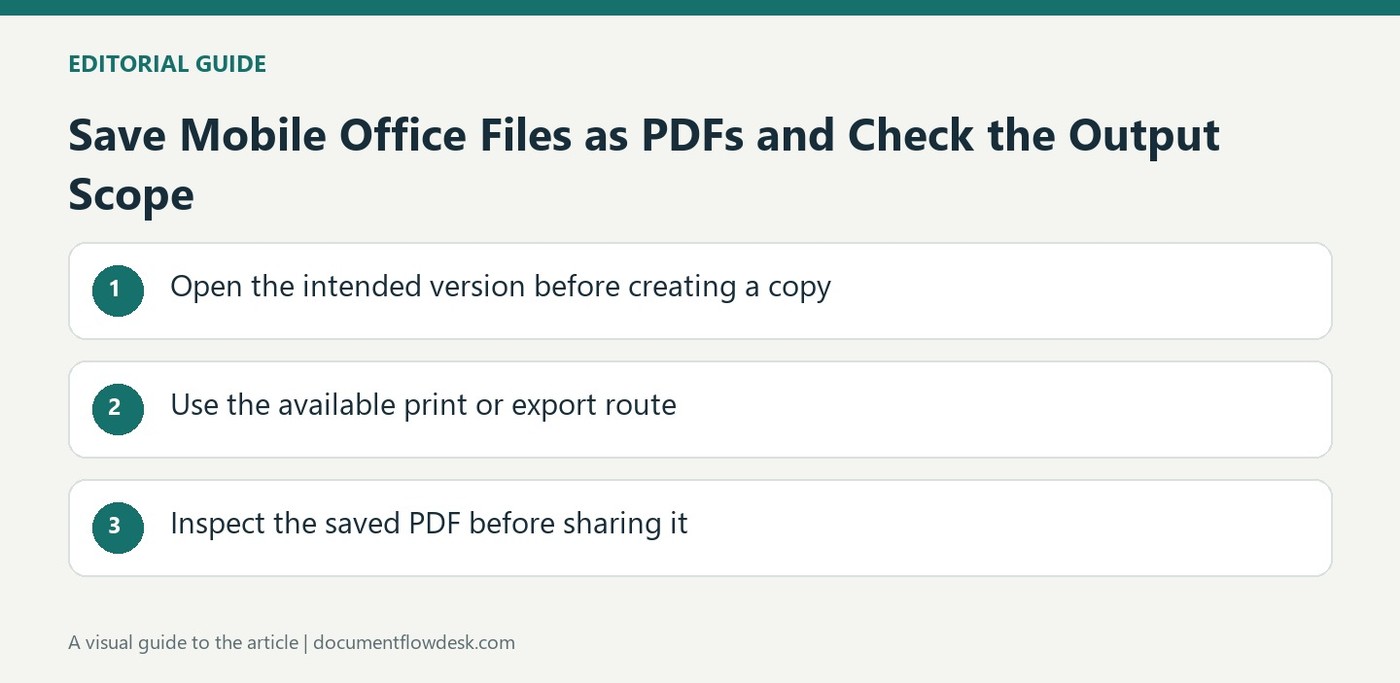
Open the intended version before creating a copy
Microsoft's mobile guidance begins with opening the file to be saved. Confirm the document name and the current content before using its menu, especially when a cloud copy and a downloaded version coexist. A PDF export captures the state used by the application at that point. Keep the editable original available for later revision instead of treating the exported copy as the only source. Decide where the output should be stored so it can be found again after the mobile application returns to its normal editing view.
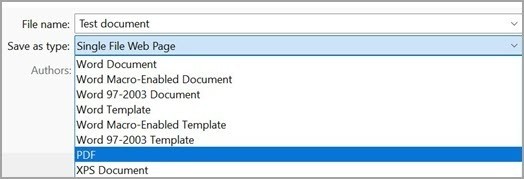
Use the available print or export route
The source describes opening File or the three-dot menu, choosing Print and selecting Save as PDF as the printer destination. It also describes an Export route with PDF as the selected format in the relevant mobile workflow. Follow the controls available in the installed application rather than expecting every platform to show the same sequence. Check the output location and optional filename before saving. A virtual PDF destination creates a file rather than sending pages to a physical printer, so verify the selected destination before completing the action.
Inspect the saved PDF before sharing it
Reopen the result from its saved location and review the intended page scope and layout. For a spreadsheet, inspect whether the chosen view includes the required cells without unreadable scaling or unwanted blank pages. For a presentation or document, check images, headings and page boundaries. Use a clear filename so the recipient can distinguish the distribution copy from an editable file or earlier revision. Mobile export saves navigation effort, but it does not remove the need to confirm that the final PDF is readable and contains the exact content intended for the next reader.
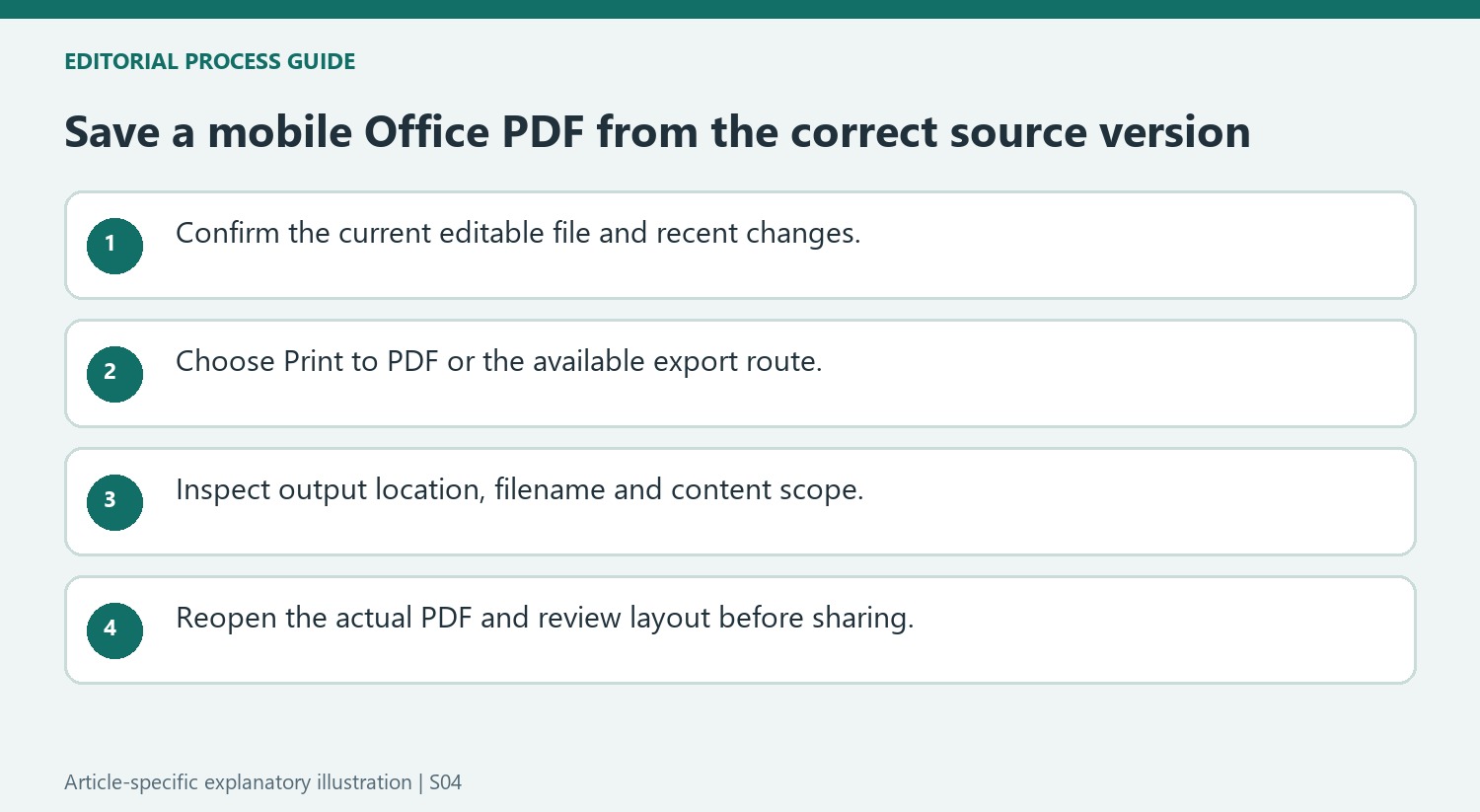
Confirm the mobile source before creating its fixed-format copy
A downloaded Office file and a cloud version can share a familiar name while containing different revisions. Check the current content and a recognizable recent change before exporting. A PDF captures the state used by the mobile application, so an outdated source produces an outdated copy even when the export command works correctly. Keep the editable file available for later corrections.
Choose a destination that can be found again after saving. A clear filename should identify the subject and revision without being confused with the editable source. This is especially helpful on a phone where a recent-files view can mix documents from several storage locations. The export is complete only when the intended output can be located and inspected, not merely when the application returns to the document.
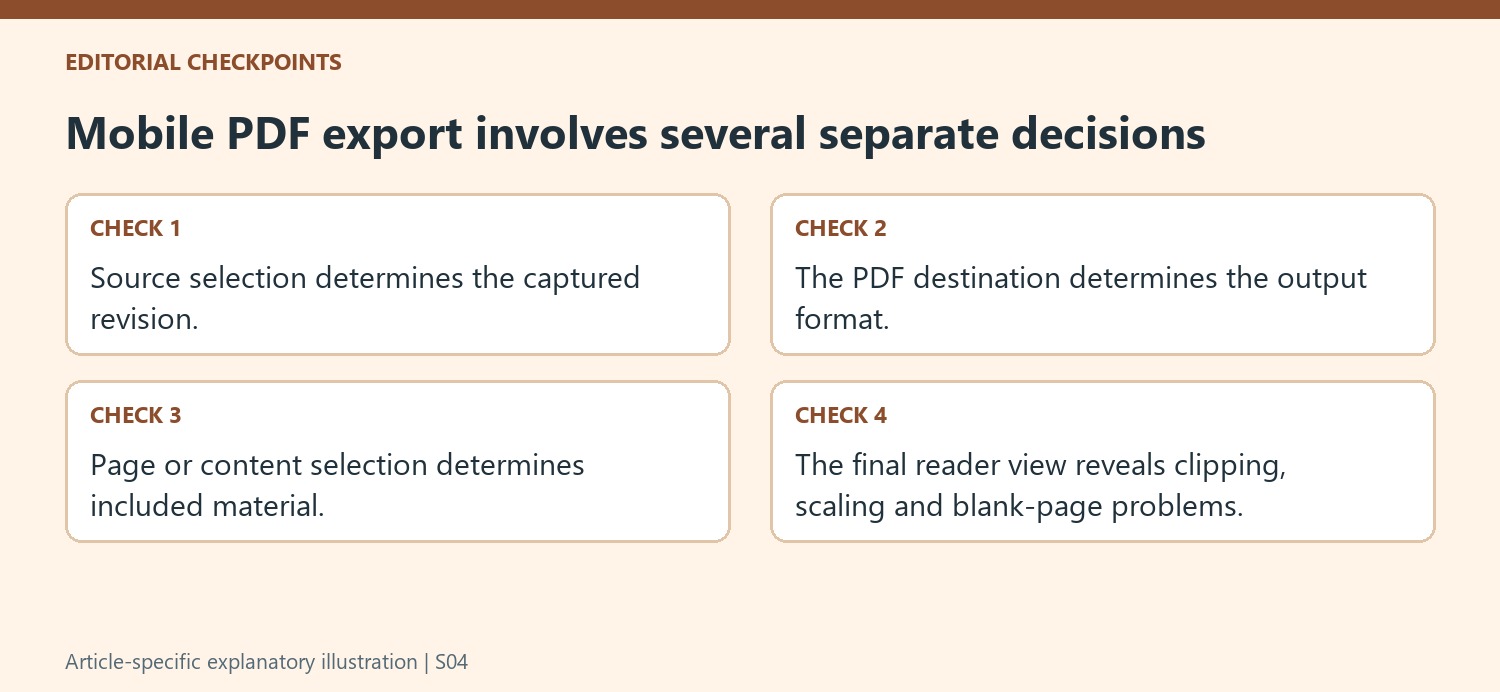
Follow the available PDF route and inspect its destination
The guidance describes Print with Save as PDF as well as an Export route. Use the controls available in the installed mobile application rather than expecting identical menus across every device. In a print dialog, confirm the virtual PDF destination before completing the action. Selecting that destination creates a file; selecting a physical printer represents a different operation.
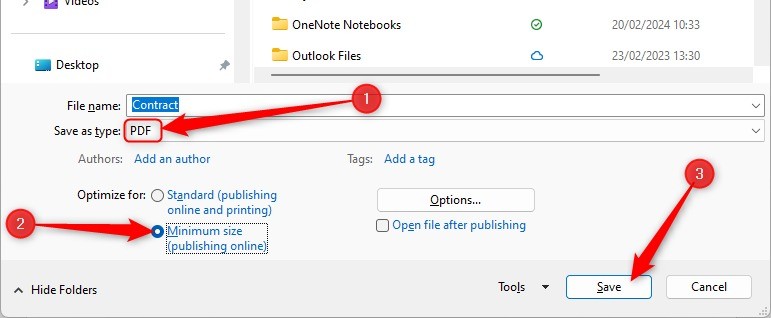
Review any filename and storage-location choices shown by the workflow. The source permits an optional new name, which can help distinguish a reviewed copy from earlier exports. If the application exposes page or content choices, confirm their scope before saving. A successful action does not establish that the intended worksheet area, complete document or presentation pages were selected.
Inspect the actual PDF in its normal reading view
Open the saved file from the chosen location and review the first and last pages along with representative images or tables. Spreadsheet output deserves a check for unreadable scaling, clipped columns and unexpected blank pages. For documents and slides, inspect headings, boundaries and the relationship between visuals and explanations. Then verify that the filename and current revision identify the right distribution copy. Mobile convenience reduces navigation effort but leaves the same requirement to provide a readable, complete PDF that accurately reflects the selected source in the intended final reading context.
References
- Save a PDF of your file on your mobile device. support.microsoft.com.


Comments
0