 DocumentFlow Desk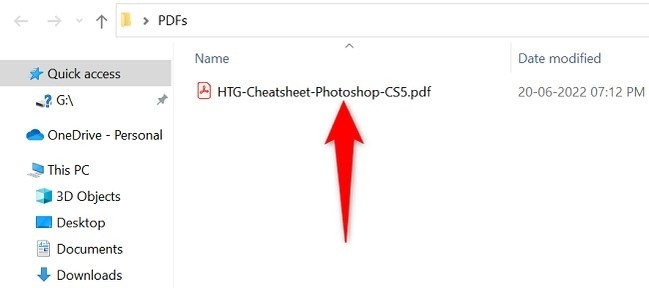
Choose the opening route without changing the source identity
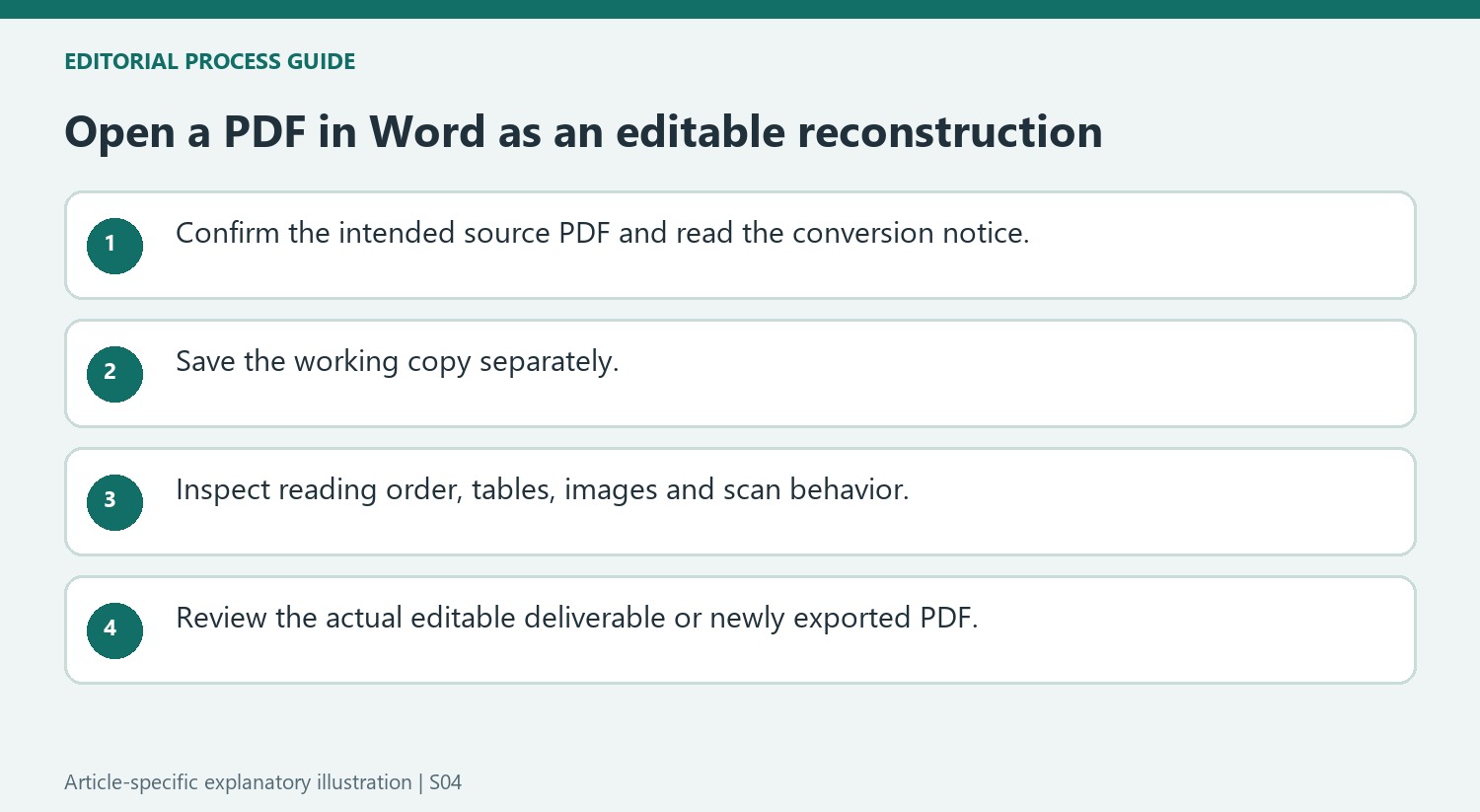
The source describes opening a PDF through Word's File, Open, Browse controls or selecting Word through the file manager's Open with options. Both lead into a conversion workflow. Confirm that the selected file is the intended PDF rather than another similarly named document. Word warns that it will create editable content and may not preserve all formatting. Read that notice as a functional distinction, not a minor inconvenience: the application is interpreting page elements into a different document model rather than merely displaying the unchanged fixed-layout source.
Inspect the converted structure before making edits
Check the first and last pages, headings, tables and image placement after Word opens the content. Complex layouts can shift because paragraphs, columns and graphics need to be reconstructed. A scan may remain an image rather than immediately becoming editable text. Preserve the original PDF for comparison and save the editable working document under a clear name. If editing is restricted by a protected-view or access state, follow the appropriate authorized workflow rather than treating the conversion as permission to bypass the document's controls or intended handling process.
Save and review the intended deliverable separately
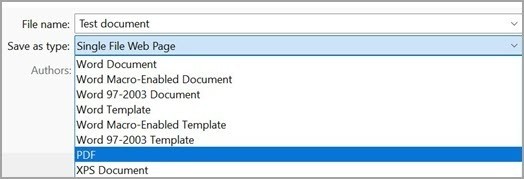
Decide whether the output should remain an editable Word file or be exported again as a PDF after revision. Merely viewing the conversion in Word is not sufficient verification of the final deliverable. Open a new export in a PDF viewer and compare the changed passage with the surrounding pages. Keep the original, working file and final version distinguishable. This makes later corrections easier and prevents another contributor from treating an imperfect conversion as the authoritative visual reference for a source that was originally designed to preserve a fixed page appearance.
Read the conversion notice as a description of the operation
Opening through File Explorer or through Word both lead into the workflow described by the article: Word interprets the PDF as editable content. The notice about possible formatting changes reflects a different document model, not simply a warning that can be ignored because the file opened. Fixed page elements must be reconstructed into paragraphs and objects that can respond to editing.
Keep the source PDF available and save the editable working file with a distinct name. Confirm the selected file before conversion, especially when a folder contains several related revisions. A familiar opening page can conceal differences later in the source. Compare a recognizable recent passage as well as the title so the converted copy is grounded in the intended version.
Inspect reading order and object relationships before a long revision pass
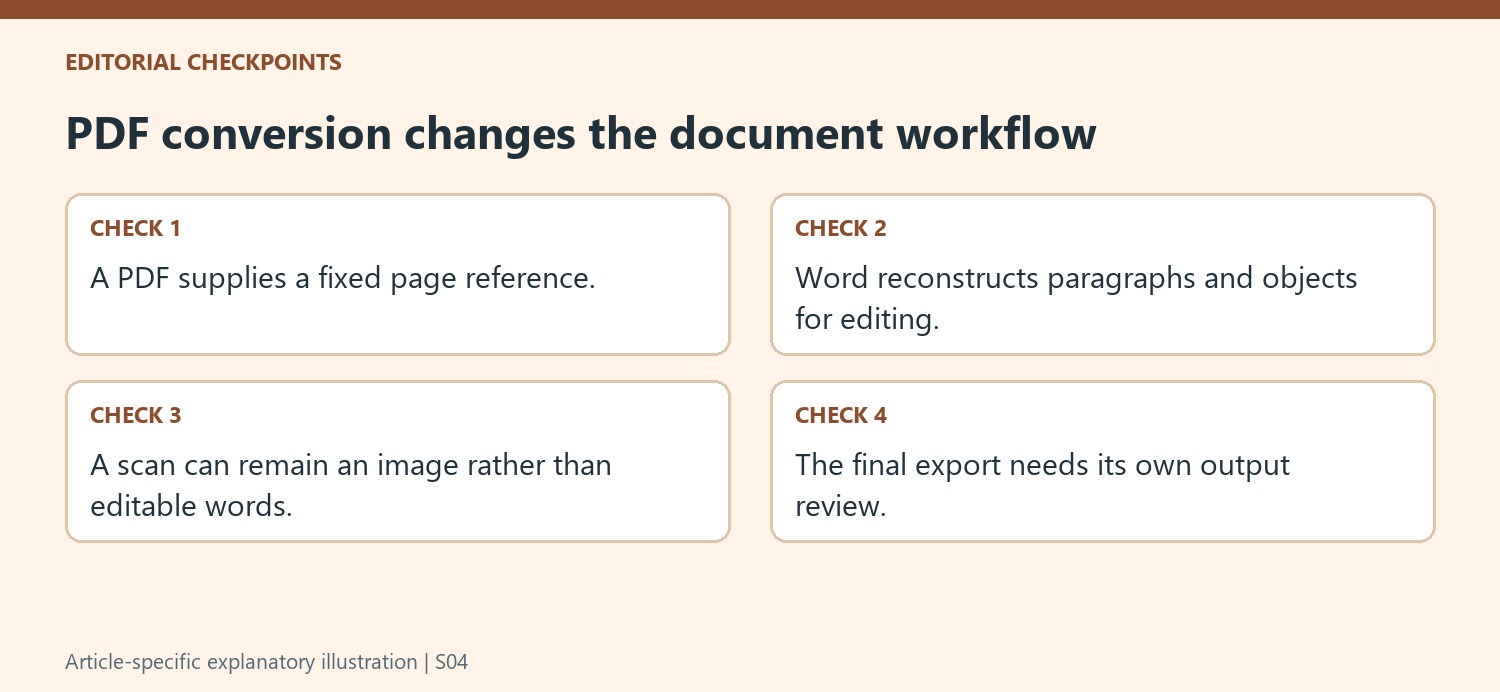
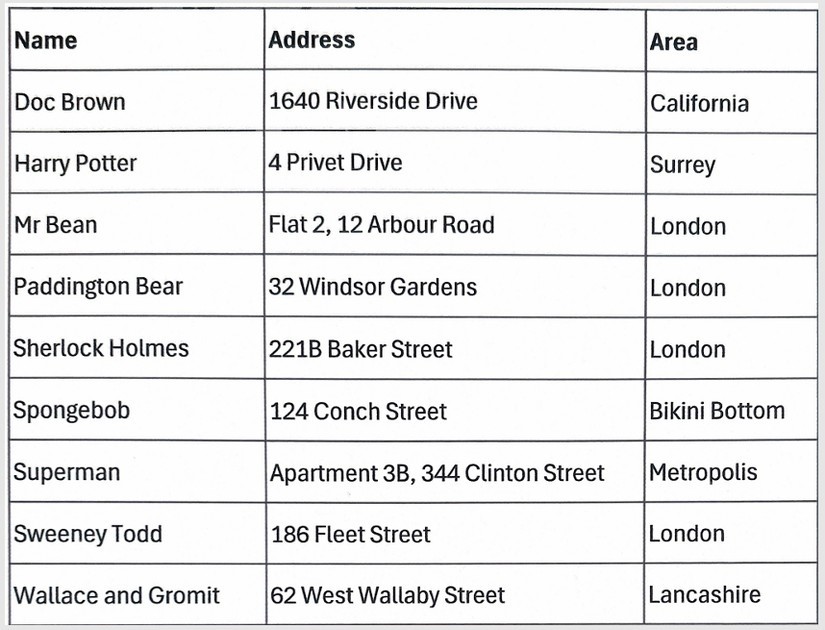
Check headings, tables, columns and images in the reconstructed file. A chart can remain an image, a scan can contain noneditable words and a complex table can need manual attention. These are different conversion outcomes, so identify the actual one before selecting another tool. A result that looks close at a glance can still have an unsuitable reading order or an important label separated from its content.
If the document is in a restricted or protected-view state, follow the appropriate authorized editing route. Converting content is not itself permission to alter a controlled file. Once editing is available, make a small representative change and inspect the neighboring layout before completing many revisions. This helps separate reconstruction issues from the intentional content changes that follow.
Save and review the format actually required by the task
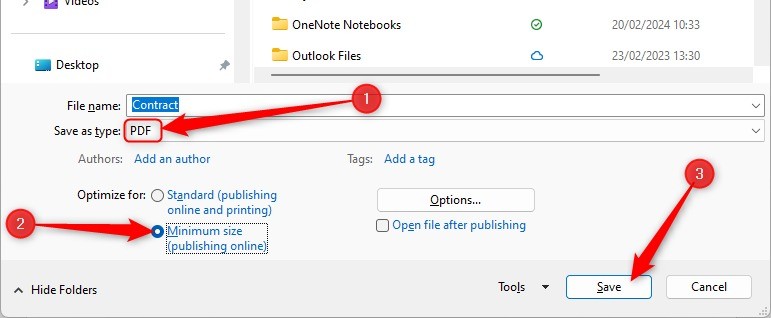
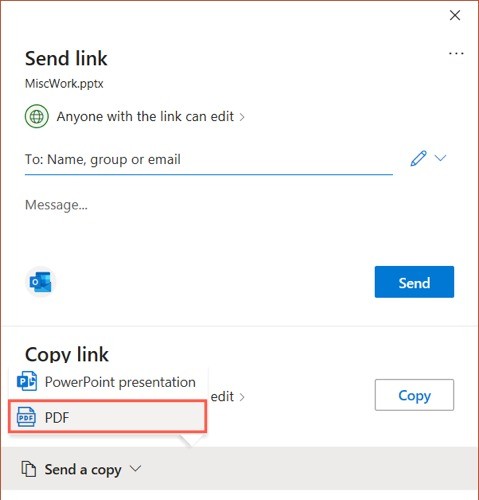
The deliverable may be an editable Word file or a new PDF generated after revision. Choose deliberately and inspect that output independently. For a PDF, open the fresh export in a normal viewer and compare the revised passage and surrounding pages with the intended result. Preserve the original fixed-layout reference, working document and final file under clear names. Another editor should be able to identify which file supplied the source evidence, which one contains editable revisions and which one represents the version specifically prepared for the intended readers and delivery context.
References
- How to Open PDFs in Microsoft Word. How-To Geek; Mahesh Makvana.



Comments
0