 DocumentFlow Desk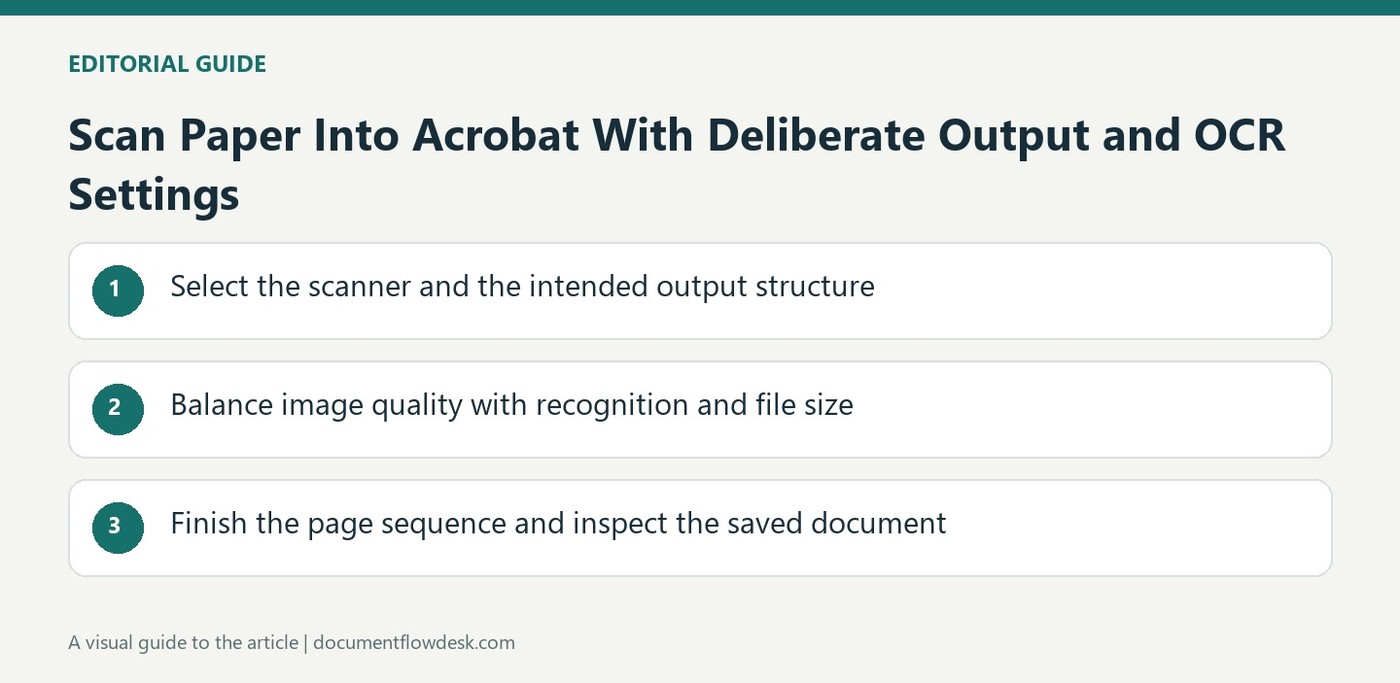
Select the scanner and the intended output structure
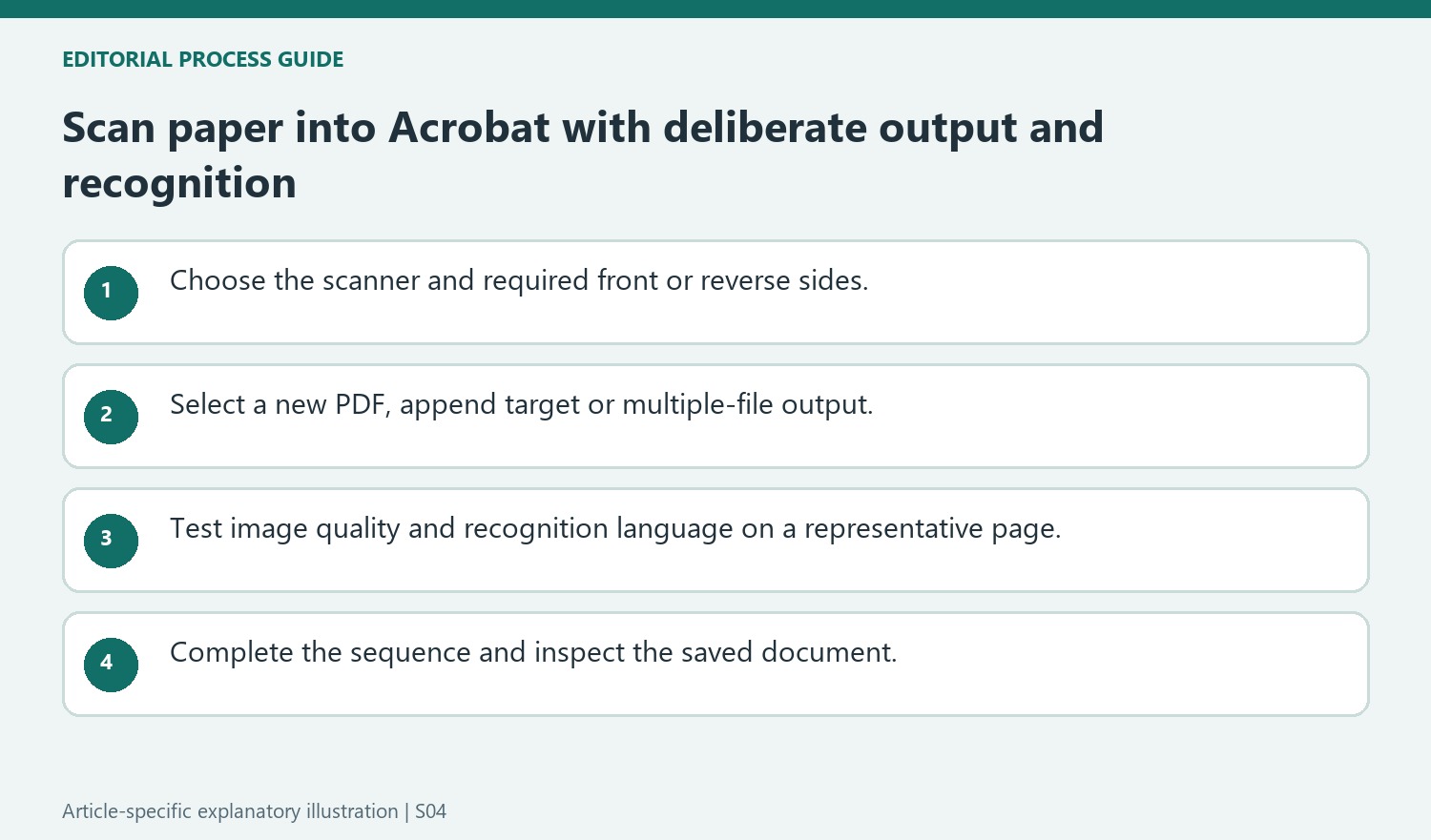
Adobe's guidance starts with Create and the Scanner workflow in Acrobat. Choose the connected device and confirm whether front sides or both sides should be captured, according to hardware support. Select whether the result should be a new PDF, an addition to an existing file or multiple files. These choices determine the document package before scanning begins. Review the original page order and feeder arrangement so an apparently successful scan does not create reversed pages, missing reverse sides or an accidental addition to the wrong existing document.
Balance image quality with recognition and file size
The source describes an Optimize Image quality setting and an OCR option that can create searchable, selectable text. Choose the recognition language and output behavior for the actual source. A lower image-quality setting can reduce size but make small text or fine detail harder to inspect. Test a representative page before scanning a large set, especially where faint print or tables are important. Recognition should be reviewed against the page image; a searchable document can still contain mistaken characters that affect names, totals or later search results.
Finish the page sequence and inspect the saved document
Acrobat can prompt for more pages, reverse sides or completion of the scan. Follow the device's supported feeder or flatbed process and check the final page sequence. Adobe also describes metadata entry and an optional archival-compliance setting when required. These should reflect the document's real purpose rather than be selected automatically. Reopen the saved PDF and inspect page count, orientation, cropped edges and representative recognized text. Keep a clear filename and preserve the paper or another source copy according to the established document-handling workflow until the scan has been reviewed.
Specify the document package before starting the scanner
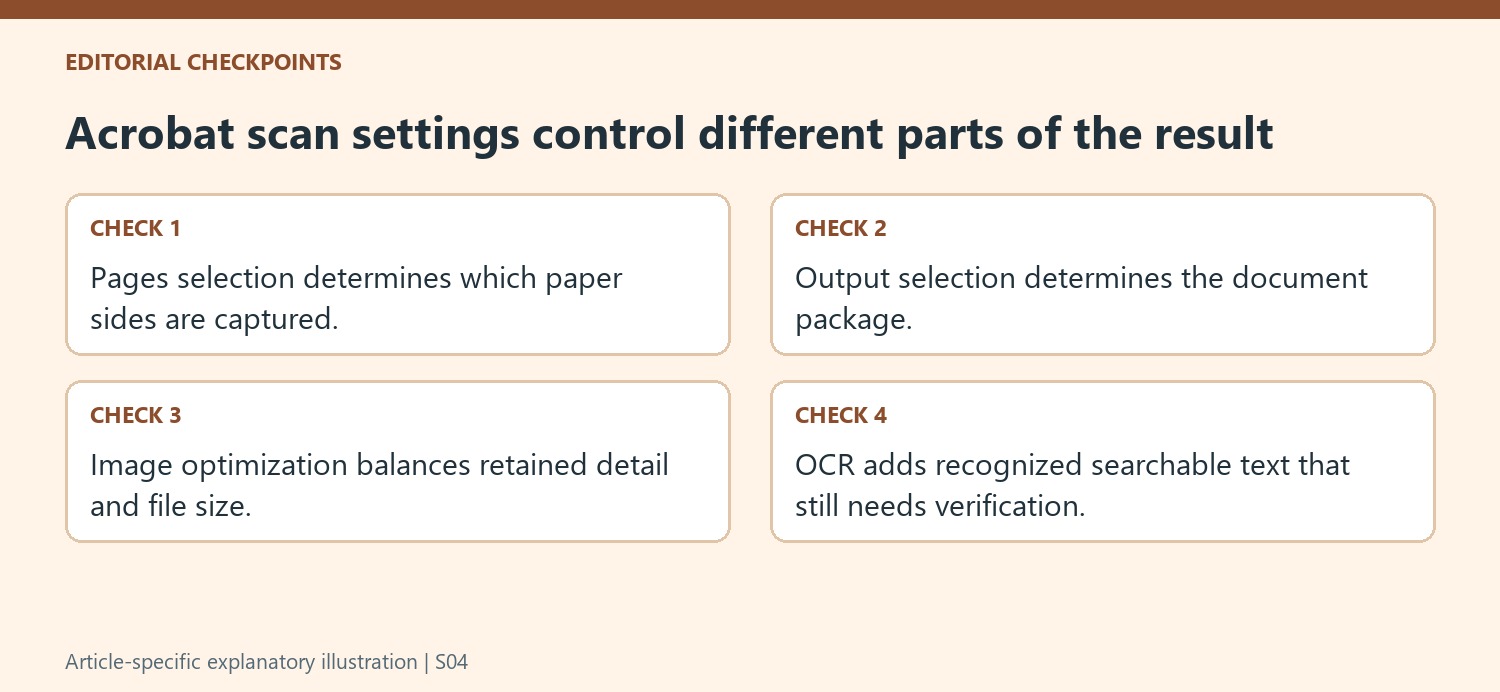
Decide whether the paper set should become one new PDF, an addition to an existing document or several separate files. The Output choice implements that decision in the described Acrobat workflow. Confirm the target carefully when appending so a correct scan is not attached to the wrong existing file. Arrange the paper and check the device's feeder behavior before processing a large set.
Front Sides and Both sides also depend on the scanner and the actual source pages. A duplex document can lose required content when only fronts are captured, while an inappropriate two-sided workflow can add unwanted blanks. Test a short representative set and compare the resulting order with the paper. The scanner completing a pass does not prove that every original side entered the document correctly.
Balance image quality and text recognition through a representative page
Optimize Image adjusts a quality-and-size trade-off, while Recognize Text creates searchable or selectable wording. These are related but different controls. A low-quality image can make faint print difficult to verify even if OCR produces some readable text. Choose the recognition language and output type according to the source, then compare important figures and names with the scanned page.
Inspect small text, table rules and material near the page edges before accepting a setting for the complete batch. A clean central paragraph can conceal a cropped marginal note or a faint total. If the first test is unsuitable, revise the settings before scanning the full set. This keeps quality review attached to actual evidence rather than a general assumption that the highest compression or a successful OCR pass is sufficient.
Complete the scan sequence and review the stored file
The workflow can request more pages, reverse sides or confirmation that scanning is complete. Follow the supported feeder or flatbed procedure and inspect the final sequence afterward. Metadata should describe the actual document, and archival-compliance options should follow the real requirement. Reopen the saved PDF from its destination and check page count, orientation, boundaries and representative searchable text. Preserve the paper or another source under the established process until the scan is accepted, and use a filename that distinguishes this reviewed output from tests or incomplete captures.
References
- Scan documents. helpx.adobe.com.


Comments
0