 DocumentFlow Desk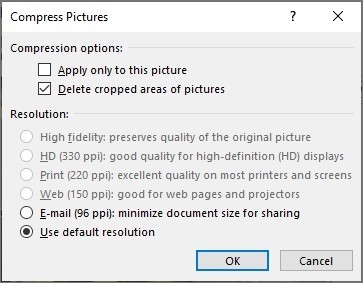
Choose the picture scope and required output quality
Microsoft describes selecting a picture and opening Compress Pictures through Picture Format. Check whether the operation applies only to that picture or to every image in the document. A reduction that is suitable for an on-screen illustration may make a detailed chart or scanned text difficult to read. Keep an original copy and choose the resolution according to the intended use. Inspect representative images at their actual output size rather than assuming a smaller file automatically preserves the information that the reader needs.
Understand the loss of cropped and editing data
The source identifies Delete cropped areas of pictures and Discard editing data as separate ways to reduce stored content. Both remove information used to restore an image's earlier state. That can be appropriate for a finished distribution copy but unsuitable for an editable master that still needs revision. Review the distinction before accepting the settings. Keep original image assets or the uncompressed document when future recropping is likely. A visible picture may look unchanged immediately even though the document has lost material needed for later editing.
Review font portability as well as image size
Embedded fonts increase a document's size but can help recipients use the intended typeface when it is not installed locally. Microsoft describes turning embedding off or limiting it to used characters and excluding common system fonts where suitable. Choose according to the recipient's editing and viewing needs, rather than removing fonts solely to achieve the smallest file. Save the reduced version separately and compare its size, appearance and essential content with the original. Reopen representative pages to check that the file remains readable and that the chosen trade-offs fit its intended role.
Set an image-quality requirement before reducing stored data
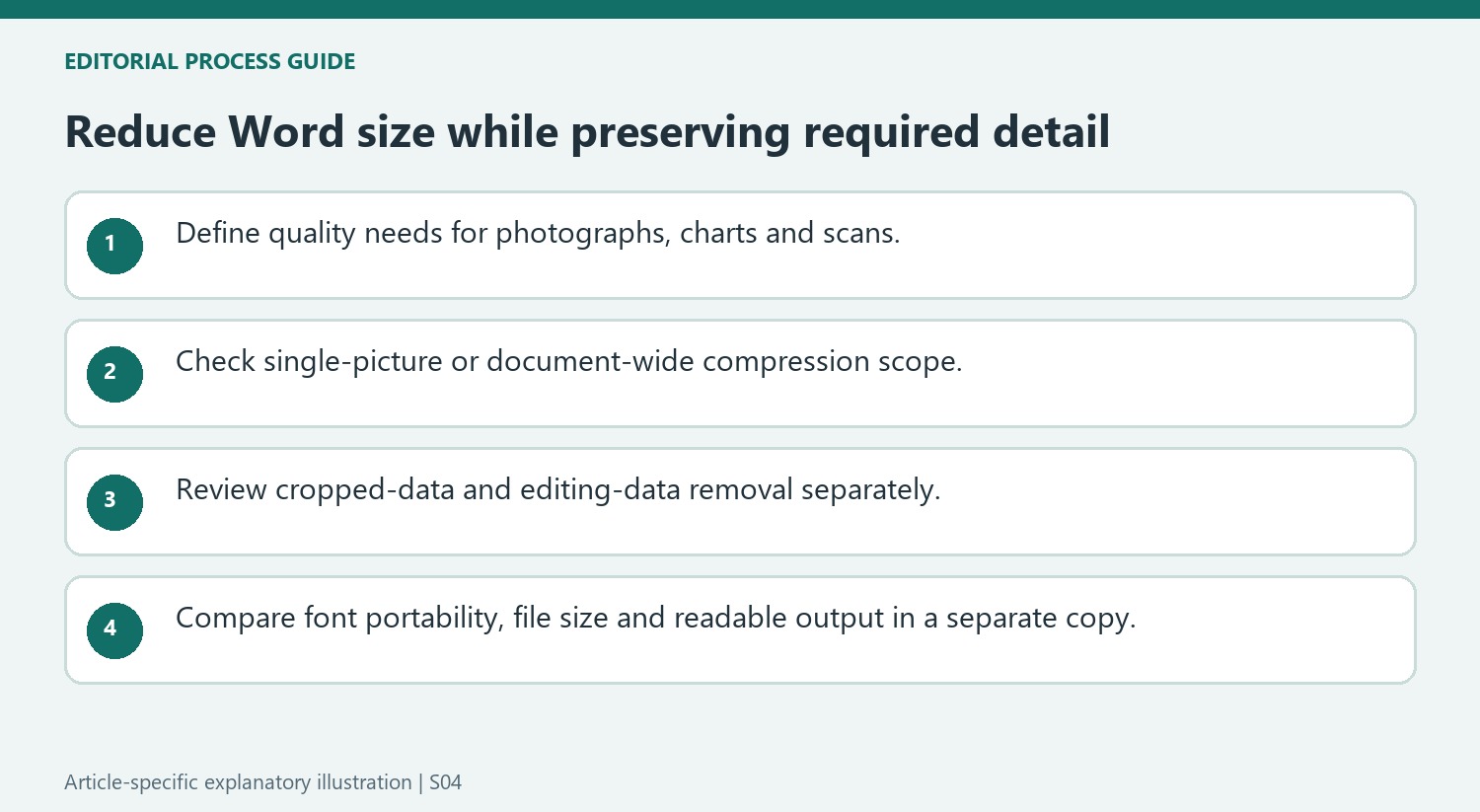
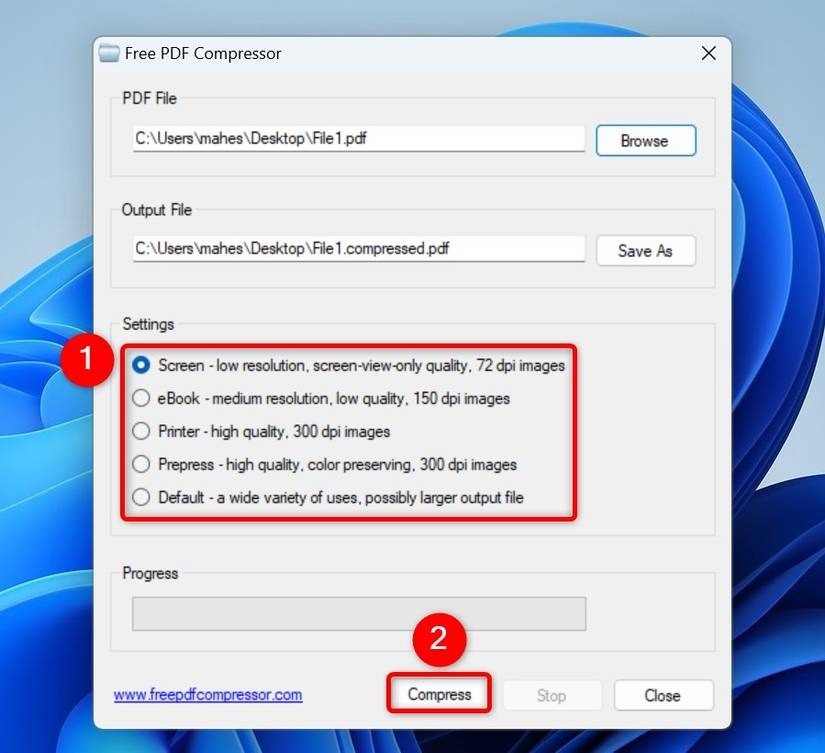
A photograph used as a small illustration has different needs from a chart containing fine labels or a scan whose small text is evidence. Inspect those categories before choosing a compression setting. The support page suggests lower resolutions as a size-reduction route, but the actual decision should follow the detail needed at the final display or print size. A smaller number is not automatically a better result.
Use a separate distribution copy for experiments and compare representative images with the original. View them at the size readers will actually use, not only as small thumbnails. Inspect text edges, chart annotations and cropped boundaries. The document can remain visually similar on the opening page while one dense image elsewhere has lost the information needed to understand it.
Understand the difference between displayed content and recoverable image data
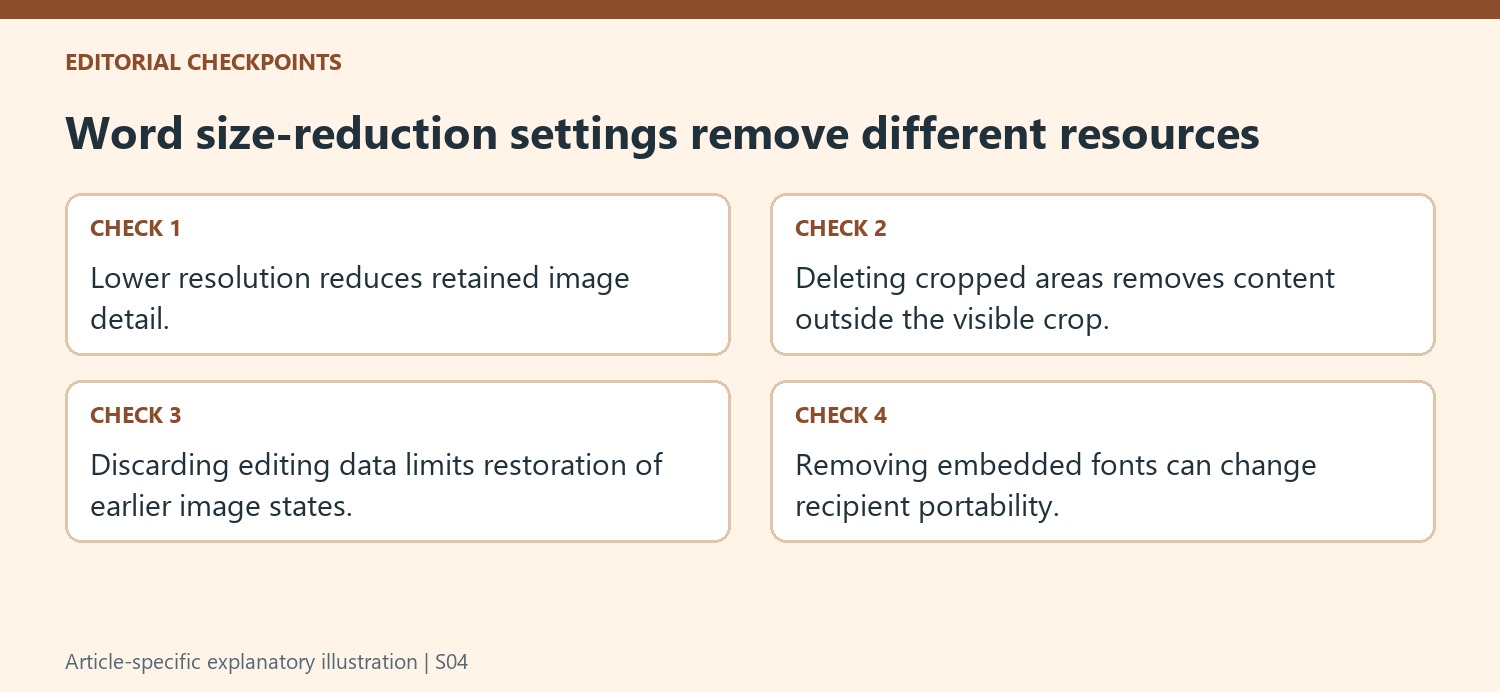
Deleting cropped picture areas removes material that is outside the current visible crop. Discarding editing data removes stored information used to restore an earlier image state. Both can reduce size while leaving the immediate visible composition apparently unchanged. That does not mean the operations were lossless for future editing. Decide whether the file is a finished copy or an editable master before applying them.
Keep the original image assets or the uncompressed document if later recropping remains likely. A future editor may need a wider view than the current layout shows. Also inspect Apply only to this picture: clearing it broadens the compression scope to other images. Test one deliberate image before using a document-wide choice so the relevant quality trade-off is understood rather than discovered after the source data has been discarded.
Review font portability alongside the image trade-off
The source explains that embedded fonts help a recipient use the intended typeface when it is not installed locally, while increasing file size. Limiting embedding to used characters can reduce the stored set, but consider whether the recipient needs to add new text as well as read the existing document. Excluding common system fonts is another documented option. Compare the reduced file with the original for size, layout and readable content, then retain a clearly named master whose resources remain suitable for the next editing task.
References
- Reduce the file size of your Word documents. support.microsoft.com.


Comments
0