 DocumentFlow Desk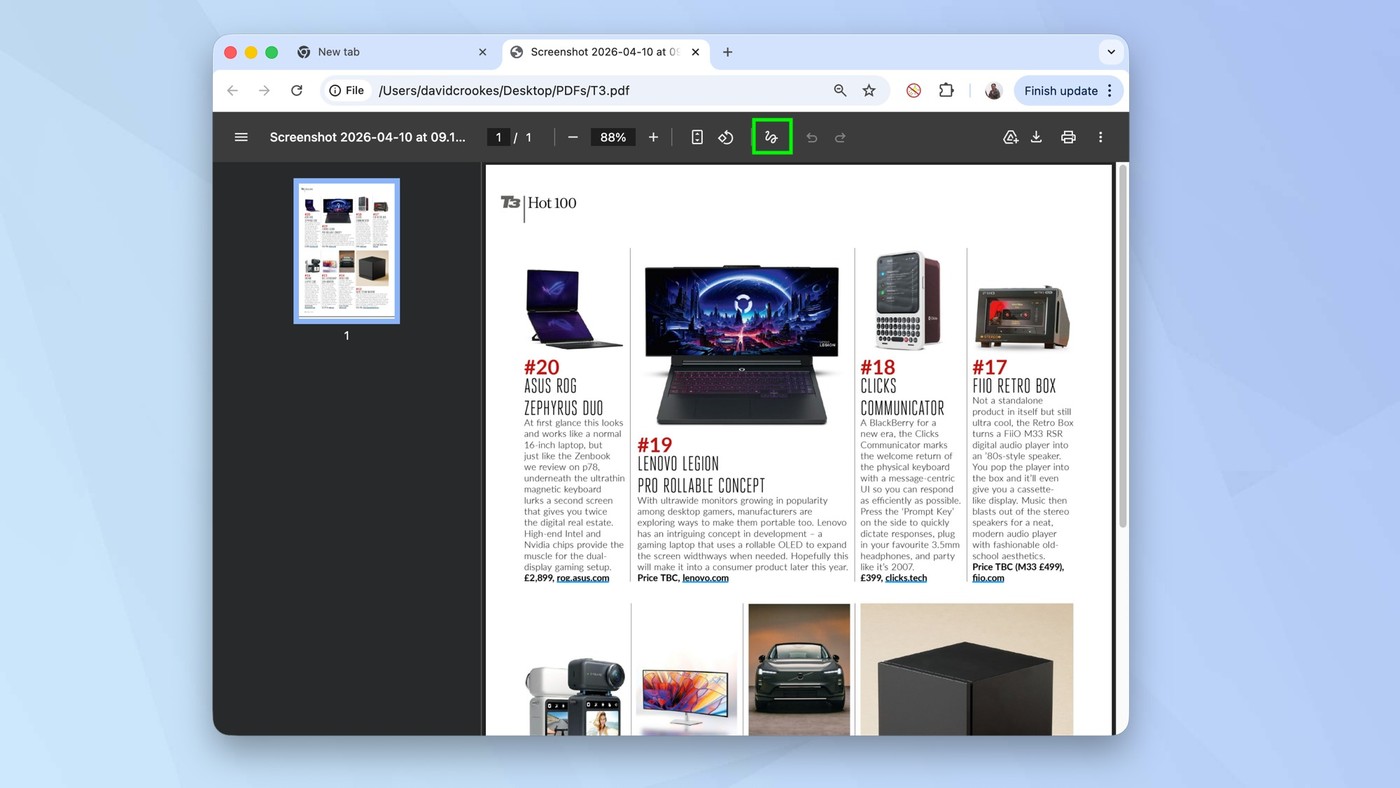
Check the viewer version and open the correct file
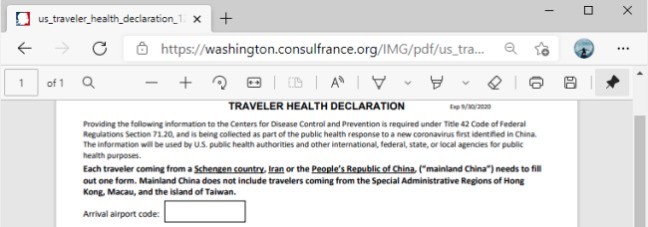
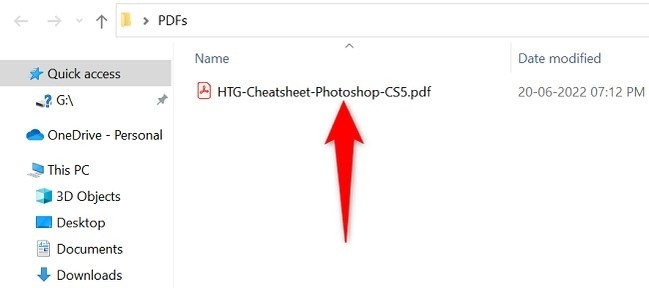
The source describes annotation controls introduced in the Chrome version it discusses. Confirm that the installed browser exposes the relevant PDF tools before following the workflow. Dragging a local PDF into Chrome opens it in a viewer tab, where the document toolbar provides the available actions. Check the filename and page count so the intended version is being reviewed. Opening a local file in a browser viewer is a display step; it should not be confused with converting the source into a fully editable word-processing document.
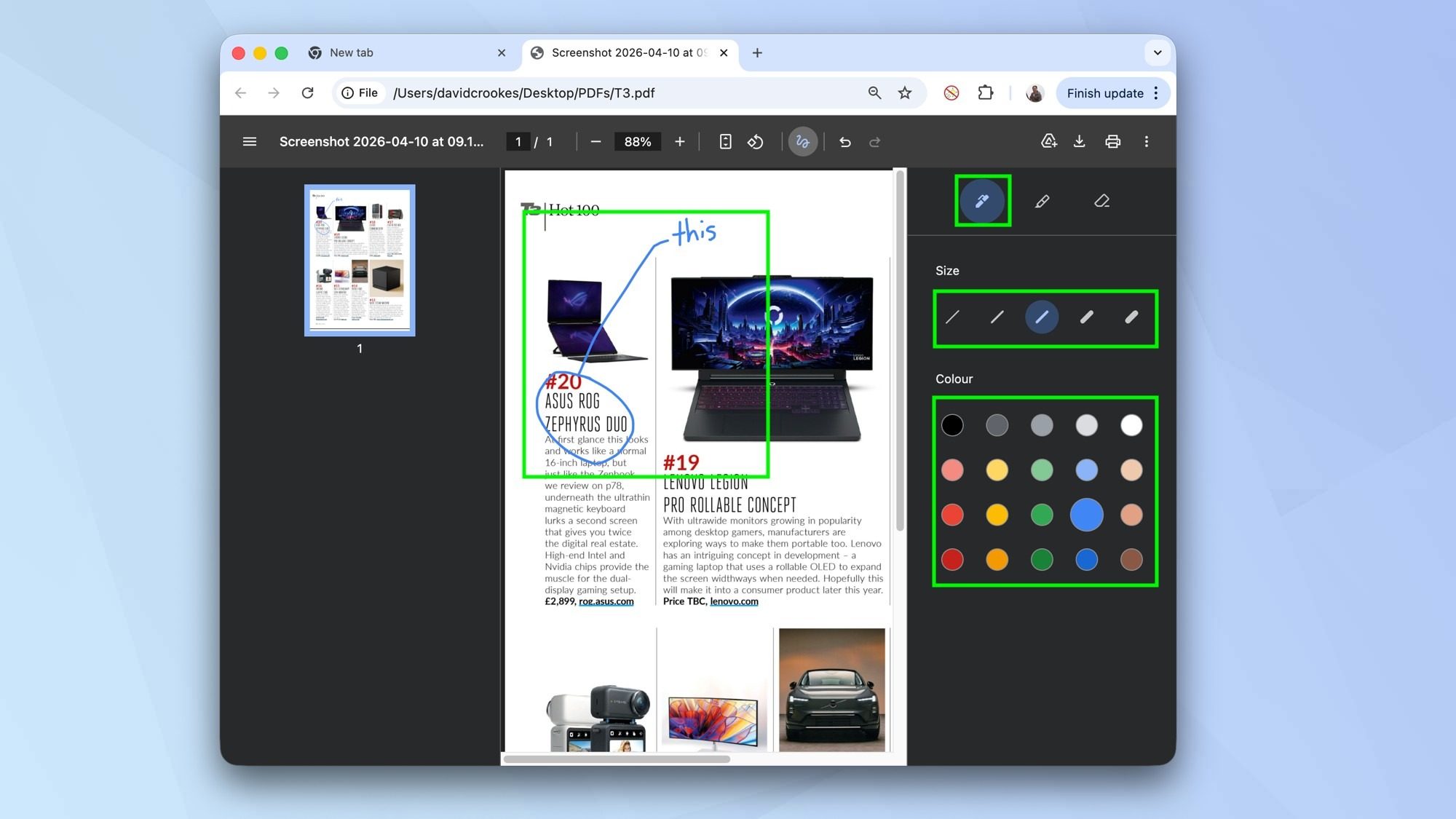
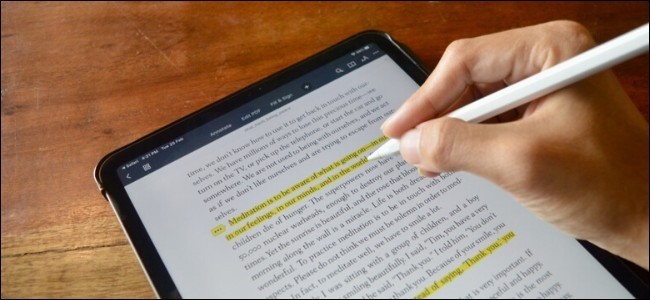
Use pen, highlighter and eraser for visible review marks
The article demonstrates opening the Draw controls and selecting pen or highlighter settings such as color and stroke size. Choose a mark that leaves the underlying text readable. Freehand strokes can call attention to an area, but they do not change the wording beneath them or create a verified signature simply because they resemble handwriting. Use the eraser and undo controls to correct misplaced marks. Review dense passages and page edges carefully, since a broad stroke can obscure a figure or annotation that remains important to the document's meaning.
Download the copy with the intended annotation state
The source describes download choices that can save the PDF with or without changes, alongside a Drive-related save option in its interface. Inspect that choice before finishing so the annotation work is not omitted accidentally. Use a separate filename and reopen the saved result in a normal PDF viewer. Check that all intended pages and visible marks are present, and that no accidental strokes remain. Retain the original when an unannotated reference is useful. A saved review copy should make its purpose clear to the next reader without requiring access to the browser session in which it was created.
Confirm feature availability before relying on a browser workflow
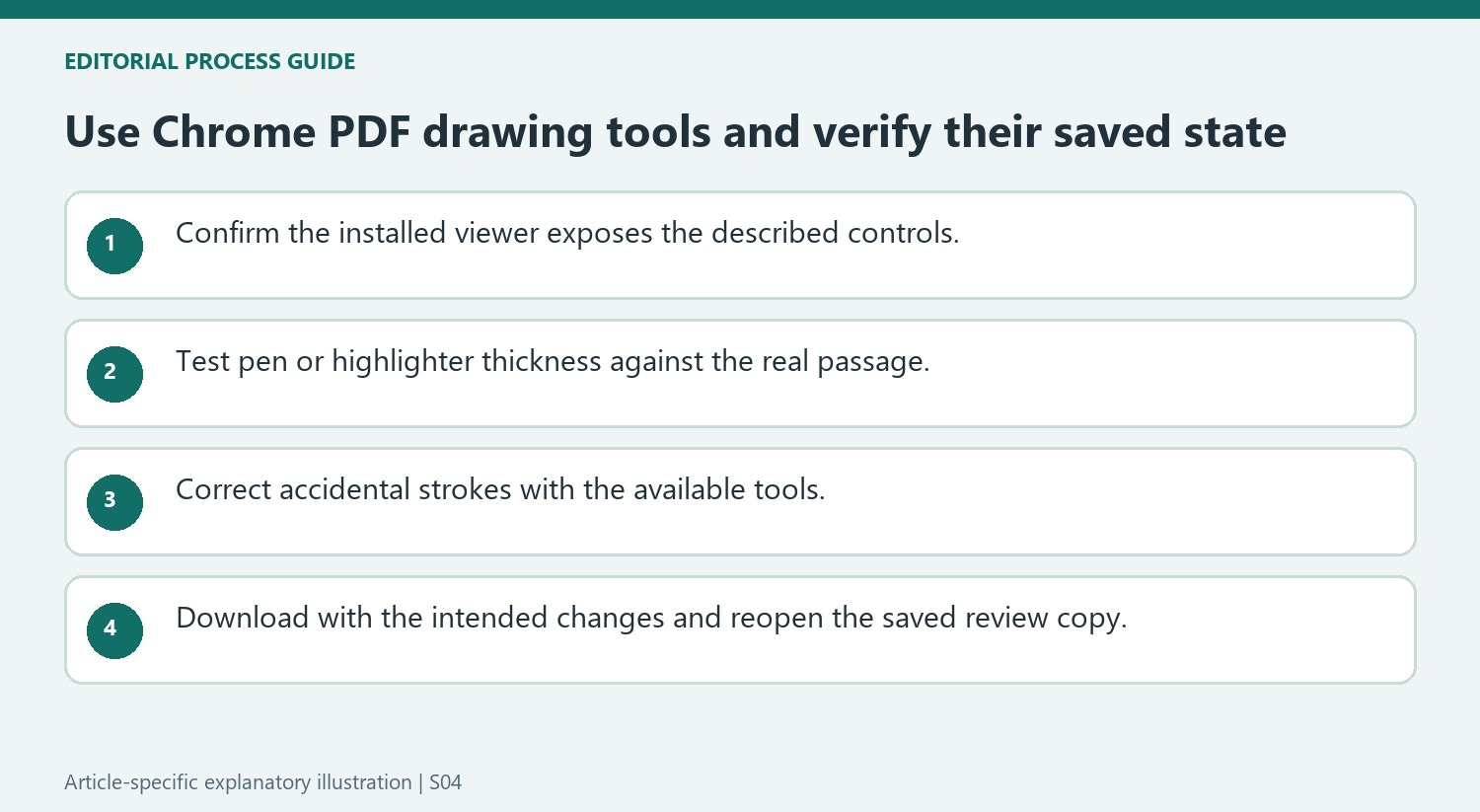
The source ties the annotation controls to the Chrome release it describes. Inspect the installed viewer toolbar and available Draw controls before planning a full review around them. A PDF opened successfully in a tab does not establish that every editing feature is present. Confirm the intended file and page count too, particularly when local and downloaded copies have similar names.
Opening a local PDF in the viewer is a display action. The drawing tools add marks to that page representation rather than reconstructing its paragraphs as editable Word content. Keep that distinction clear when the actual request is to revise wording. A pen stroke through a sentence can communicate feedback but does not perform the same operation as accepting a tracked text correction in an authoring document.
Test stroke settings against the actual passage
Select a pen or highlighter color and thickness, then place a small representative mark. Inspect whether it is visible without obscuring text. Dense figures and fine print can need a different treatment from a large heading. A highlighter that looks transparent over one area can still make another annotation or a chart label harder to read when several strokes overlap.
Use the eraser, undo and redo controls deliberately when correcting marks. Review the area after correction so a partial accidental stroke does not remain. Handwritten marks should be described as visual annotations; a signature-like drawing is not by itself a verified digital signature. Keep an original copy if the review needs an unchanged reference alongside the annotated result.
Verify the download choice and the actual saved state
The tutorial describes saving with or without changes and a Drive-related action. Inspect the selected option before finishing so the review marks are retained where required. Save under a distinct name, then reopen the output outside the active annotation session. Check every annotated page and look for unintended strokes as well as missing notes. A complete saved review copy should remain understandable without the browser state that produced it, with clear page scope and marks that point accurately to the passages under discussion.
References
- Google Chrome has a secret PDF tool that everyone should use. Tom's Guide; David Crookes.


Comments
0