 DocumentFlow Desk
Understand that Word creates an editable reconstruction
The source explains that opening a PDF through Word creates a converted copy rather than directly editing the original PDF. Use File, Open, Browse to choose the source and review the conversion notice. Save the working result with a clear DOCX name so it is distinguishable from the original. A PDF preserves page appearance, while Word needs editable paragraphs and objects. That difference means successful opening does not promise an identical layout or establish that every visible component has become an appropriate editable element.
Inspect complex pages and scanned text before revising
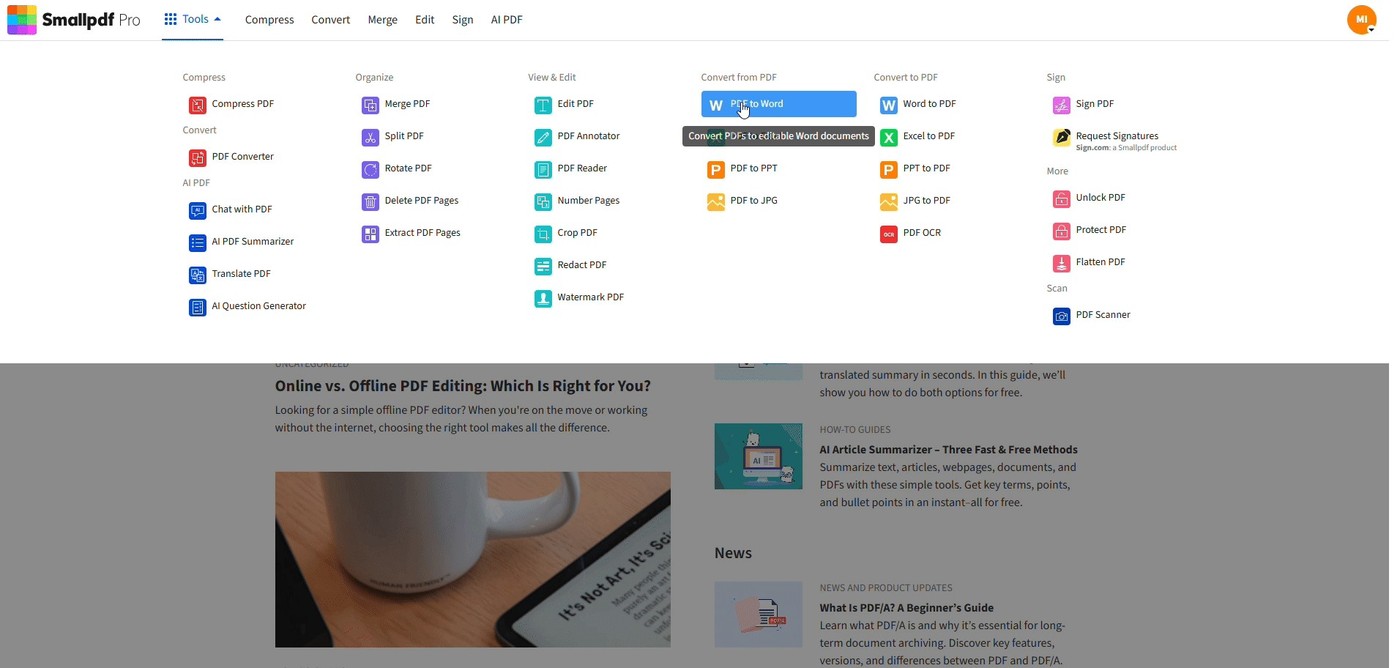
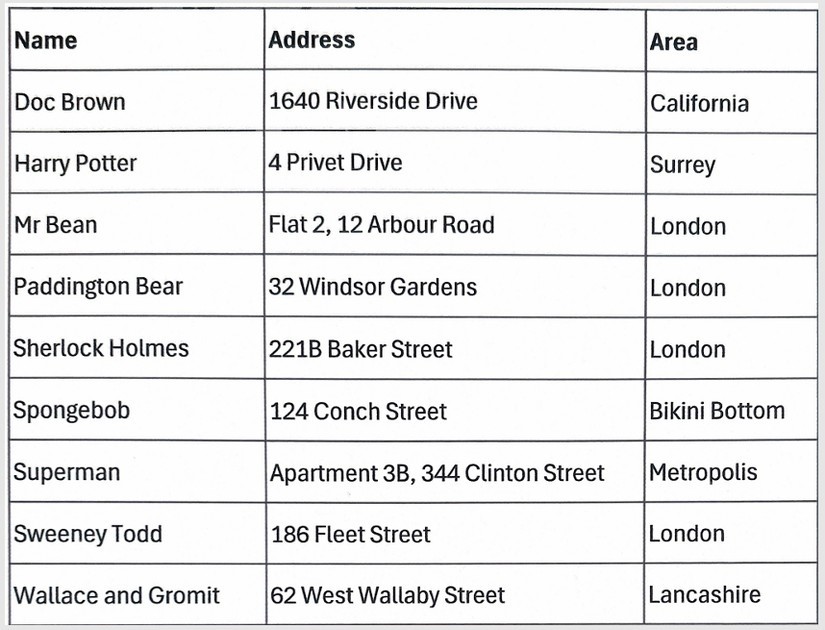
The article identifies tables, columns, graphics, footnotes and unusual fonts as potential conversion challenges. Check the first and last pages, headings and fine-print passages before beginning a long editing pass. If the words remain part of a page image, an OCR workflow may be required to create editable text. Review recognized characters carefully, especially figures and names. Browser-based conversion is another route described by the source, but it still needs an output check. No conversion method should be treated as a universal guarantee of perfect reconstruction for every PDF.
Choose insertion instead when the file should remain separate
Opening and converting a PDF differs from inserting it into Word as an object, icon or link. Use the latter when the task is attaching a reference without incorporating all its contents into the editable document. If a file will not open, inspect whether it is damaged, restricted or unexpectedly scanned before changing the workflow. Request the appropriate password or source copy when access is required. After editing a converted document, generate and inspect a fresh PDF, retaining the original and the editable working file for later verification.
Identify what conversion produced before editing the wording
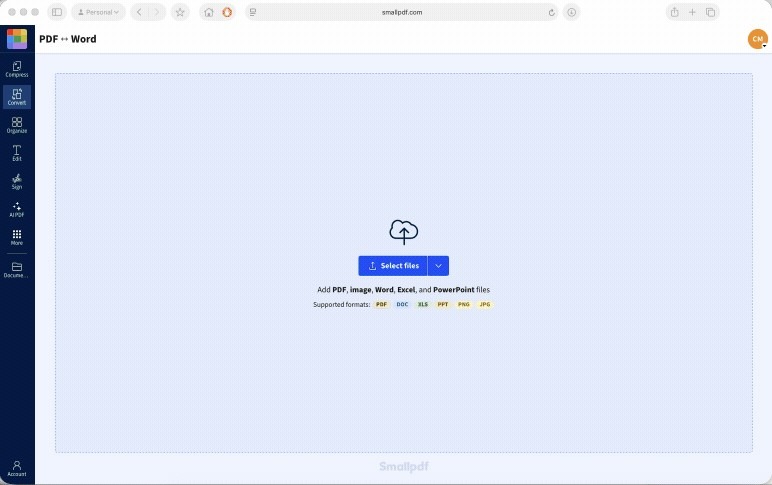
Word creates a converted copy from the PDF and leaves the source unchanged under the described workflow. Inspect that copy as a reconstruction of page content into editable objects. A heading may look familiar while lacking the intended heading role, and columns may become separate text blocks. Review both appearance and reading order before treating the result as a normally structured Word document.
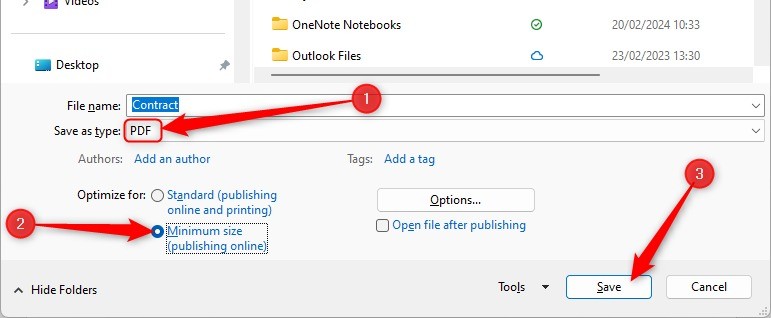
Save the working DOCX with a name that distinguishes it from the source PDF. This keeps later edits traceable and makes it clear which file should be exported after revision. Before a long editing pass, compare representative pages with the original, including the first and last pages, dense tables and fine print. Early inspection prevents conversion defects from becoming mixed with later intentional wording changes.
Check OCR and recognized data against the scanned page
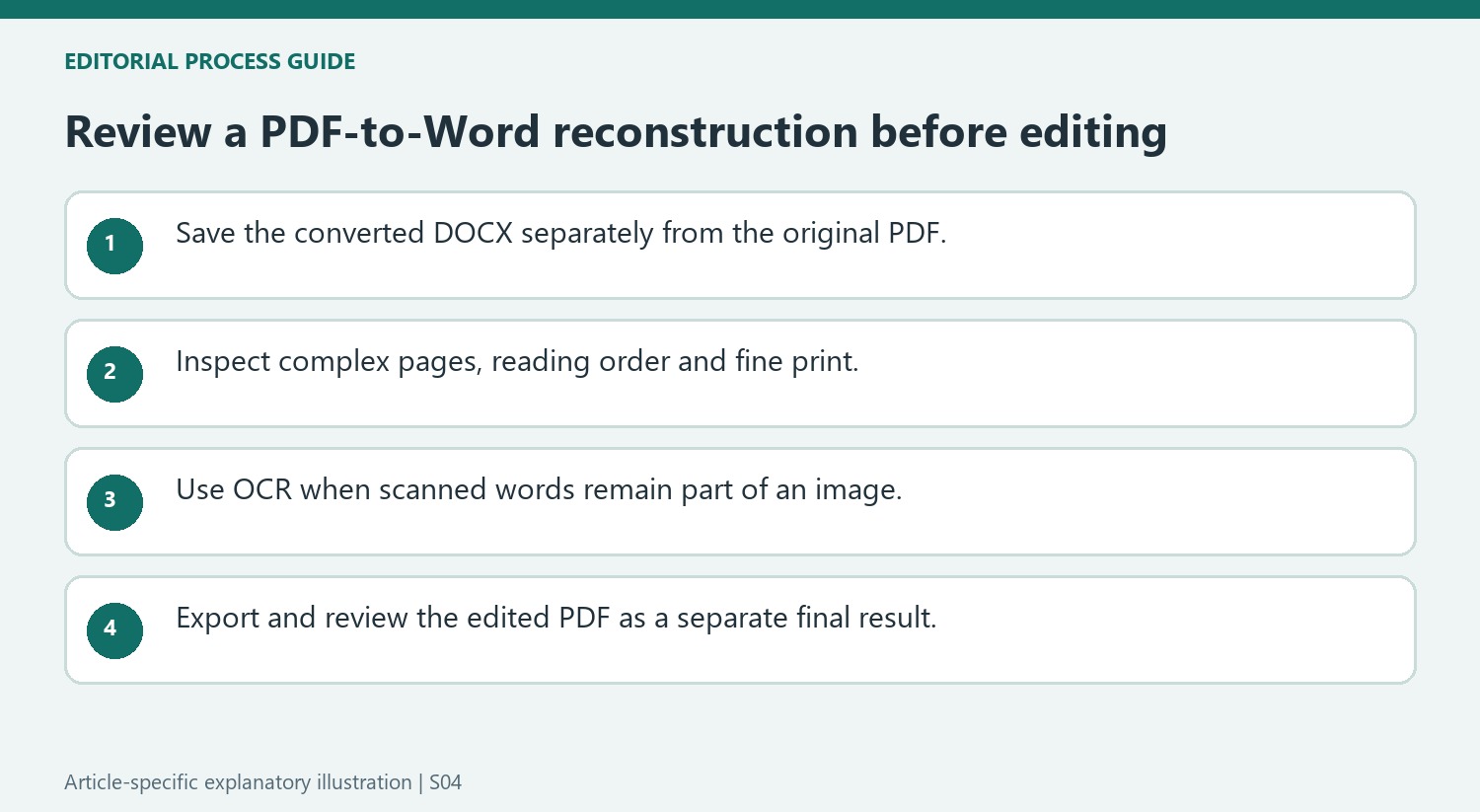
If text remains part of a page image, the words may not be editable even though the PDF opened successfully. The source points to OCR for that situation. After recognition, compare names, numbers, punctuation and reading order with the scan. A small character substitution can change an amount or identifier while the overall paragraph still appears plausible.
Complex layouts require the same care whether conversion happens through Word or a browser service. Footnotes can move, fonts can change and charts can remain images. Choose the route that fits the actual document, then inspect its output rather than assuming a service name guarantees identical reconstruction. Keep the original comments and annotations available too; they should not be assumed to become equivalent editable Word review objects.
Choose attachment insertion when conversion is not the task
If the PDF is meant to remain a reference file, insert it as the supported object, icon or link instead of reconstructing all its content. For a file that will not open, inspect the source copy, access restrictions and scan status before changing tools. Use the appropriate password or authorized source where needed. After editing any converted document, export a fresh PDF and inspect that final result separately. Preserve the original, working DOCX and final PDF so their different roles remain clear to the next document reviewer and future maintainer.
References
- How to Open a PDF in Word | Smallpdf. Smallpdf; Stéphane Turquay.


Comments
0