 DocumentFlow Desk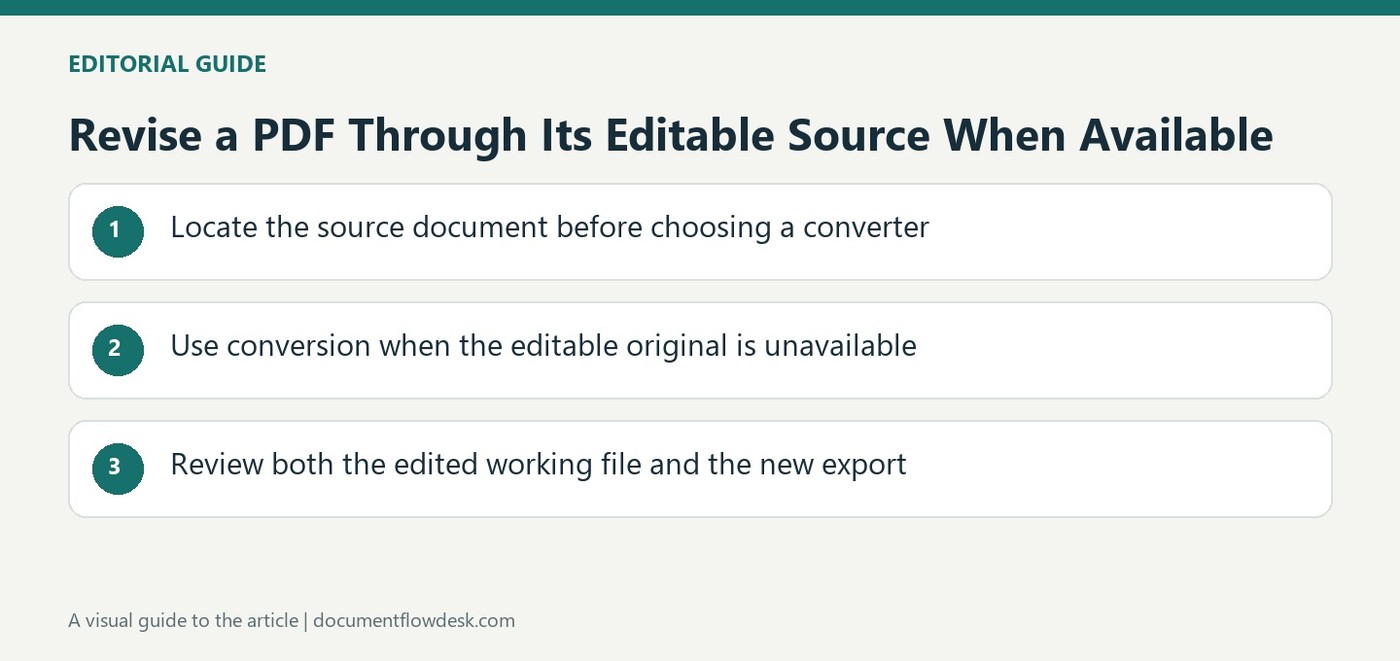
Locate the source document before choosing a converter
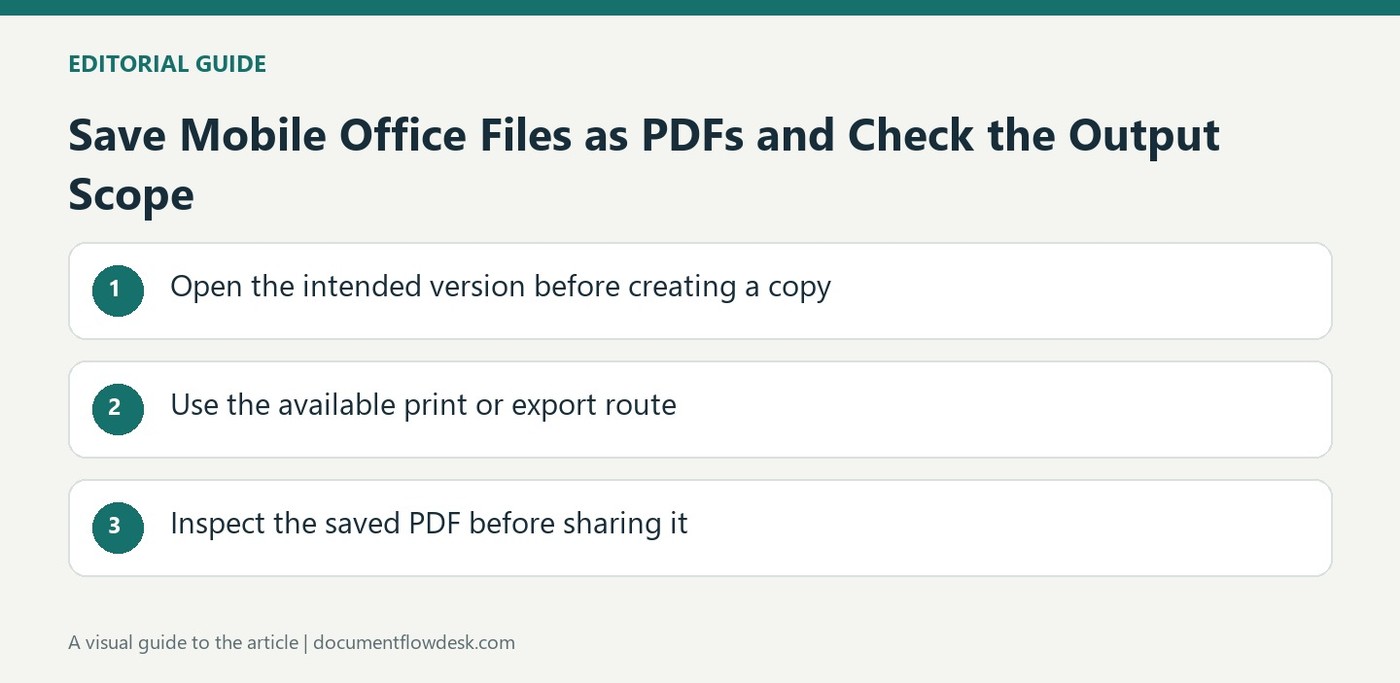
Microsoft recommends starting with the original Office file when a PDF was created from an application such as Excel or Publisher. Open that source, make the required changes and export a fresh PDF. This keeps content revision in the environment that defines the document structure. Confirm that the source corresponds to the version being revised, since an older editable file can omit later corrections made elsewhere. Keep the previous PDF available so the intended changes can be compared and unrelated differences can be noticed before delivery.
Use conversion when the editable original is unavailable
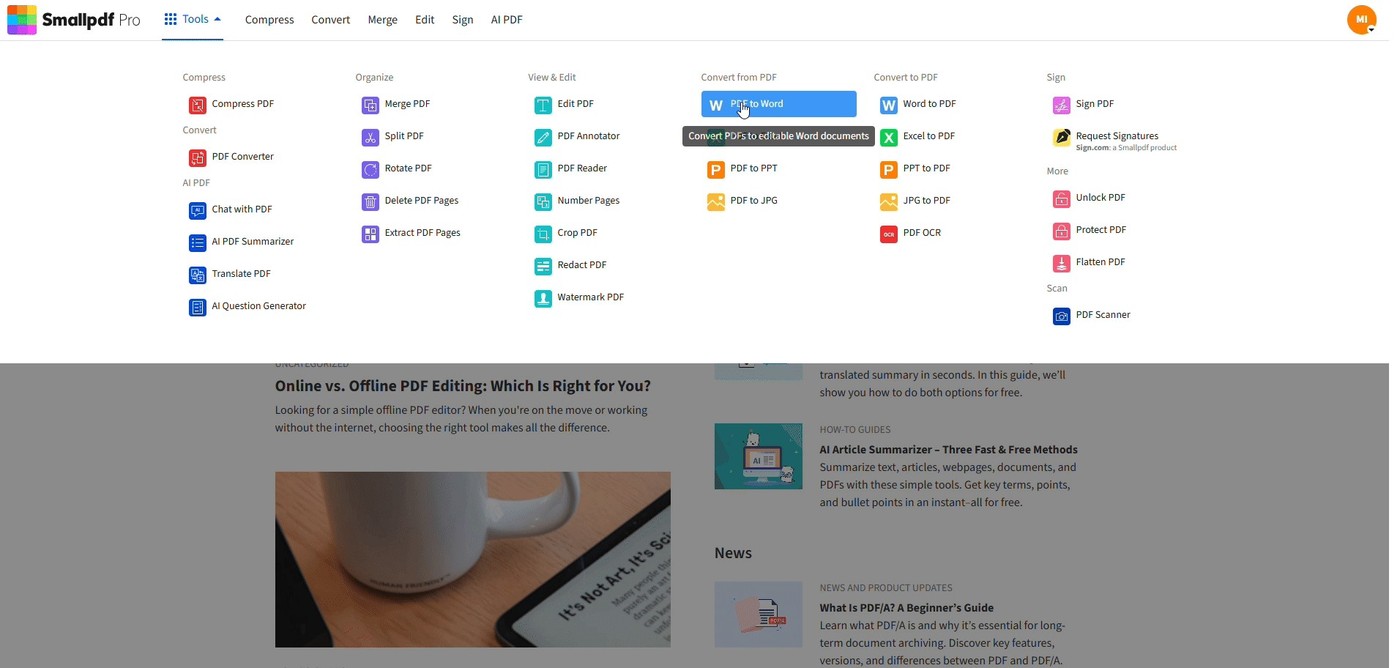
The source points to Word's PDF conversion and third-party converters as alternatives. These routes reconstruct editable content from a fixed-layout representation, so review the result before making substantial edits. A complex page can contain text blocks, images or tables that do not map neatly to the new format. Choose an appropriate tool for the actual document rather than assuming every PDF can become a perfectly structured Office file. Save a separate working copy and preserve the original PDF as the reference for wording and appearance.
Review both the edited working file and the new export
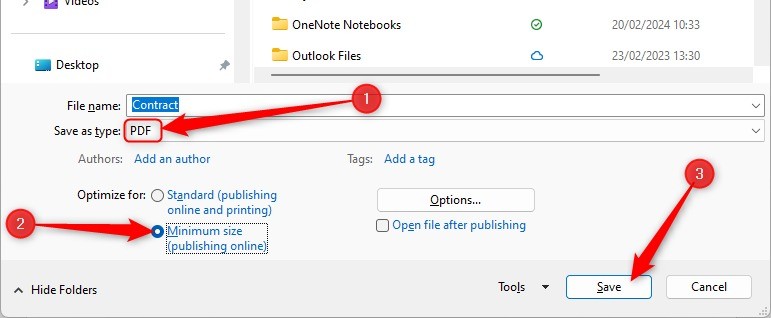
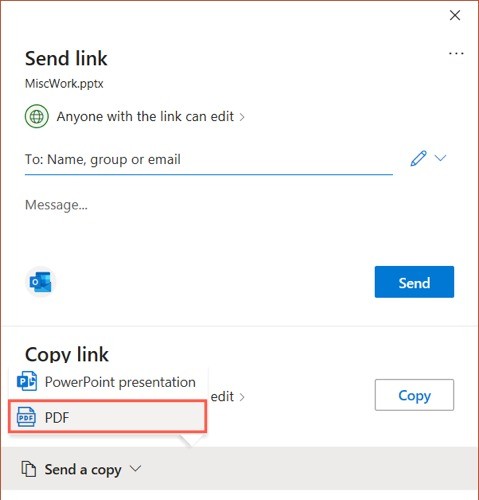
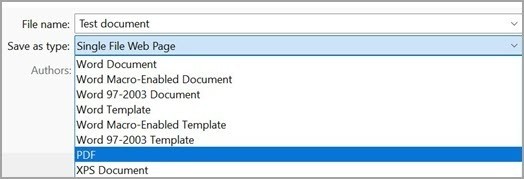
After revising the content, save the editable document and create a new PDF rather than simply renaming the file extension. Inspect the new PDF in a normal viewer, checking the changed passage and surrounding layout. Include tables, images, page boundaries and any fields important to the task. Microsoft notes that third-party products are independent, so evaluate their actual output rather than treating a mentioned converter as a guarantee of quality. Keep filenames clear enough to distinguish the source, working conversion and final export for the next person who maintains the document.
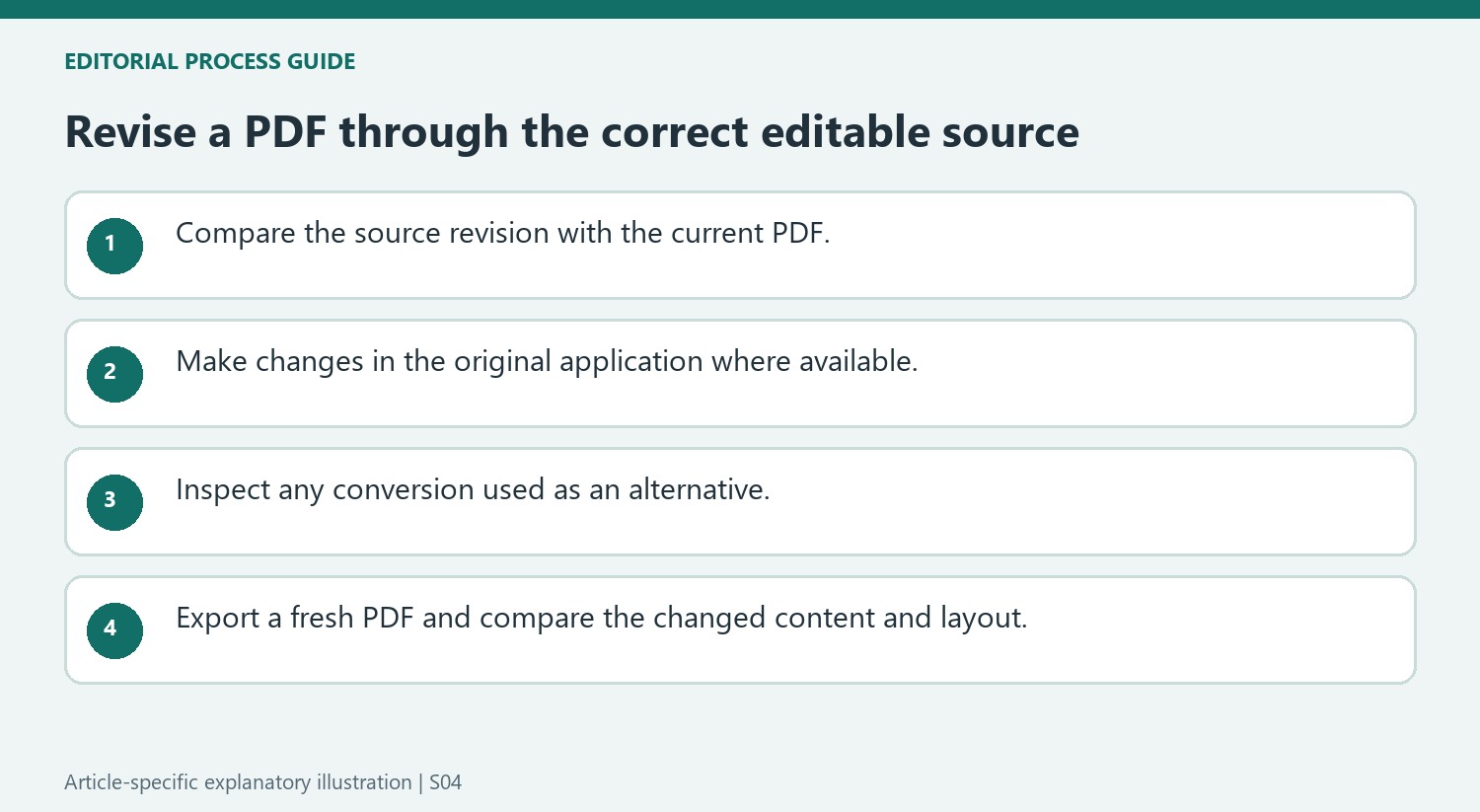
Verify that the editable source represents the right revision
The original Office file is useful only if it corresponds to the PDF being revised. Compare a recognizable heading, a recent correction and any important table before beginning. An older source can recreate a clean-looking PDF while silently losing changes made after that source was last saved. Keep the current PDF beside the editable file during the initial review so discrepancies become visible before the new edit is added.
Make the required correction in the application that defines the source structure. This preserves the relationship between text, tables and layout more clearly than reconstructing them from a fixed-page representation. Save the editable working file under an understandable version name, then generate a fresh PDF. Do not treat renaming a file extension as an export or assume the working document itself is the final fixed-format output.
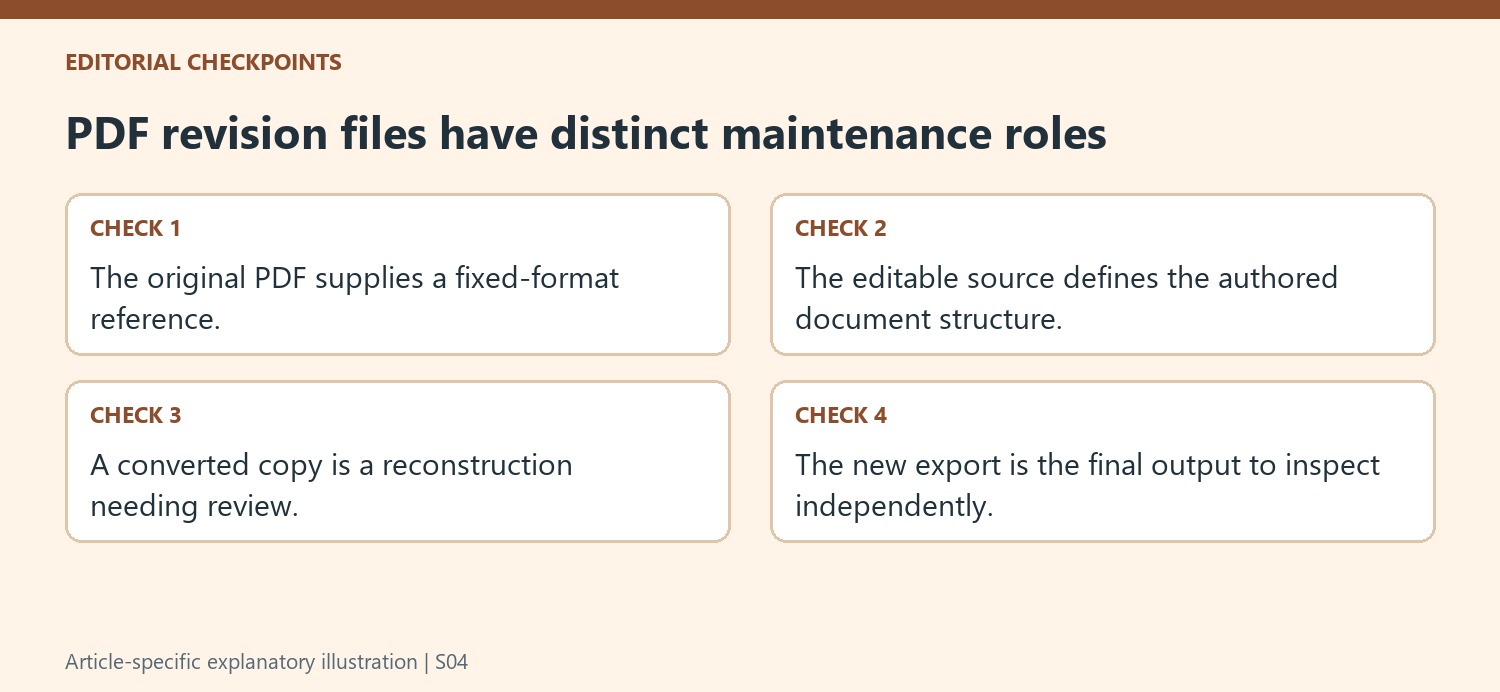
Use conversion as a reconstruction that needs inspection
When the editable source is unavailable, Word or a third-party converter can supply a working version. Inspect the reconstruction before making substantial changes. A multi-column page, image-based section or complex table may be represented differently in the new format. The task is to recover usable editable content, not merely to produce a file that opens in an Office application.
Compare names, numbers and paragraph order with the original PDF. Where a page contains graphical or scanned content, check whether the desired wording actually became editable. Keep the original unchanged as the reference while correcting conversion issues. A mentioned third-party tool is an available route to evaluate, and Microsoft explicitly separates those products from its own performance guarantees in the source guidance.
Check the new fixed-format export after the working edit is complete
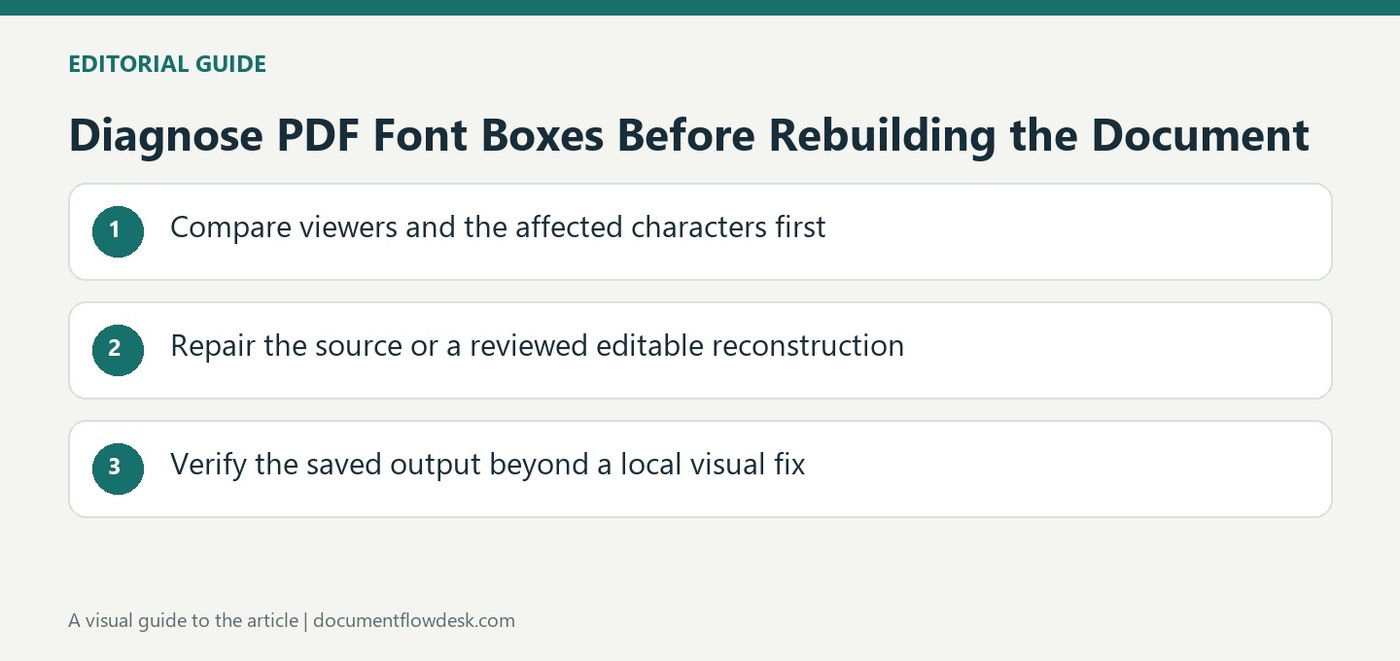
Open the exported PDF in a viewer and inspect the changed passage together with the surrounding pages. Review tables, images and relevant fields rather than checking only that the corrected words appear. An edit can shift pagination or alter a neighboring layout relationship. Retain both the edited source and the reviewed export with clear filenames. That gives the next maintainer an appropriate place to make future changes and a fixed-format reference showing what was actually delivered to the intended reader in this particular document revision.
References
- Edit or make changes to a PDF file. support.microsoft.com.


Comments
0