 DocumentFlow Desk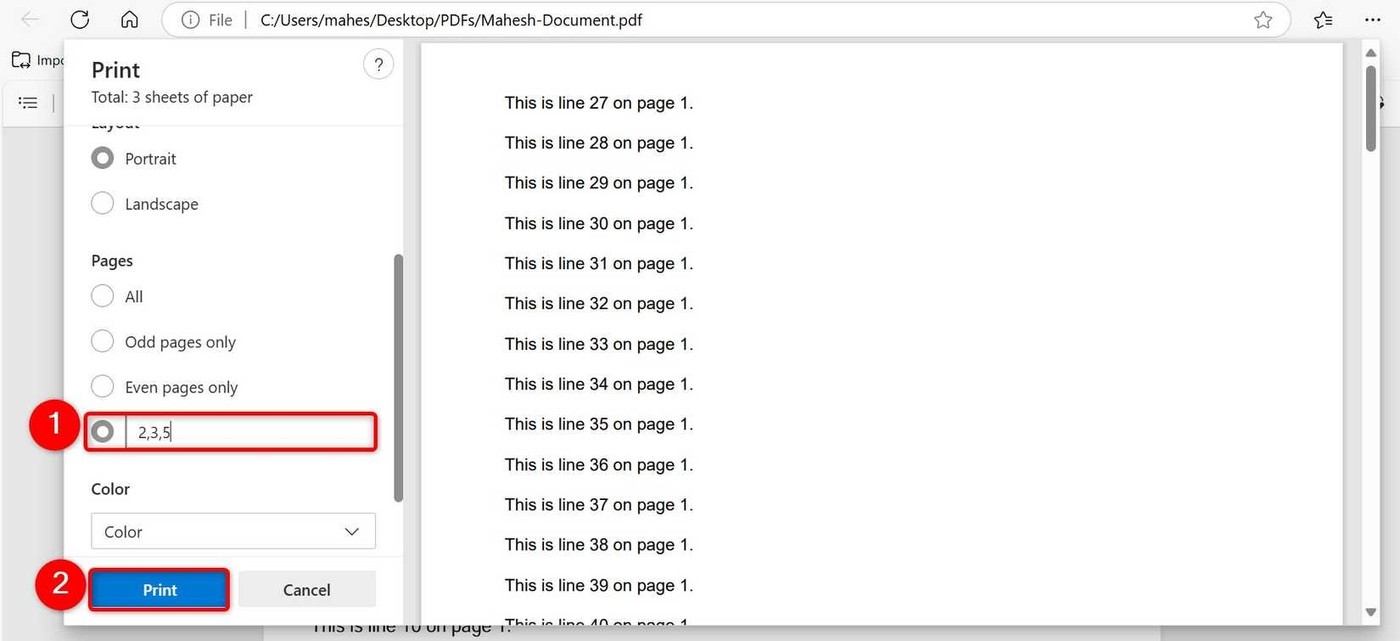
Extract a deliberate range through Microsoft Edge
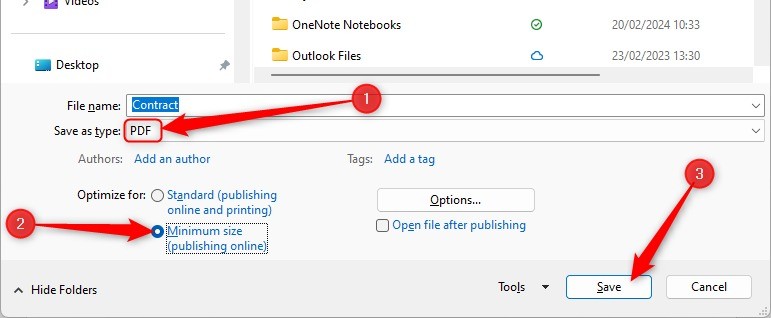
The source describes opening a PDF in Edge, choosing Print and selecting Microsoft Print to PDF. Enter the required pages or ranges, inspect the preview and save under a new filename. This creates a new PDF rather than sending paper to a physical printer. Check the requested physical page positions against the document itself, especially if cover pages or Roman-numbered front matter differ from printed labels. Keep the source intact and review the output for page count, order and completeness before using it as an extracted record.
Choose between a combined extract and one file per page
The desktop PDF Merger and Splitter example offers two different outputs: selected pages gathered into one PDF, or a separate PDF for each selected page. Review that setting before processing so the destination does not fill with an unexpected set of files. Select the intended page thumbnails and confirm the displayed range. Save into a clearly named folder and inspect the resulting set. A successful split operation does not establish that the right pages were selected, particularly when several similar scanned forms appear together in the source.
Use advanced rules only when they match the requirement
The article describes PDFsam options for splitting at specified pages, at fixed intervals or by bookmark levels. These rules can help automate a large document, but their meaning needs review against its actual structure. A bookmark level can include more or fewer boundaries than expected. The source also discusses online splitters; choose that route only when the document-handling context permits upload. Whichever tool is used, retain the originals and verify representative boundaries in the output so the derived documents remain complete and understandable outside the original combined file.
Define the required output set before selecting pages
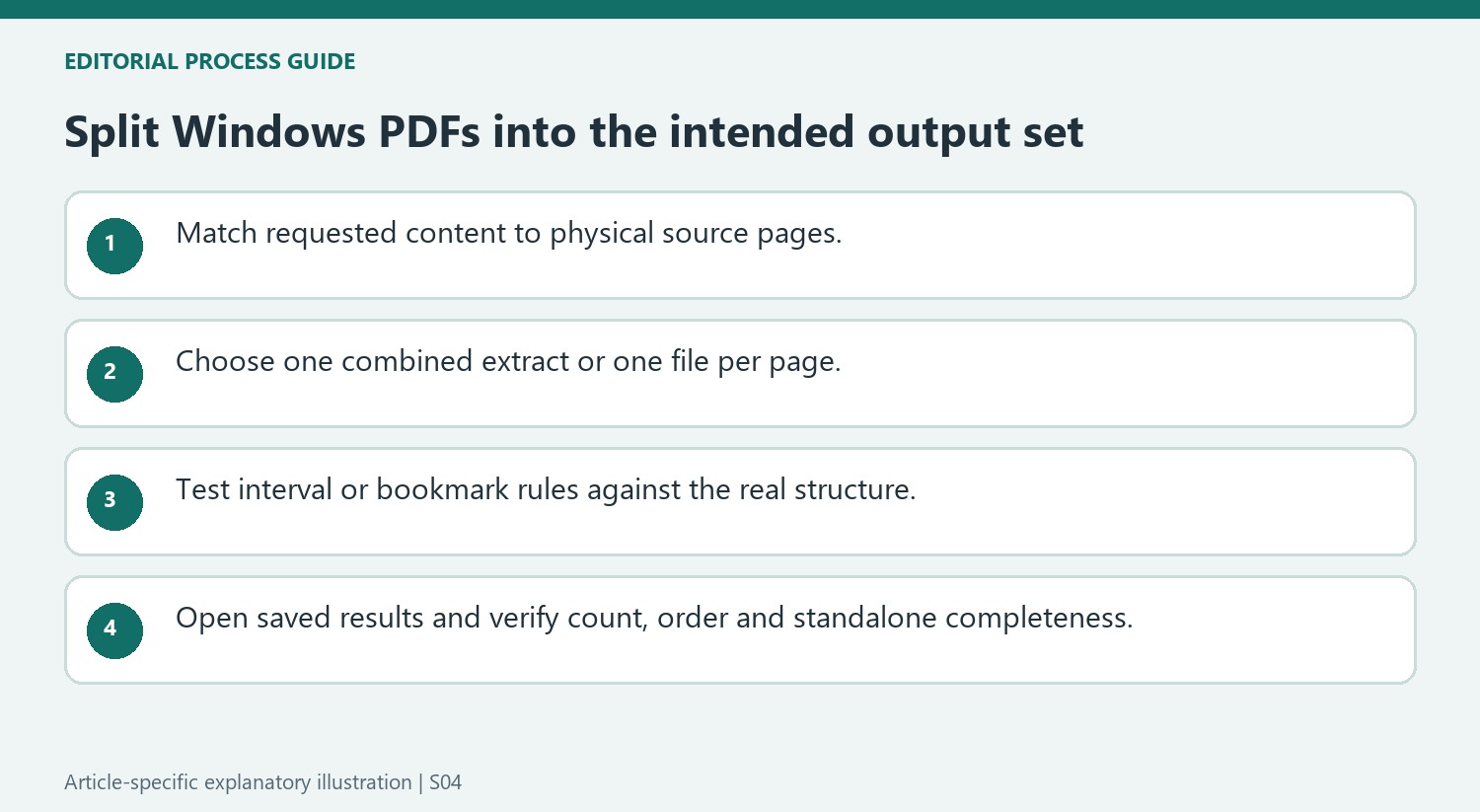
A single PDF containing a selected chapter and a separate PDF for every chosen page are different deliverables. Write down which is required before using the output-setting menu. Then compare the selected thumbnails or entered range with the source. This prevents a technically successful split from producing the wrong number or arrangement of files for the person who requested the extract.
Check physical page positions rather than relying only on numbers printed within the document. A cover or front matter can shift the relationship between the viewer sequence and the visible page label. Inspect the first and last requested page in particular. For nonconsecutive selections, verify every chosen jump so an omitted page is intentional rather than a typing mistake in the range.
Choose a split rule according to the document structure
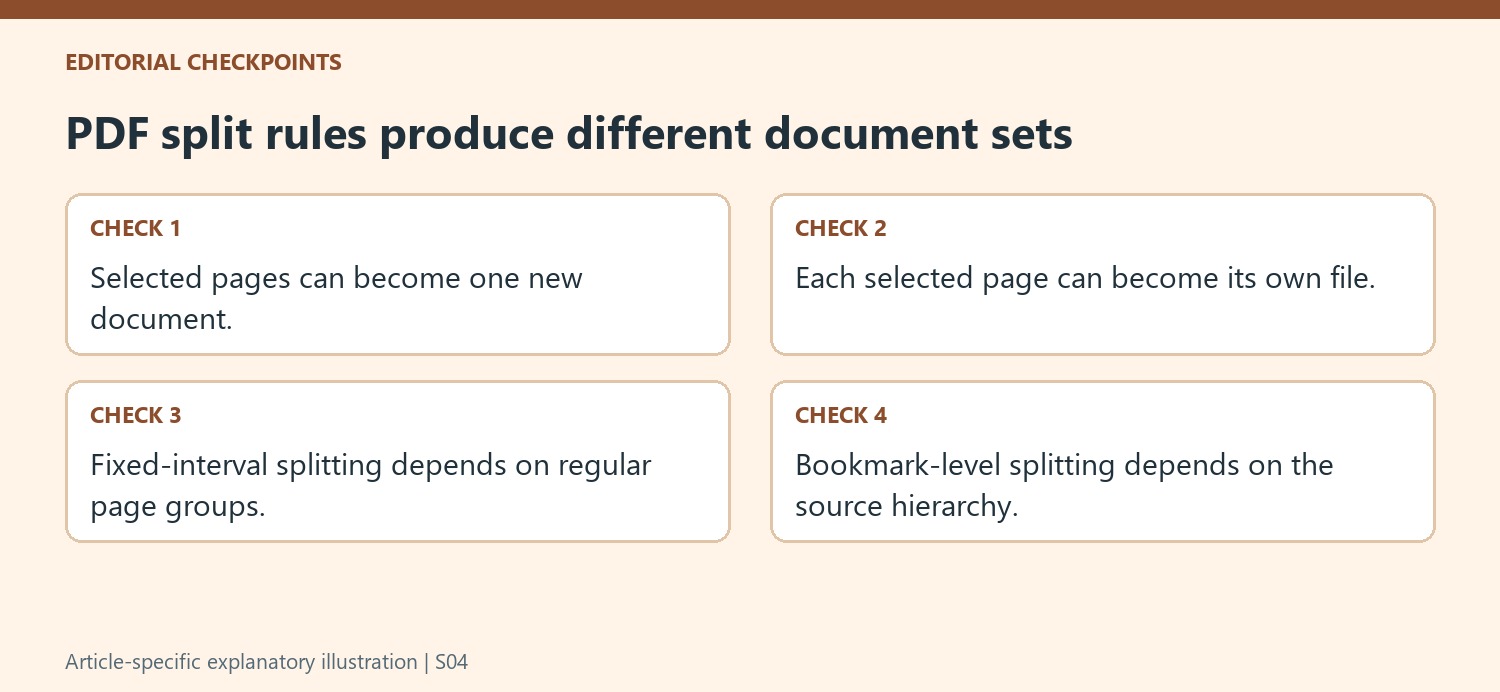
The PDFsam example offers fixed intervals, specified boundaries and bookmark-level splitting. These rules describe different ways of dividing the input. A fixed interval suits regular page groups only when those groups actually follow that pattern. Bookmark-based splitting depends on the source bookmarks and the chosen level, not simply on the visual size of headings on the pages.
Review a few proposed output boundaries before applying a rule to a large file. A chapter that varies in length can defeat a fixed interval, while an inconsistent bookmark hierarchy can create unexpected subdivisions. The automation saves repetitive selection only after the rule matches the real structure. Keep the original intact so a mistaken rule can be corrected without rebuilding the source package.
Inspect saved extracts independently of the tool preview
Edge with Microsoft Print to PDF creates a new file through a virtual printer, while dedicated split tools produce their own output set. Open the actual saved results from the chosen folder and compare page counts, order and boundary content. A preview can confirm a selection without proving the saved filename or location is the intended one. If an online route is used, download and inspect the returned files while the session is available. Retain clear names and the source until every required extract has been checked as a standalone document in the intended normal reading environment.
References
- How to Split a PDF File on Windows 11. How-To Geek; Mahesh Makvana.


Comments
0