 DocumentFlow Desk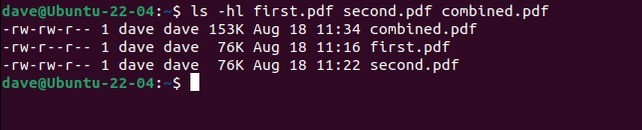
Keep content revision separate from page manipulation
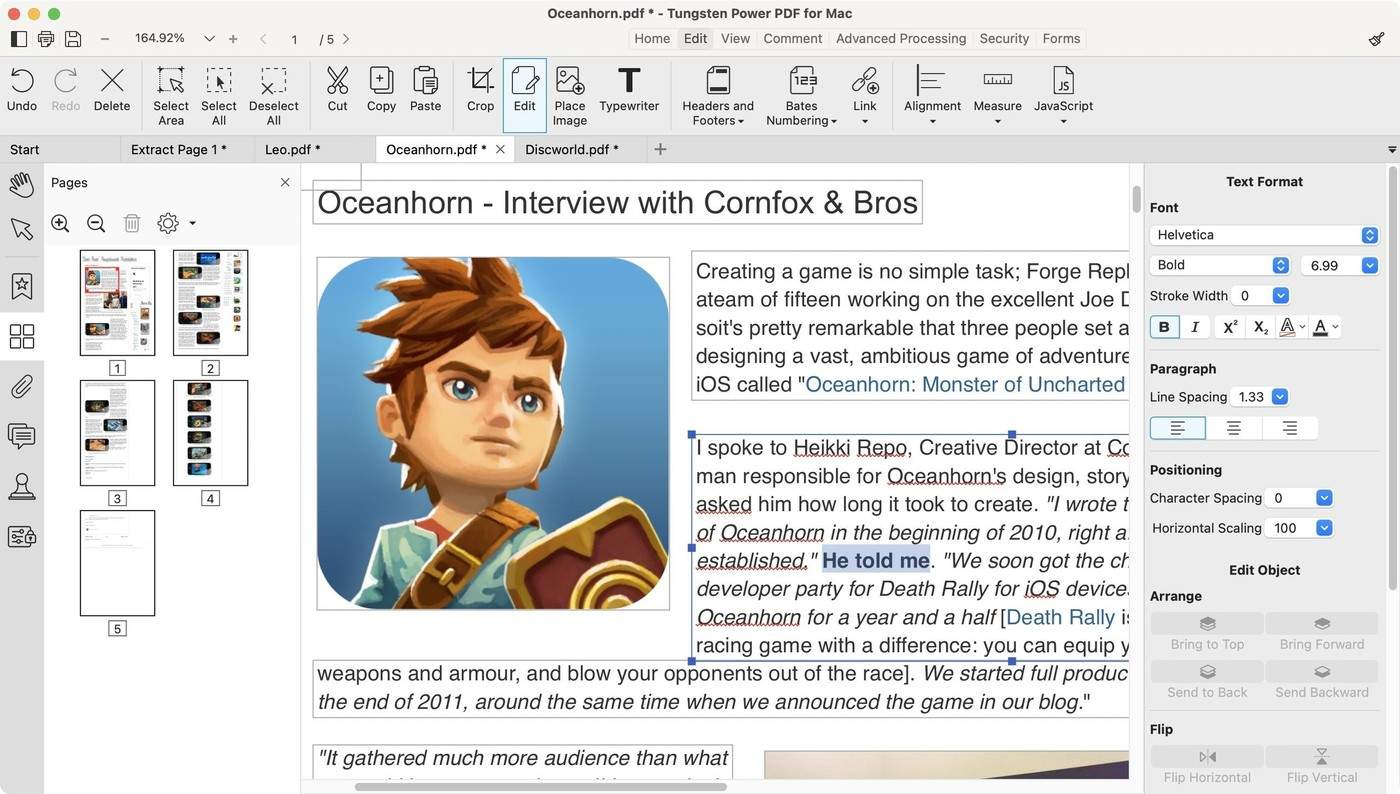
The source distinguishes creating or editing document content from rearranging existing PDF pages. When wording changes are needed, revising the original editable material and generating a new PDF is often clearer than modifying the exported page. For structural work, qpdf can merge files or extract selected pages. Decide which task is required before choosing a command. Preserve the original PDFs and use a new output path, keeping the selected page sequence visible so a later reviewer can understand how the derived document was assembled.
Specify the input order and requested pages deliberately
The tutorial demonstrates qpdf --empty --pages first.pdf second.pdf -- combined.pdf to combine complete files in the listed order. Page ranges can follow an input filename when only part of that document is needed. Check each range against the source viewer, remembering that the intended physical PDF page can differ from a printed page label inside the document. Prefer an explicit input list when order matters. A broad wildcard can include an unintended file or an earlier output in the same directory if the selection is not reviewed.
Inspect split outputs and the combined result
The source also describes splitting a document into separately named page files with --split-pages. Choose a clear output base name and inspect the generated set after processing. Compare page count and boundary content with the request, including any nonconsecutive ranges. The article covers additional command-line tools for creating PDFs, but those depend on their own installed components. Keep tool availability separate from output correctness. A completed command should be followed by opening representative pages and verifying that no source was replaced and that the new file contains the intended pages in the intended order.
Translate the requested package into explicit page selections
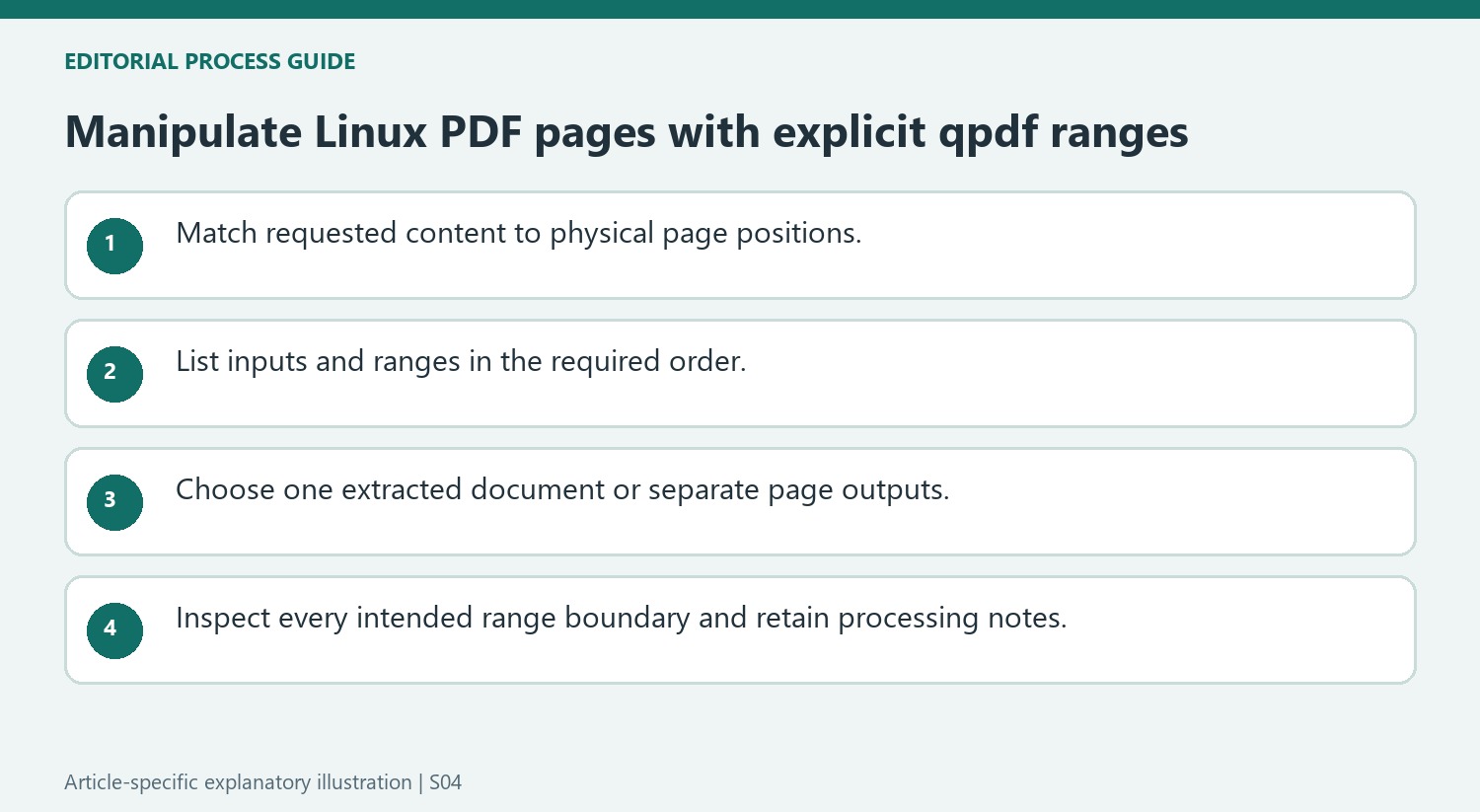
List each input filename and the pages required from it before writing the qpdf command. Whole-file inputs use all pages, while a range after an input narrows that contribution. Verify the physical page positions in a viewer, particularly when the document contains a cover, front matter or printed page labels that differ from its sequence. This prevents extracting the right visible page number from the wrong physical position.
Keep the requested order explicit. The tutorial's complete-file merge uses the filenames in the listed sequence, and a selected-page package can likewise combine contributions from several inputs. An unreviewed wildcard can capture an earlier output as well as intended sources. Inspect the expanded set or use a deliberate list when order and membership matter to the final document.
Choose one combined output or multiple split outputs deliberately
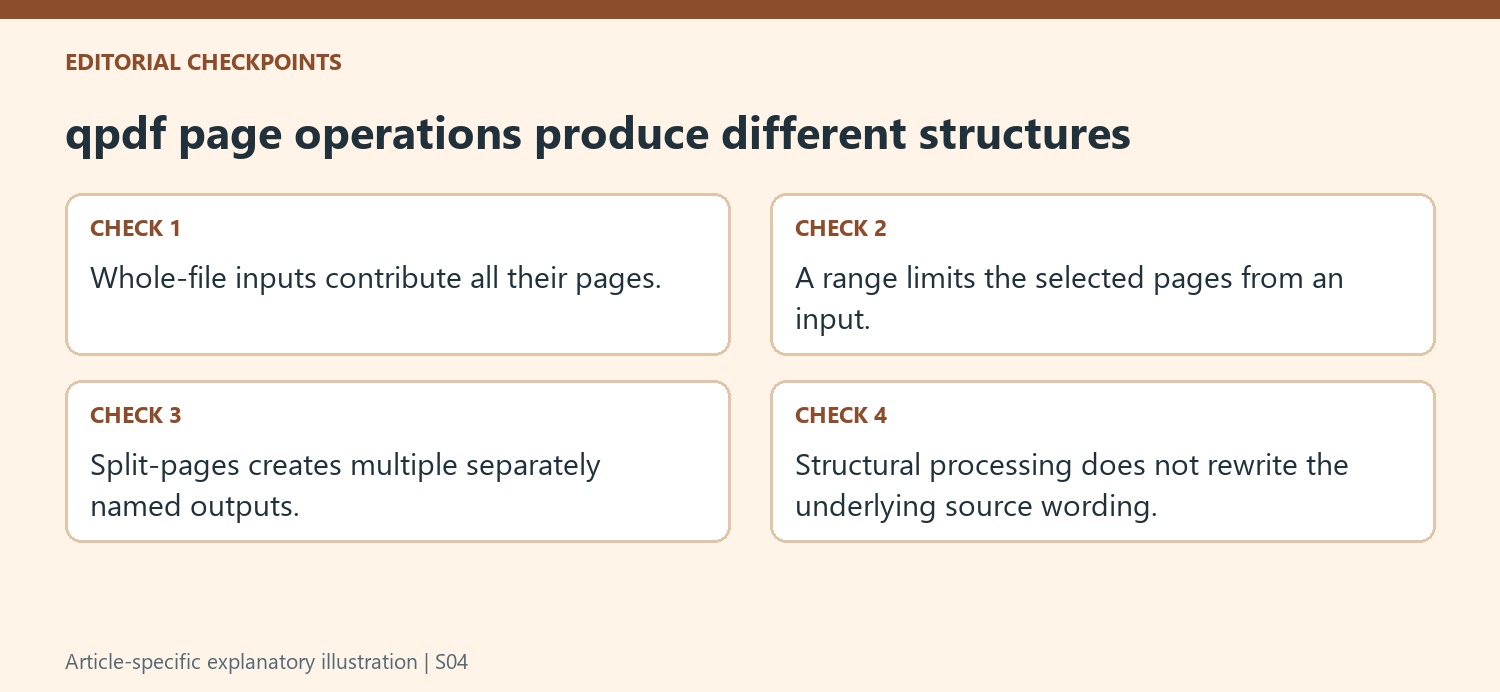
Extracting a range into one PDF and splitting selected pages into separate files are different outcomes. The tutorial uses --split-pages for the latter and explains that the chosen output name supplies a base for the resulting files. Check the required deliverable before running the command so a request for one chapter does not become a collection of separate page files.
After a split, count and inspect the generated files. After a merge or range extraction, review the boundaries within the single output. Nonconsecutive selections deserve a check at every intended jump, because a correct total page count can still conceal a wrong range. Retain the original PDFs and choose a fresh destination so the output can be compared or recreated without losing the source evidence.
Separate tool execution from verification of the document
The article presents qpdf as a structural PDF tool rather than a word processor. Use the original editable material when the actual wording needs revision. For structural work, confirm the installed command and its applicable options, then inspect the resulting file in a viewer. A successful process does not establish that page labels, order and selected content match the request. Keep the command or input notes alongside the work so another reviewer can trace the final package to the source pages and repeat the intended operation.
References
- How to Make and Combine PDF Files on the Linux Command Line. How-To Geek; Dave McKay.


Comments
0