 DocumentFlow Desk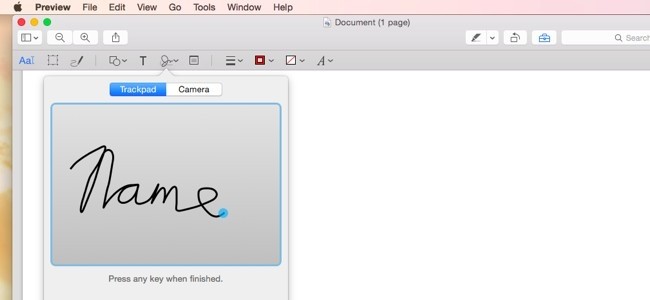
Work from thumbnails when combining or extracting pages
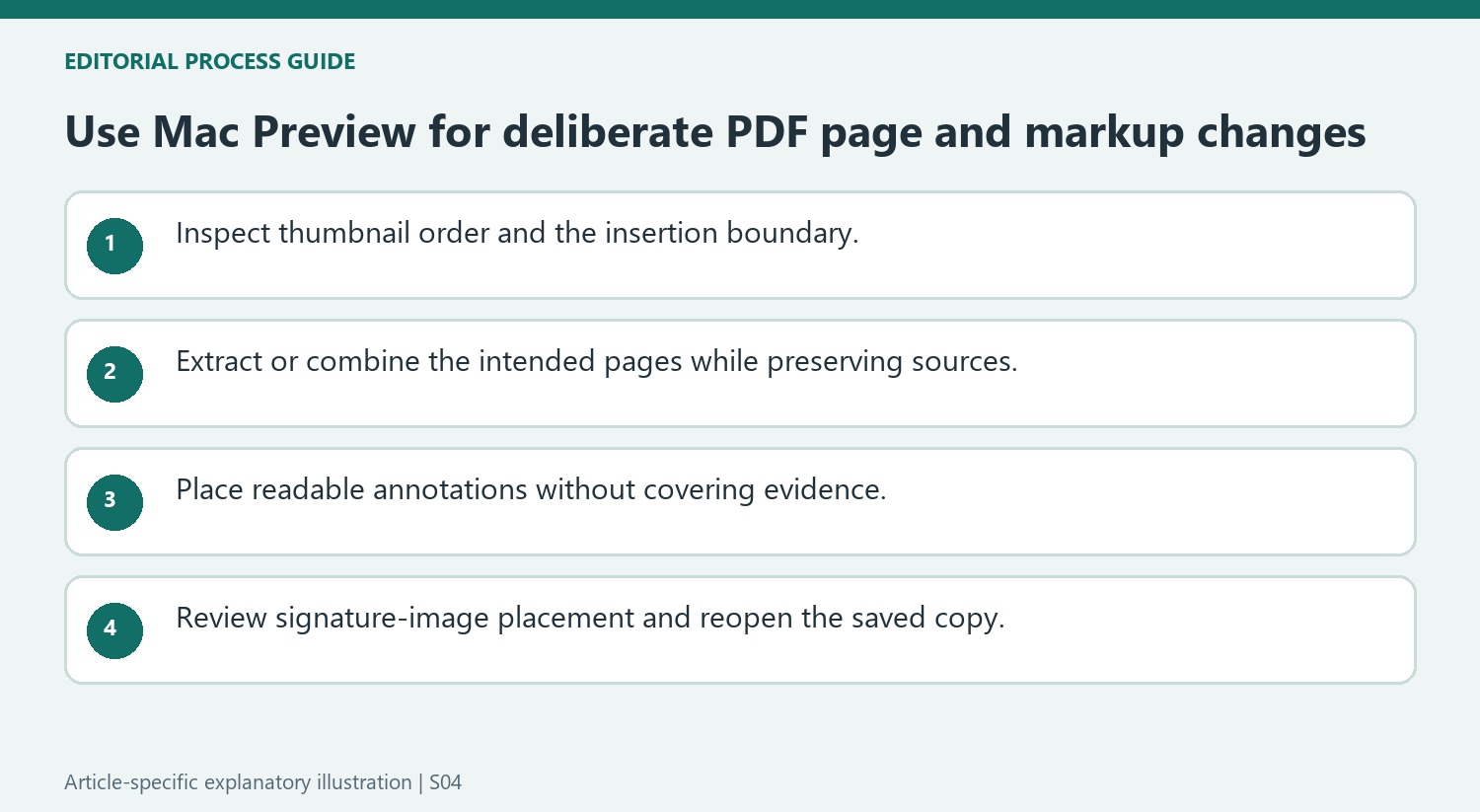
The source describes enabling Preview's thumbnail sidebar to inspect page order. Other PDFs can be dragged into that sidebar to combine them with the open document, and thumbnails can be reordered deliberately. A page thumbnail can also be dragged out to create a separate PDF containing that page. Confirm the target position and inspect the first and last pages of each inserted group. These actions change document structure, so maintain a source copy and verify the complete sequence rather than assuming every drag landed at the intended boundary.
Use markup as annotation rather than source-text editing
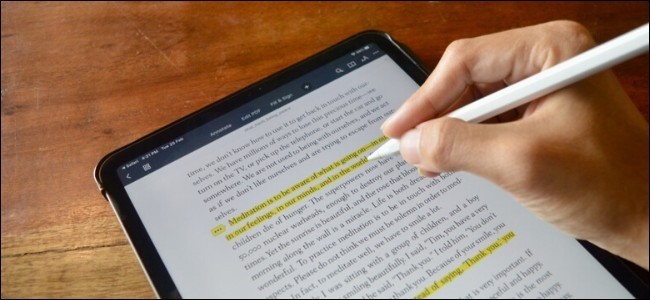
The Markup toolbar provides tools such as text, shapes, arrows and highlighting. These can explain or review a document without recreating its original layout in another application. Keep each annotation associated with the intended passage and inspect whether it covers essential text. The article emphasizes that Preview is not a full replacement for every kind of PDF content editing. If the underlying wording itself needs substantial revision, use the appropriate editable source or a suitable editing workflow rather than relying on overlay annotations to conceal the original material.
Distinguish a placed signature image from verification
Preview can capture a signature and place it on a PDF as a movable, resizable image. Review its position and the surrounding form fields before saving. A visible signature image should not be described as a cryptographically verified digital signature merely because it appears in the document. The source describes saving changes or duplicating the file to preserve an original. Reopen the saved copy and check annotations, page order and signature placement so the delivered version contains the intended visible changes and remains readable in a normal PDF viewer.
Use thumbnails to verify the actual insertion point
Preview's thumbnail sidebar represents the page sequence, so inspect where a dragged document lands before saving the merged result. A PDF dropped into the wrong part of the sidebar can create a different order from the one intended. Compare the first and last page of the inserted group with the neighboring pages. This boundary check is especially helpful when several source files contain similar-looking forms.
Dragging a thumbnail out creates a separate PDF for that page under the described workflow. Confirm that the extracted page is the one requested and give the result a meaningful filename. Keep the original document while assembling a new package from selected pages. The source describes combining and extracting as structural operations, which should be reviewed independently of any annotations added afterward.
Keep annotation additions distinct from edits to original content
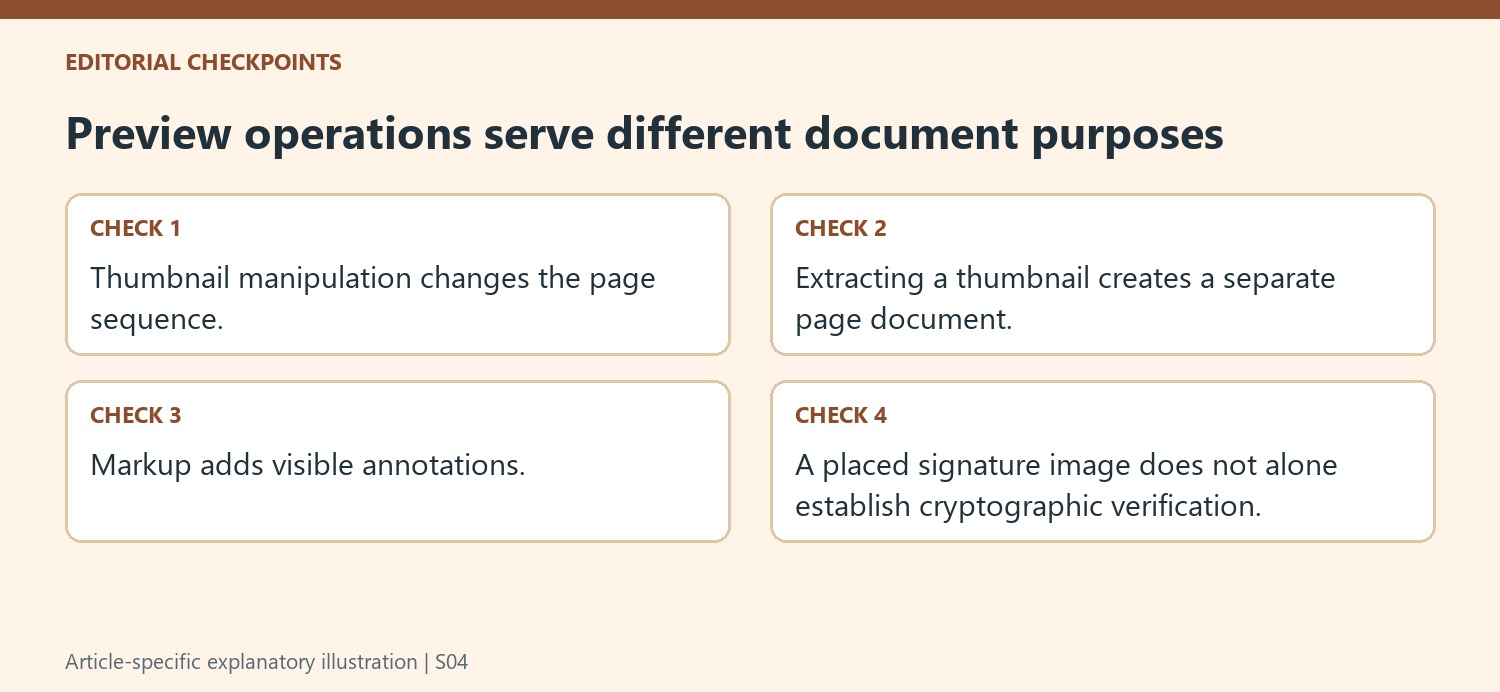
Text, arrows, shapes and highlights can explain a passage or draw attention to a field. Inspect whether they remain attached visually to the correct part of the page after placement and resizing. A shape covering unwanted wording is not the same as revising the source text. If the wording itself needs a substantial change, use the editable source or an appropriate content-editing workflow.
Review annotations at the final reading size. A note can become too small to read or obscure a nearby value when placed quickly at a zoomed-in scale. Check several marked pages together so the treatment remains consistent. The toolbar supplies the drawing and text tools, but the author still decides whether each addition communicates a clear, accurate relationship to the document.
Review a placed signature as a visible document element
The article describes capturing a signature and applying it as an image that can be moved and resized. Confirm its position beside the intended field and ensure that it does not cover labels or other required entries. That appearance alone does not establish cryptographic verification. Save a separate copy where the original needs to remain intact, then reopen the saved PDF and inspect the signature, annotations and page order together. The result should accurately represent the visible changes made through Preview without claiming a different kind of verification.
References
- Use Your Mac’s Preview App to Merge, Split, Mark Up, and Sign PDFs. How-To Geek; Chris Hoffman.


Comments
0