 DocumentFlow Desk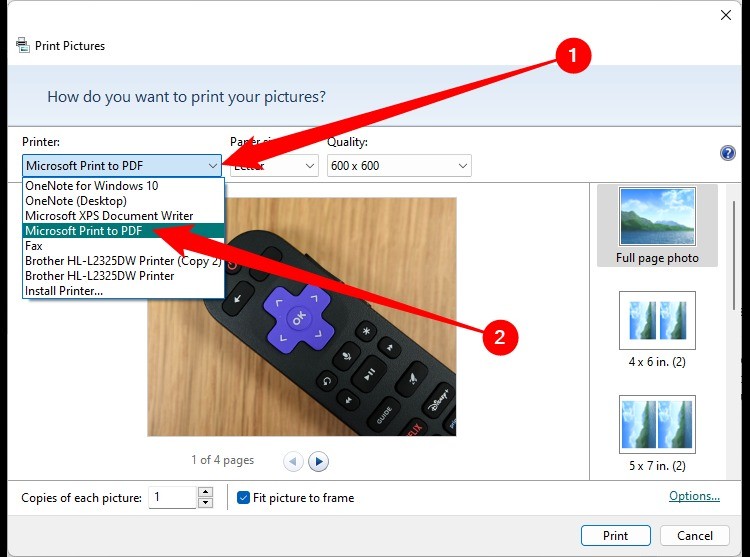
Arrange the images before opening the print workflow
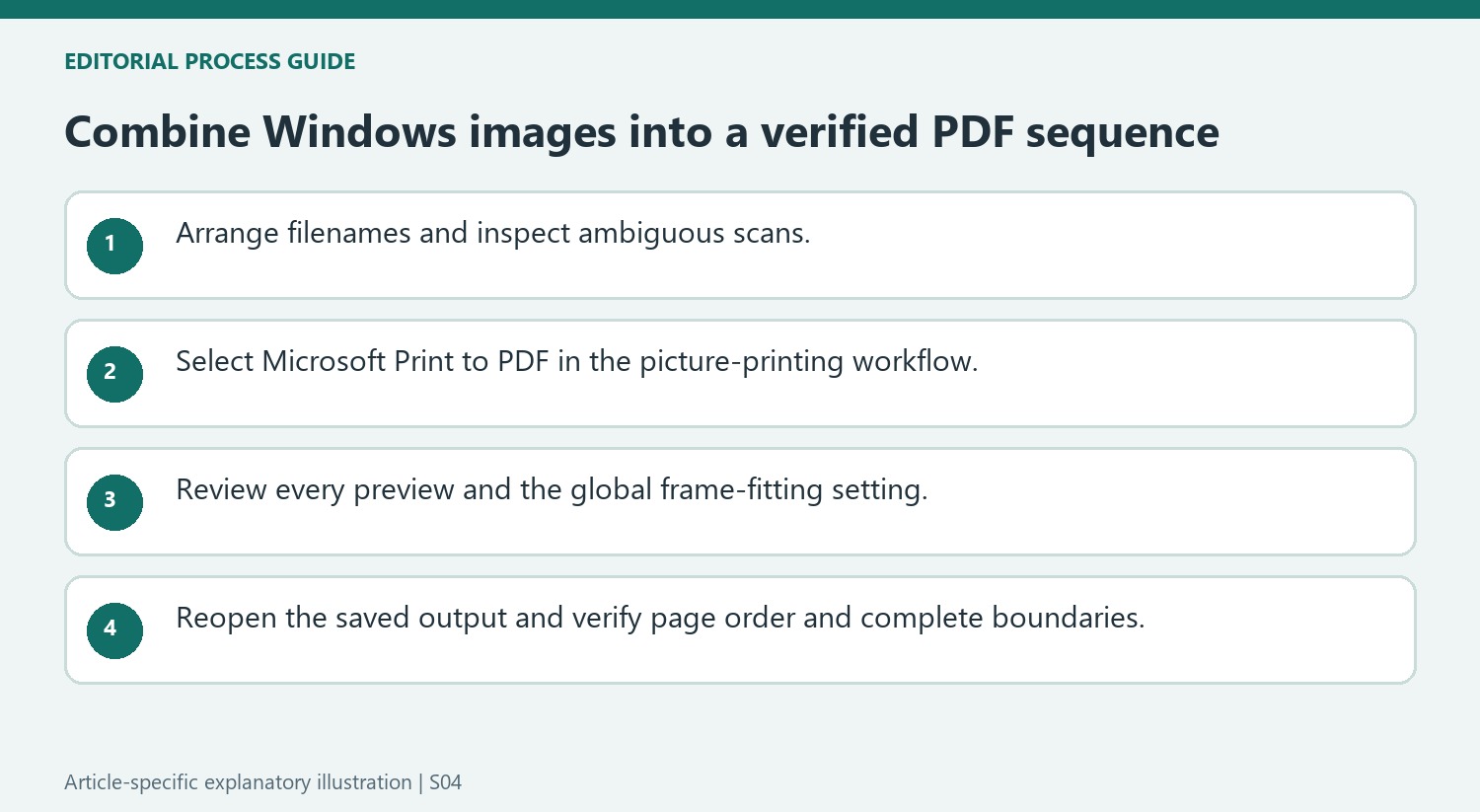
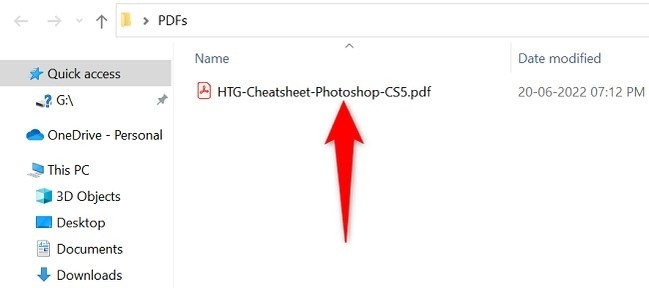
The source describes selecting images in File Explorer and printing them through Microsoft Print to PDF. Establish the intended order first, using clear filenames or another deliberate sort. A numbered filename prefix can make a scanned sequence easier to inspect. Open representative files to confirm that none is rotated incorrectly or belongs to another document. Keep the originals unchanged so the output can be rebuilt if needed. The printing workflow combines image representations; it does not establish that the resulting PDF contains searchable text or corrected scan content.
Check the preview and picture-fitting behavior
Select the intended images and open Print through the available context menu. In the Print Pictures dialog, choose Microsoft Print to PDF as the printer and inspect the page previews. The source warns that Fit picture to frame can crop image edges; turn it off when the complete scan must remain visible. Review orientation and paper-related options before generating the file. Check all images rather than only the first, since a mixed set can contain different proportions or an important annotation near an edge that a default fitting choice would remove.
Save a new file and inspect every page
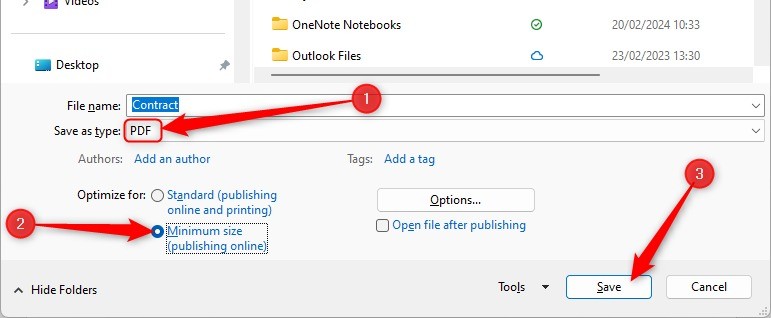
Choose Print, supply a descriptive output filename and save the PDF in the intended location. Reopen it and verify the page order, count, orientation and complete image boundaries. If Microsoft Print to PDF is unavailable, the article describes enabling the corresponding Windows feature where appropriate. Do not confuse selecting that virtual printer with sending a document to a physical device. Retain the source images until the PDF has been reviewed and accepted, especially when the file will be used as the only shared copy of a set of scanned records.
Make the file sequence explicit before selecting the images
The source recommends arranging the files in File Explorer before opening the print workflow. Review the chosen sort and use clear numbered prefixes when a scanned sequence must be unambiguous. Do not rely on the order in which files happened to be clicked. A cover, an attachment and several scan pages can otherwise enter the output in a plausible but unintended arrangement.
Open any ambiguously named image before including it. Check page identity, rotation and whether its edges contain useful notes. Keep the originals until the result is approved, since recreating the output is easier when the source set remains intact. A deliberate input sequence also makes it possible to compare the finished PDF with a written or visible list of the intended pages.
Inspect the effect of global picture-fitting choices on mixed inputs
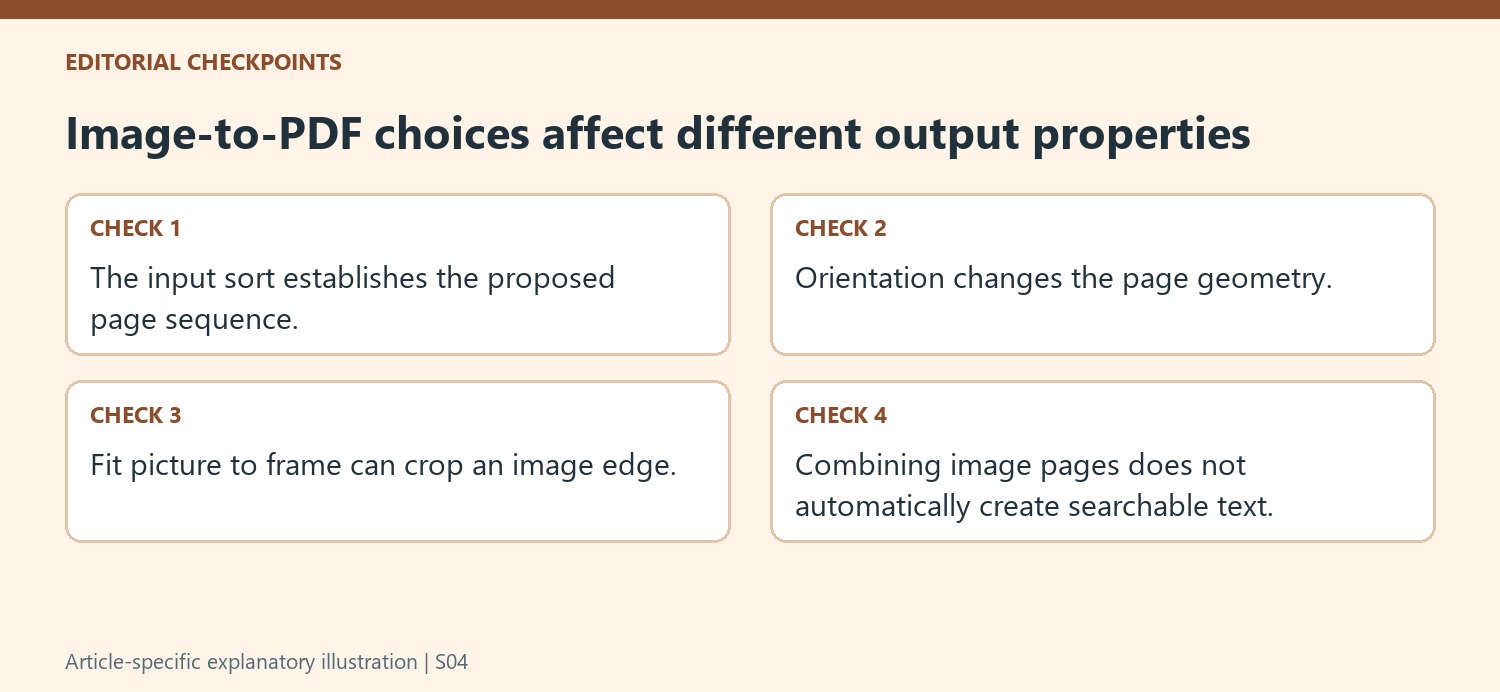
Fit picture to frame can crop an image to fill the selected layout. The article notes that disabling it can reveal the entire scan, and that this choice affects all images in the group. Review both a tall page and a wide one when the set contains mixed proportions. A setting that preserves one page can still produce a different scale or substantial white space on another.
Orientation and print-related options deserve the same whole-set check. The preview arrows allow review beyond the first selected image. Inspect small text and annotations close to the boundaries, not just the main central content. A page can look attractive at preview size while an essential edge note is missing. Prefer complete, readable evidence over a filled frame when the image represents a document record.
Verify the output as a PDF document rather than a completed print job
Microsoft Print to PDF creates a file rather than sending these pages to a physical printer. Save it under a clear new name and reopen it from the intended folder. Check page count, order, orientation and complete boundaries against the input list. This workflow combines image representations and should not be assumed to provide searchable text automatically. If the file needs text search, that is a separate requirement to inspect. Retain the original images until all required content is visible and the final PDF has been reviewed.
References
- How to Combine Images Into One PDF File in Windows 10 or Windows 11. How-To Geek; Nick Lewis; Lori Kaufman.


Comments
0