 DocumentFlow Desk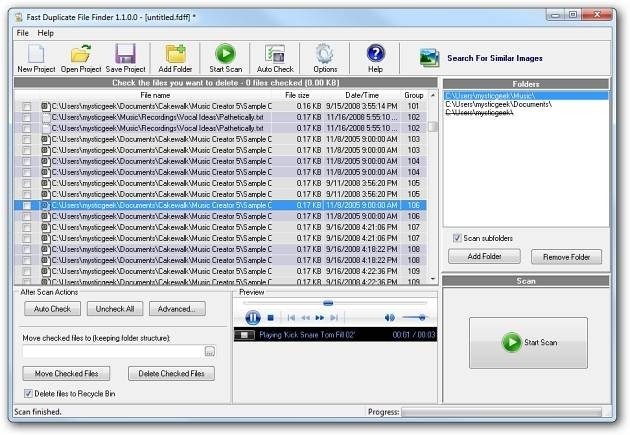
Read the utility overview in its historical setting
The source describes Fast Duplicate File Finder from MindGems as a way to locate extra copies on a computer or accessible network storage. Its compatibility examples extend from Windows 98 to Windows 7, identifying the article as older guidance rather than a current support statement. Verify the present application version, supported operating systems and distribution source before installing it. The general workflow is still understandable: choose the locations, scan for matching files and inspect the resulting groups. Do not infer modern compatibility or licensing terms solely from the article's historical description.
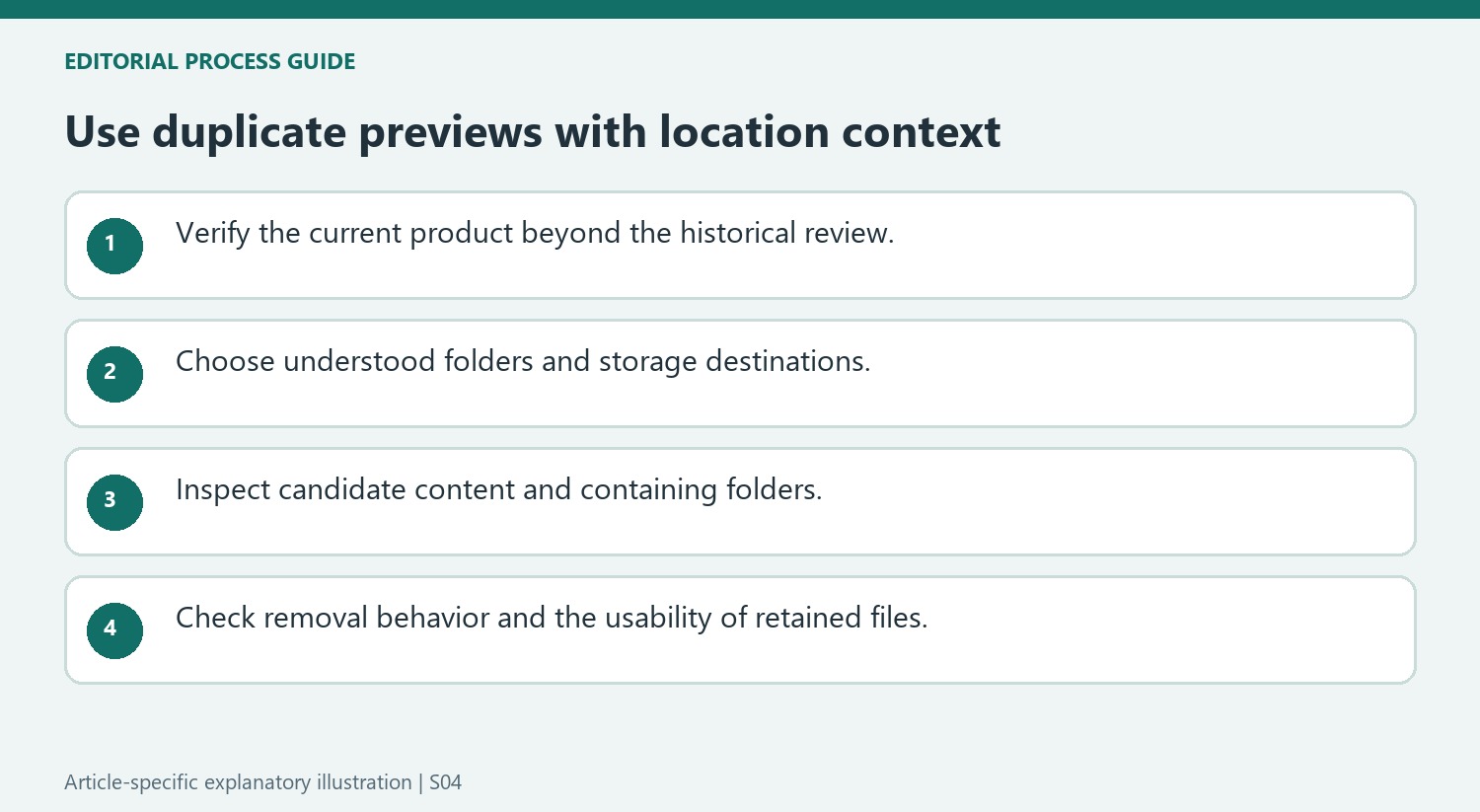
Select the locations and inspect the candidates
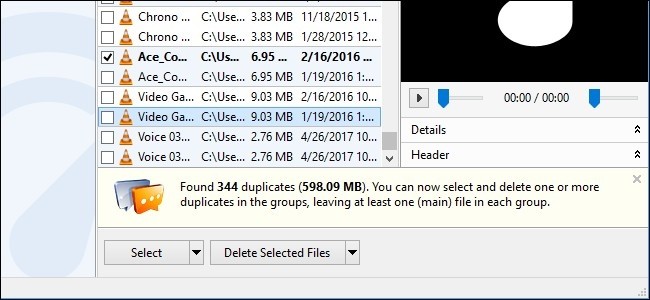
The source describes adding or removing folders before the scan and includes removable media and network drives among the possible locations. Choose a scope whose contents are understood rather than immediately scanning every accessible destination. The reported interface highlights candidates and can preview supported documents, images and audio. Use those features to establish what the files contain and where they are stored. A matching result identifies a candidate for review, not an automatic instruction to delete it. Two copies can still serve different purposes in separate project, sharing or backup locations.
Preserve the needed copy and check recovery options
Before removing a candidate, decide which location should retain the authoritative or required copy. Inspect important files directly when the preview cannot establish what matters. Check the current utility's deletion behavior and maintain a suitable backup rather than assuming every destination provides a recycle bin. The article's useful contribution is the emphasis on previewing and locating the files, not a guarantee that cleanup can be performed safely without judgment. After any deliberate removal, verify that the retained material opens correctly and remains accessible through the workflows that rely on it.
Use the older article to understand the process, then verify the product
The source’s operating-system examples place the review in an earlier Windows era. Treat its installation, cost and compatibility statements as descriptions of that period, and check current official information before obtaining software today. The enduring idea is a scan-and-review workflow, not a promise that an old build or distribution remains appropriate for a present computer.
Define the collection to inspect before using that workflow. The article describes adding and removing folders and searching their subfolders, including several kinds of removable or network storage. Choose only locations whose role is understood. A network share can contain required project or backup copies, so technical similarity across that share does not by itself prove the material is unnecessary.
Combine file previews with containing-folder context
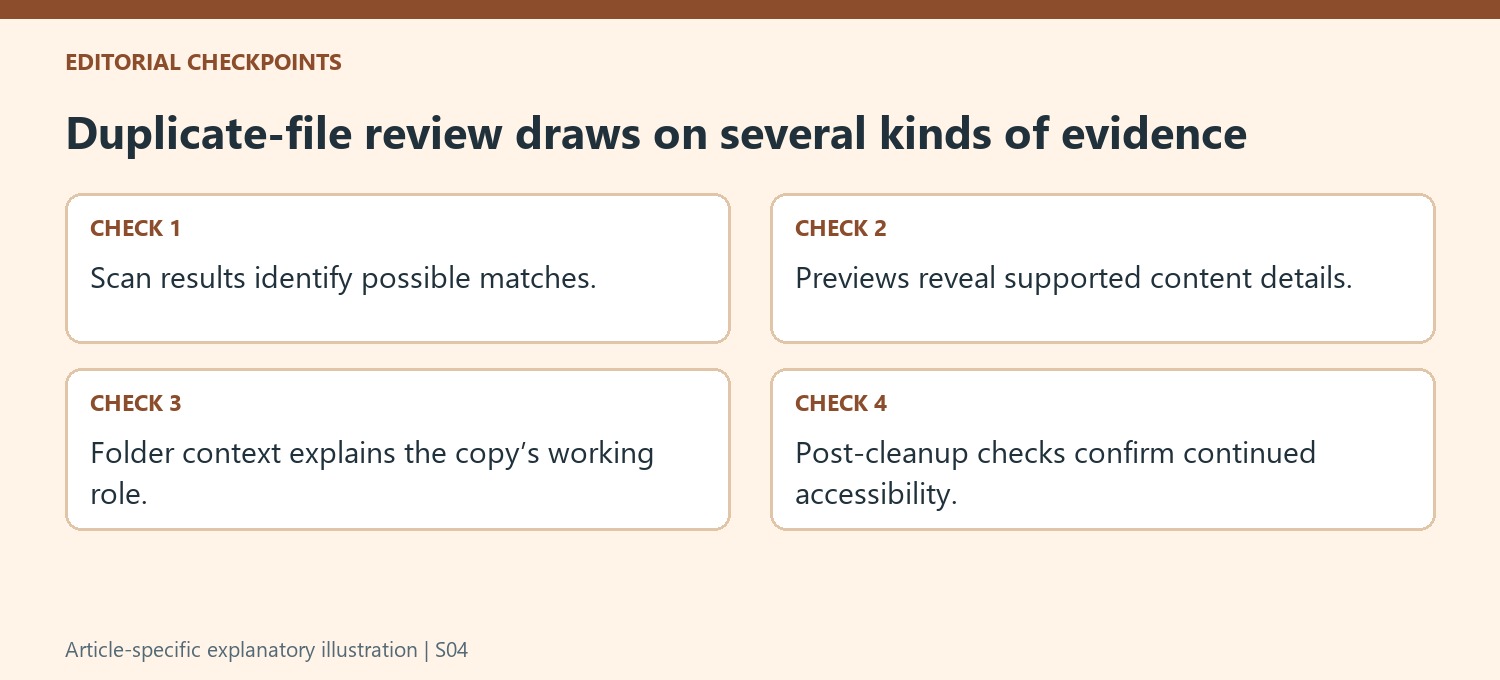
Inspect the highlighted candidates and use the supported preview where it reveals the content that matters. Text, images and audio require different kinds of inspection, and a preview may not expose every property of a complex document. Open an important candidate normally if the displayed sample cannot establish whether the retained copy is suitable.
Use the containing-folder route to understand how each file relates to the surrounding collection. Identical content stored in two places can serve different workflows, while similar filenames can refer to distinct revisions. Establish the intended authoritative or required location before marking anything for removal. The scan helps locate groups worth examining; contextual judgment determines whether a member of the group is genuinely an unwanted extra copy.
Verify both the cleanup action and the remaining collection
Check how the current tool removes selected files and whether that behavior differs by destination. Do not assume local recycle-bin recovery applies equally to a network location or removable device. Maintain an appropriate backup for important content and prefer a reversible decision where the environment supports it. After deliberate removal, open representative retained files and check any references or shared workflow that relied on their locations. This closes the gap between a visually convincing duplicate list and a useful cleanup result: less unwanted redundancy without accidentally discarding the only copy that remained reachable in the place people actually use.
References
- Fast Duplicate File Finder Identifies Extra Copies. How-To Geek; Brian Burgess.



Comments
0