 DocumentFlow Desk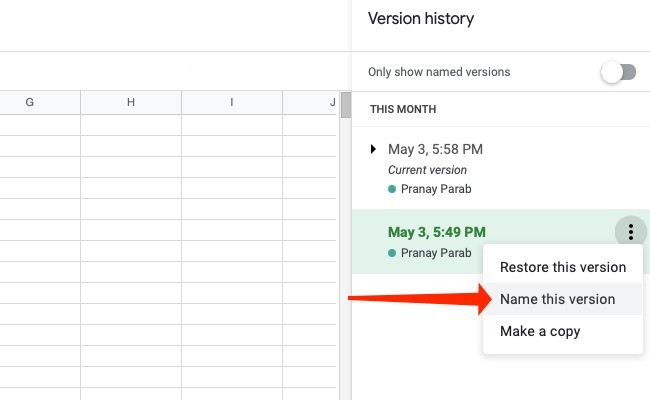
Open the history and inspect the relevant revision group
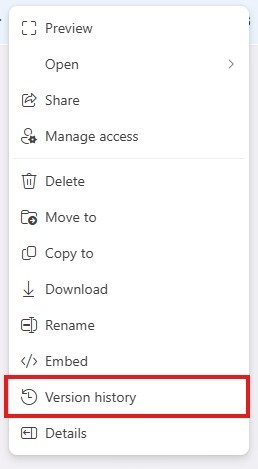
The article describes reaching Sheets version history through the last-edit indicator or File and Version History. The panel groups changes by date and time, with expansion controls for additional entries. Select a state to inspect the spreadsheet at that point. Use the correct file and editing access, and compare the cells or sheets relevant to the question. A grouped history is a navigation aid rather than a promise that every tiny change remains a separate entry forever, so focus on the content and context of the available states.
Name the states that represent important project steps
Use the version entry's menu and Name this version to label a meaningful milestone. The source recommends selective naming rather than labeling every minor edit. Choose a description that explains the state, such as the review stage or completed dataset, instead of repeating only its timestamp. The Only show named versions filter can reduce noise when the history is long. A useful label should remain understandable to another editor who did not participate in that day's work. Naming supports navigation; it does not by itself certify that the calculations or data in that state were approved.
Restore only after considering the whole spreadsheet
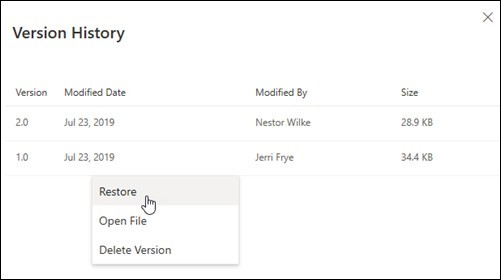
Select the intended earlier state and use Restore this version through the available control. Before confirming, consider whether restoring the whole file would also remove unrelated changes that should remain current. Coordinate with other editors when necessary and inspect the resulting workbook after restoration. If the goal is only to investigate old content, viewing it may be sufficient without replacing the active state. Version history works best when the editor separates inspection, milestone naming and recovery into deliberate choices, each tied to a clear need rather than treating restoration as the default response to every question about an older value.
Give version names a shared meaning
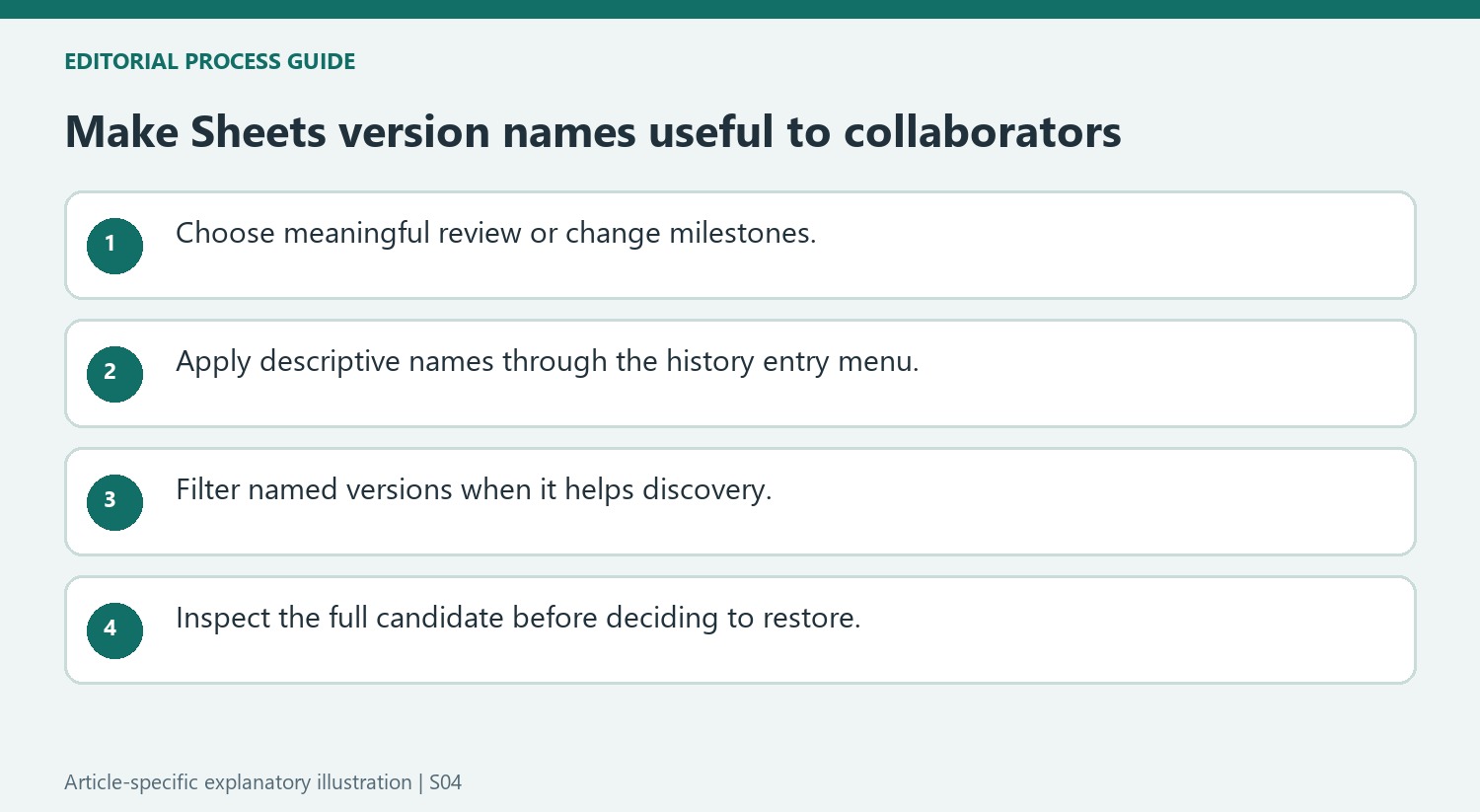
Name milestones in terms that another collaborator can understand, such as the review stage or the change that defines the checkpoint. A label meaningful only to its author becomes less useful when several people inspect the history later. The source describes names as a way to find significant states among many saved changes, so clarity matters more than labeling every minor edit.
Decide which events deserve names before the list becomes crowded. A completed data import, an agreed review copy or a major restructuring can provide a useful reference point when the wording accurately describes the state. A name does not itself approve the numbers or certify that a review occurred. Keep any formal acceptance process distinct from the convenience of a readable history label.
Use the history panel to answer a specific question
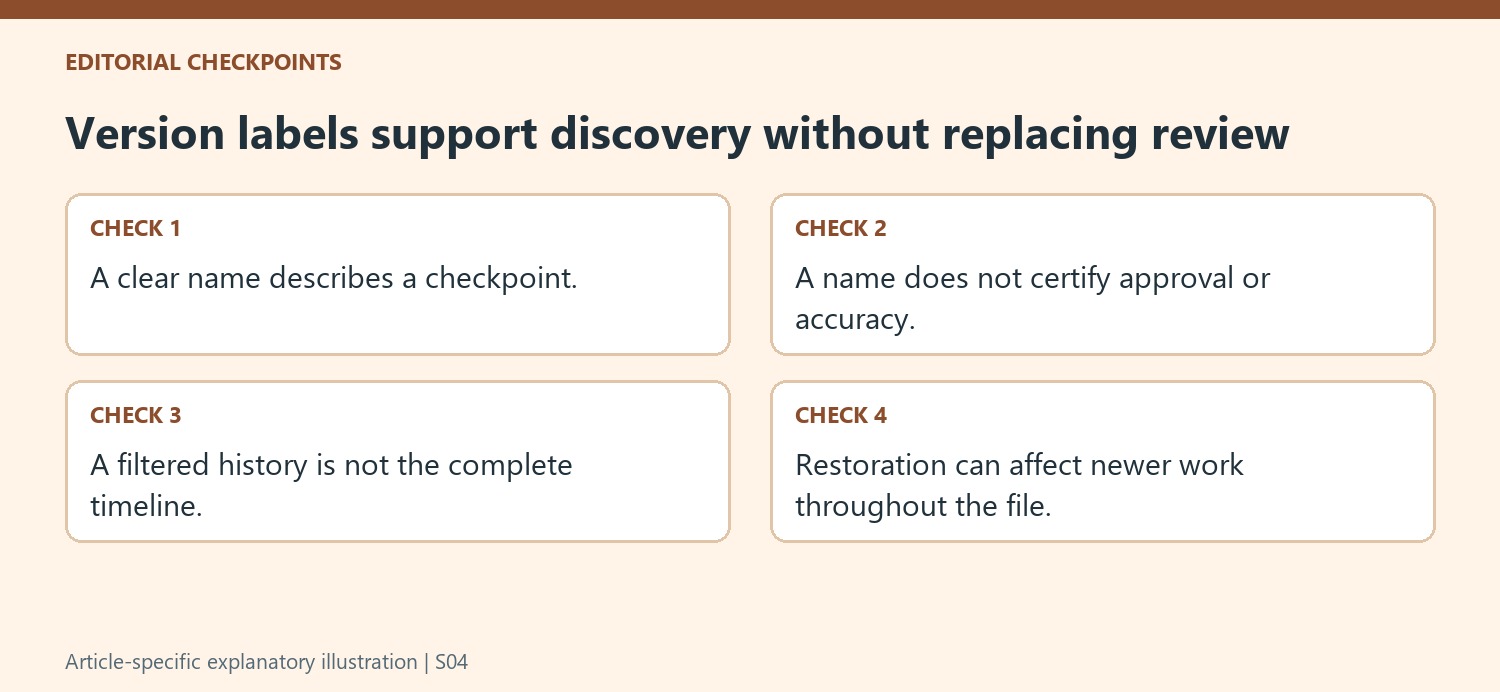
Open the grouped entries and expand the relevant date or time range when the desired state is not immediately visible. Inspect what each candidate contains instead of relying only on its position in the list. Naming makes discovery easier, but the content still determines whether the version answers the question being investigated.
The named-version filter can make a busy panel easier to scan. The source explains that its described view includes named versions and the most recent state, so an entry’s presence should not be interpreted as proof that someone deliberately labeled it. When looking for an intermediate change that was never named, broaden the view and inspect the underlying timeline rather than assuming the filtered set contains every potentially relevant state.
Distinguish a reference checkpoint from a restoration decision
An earlier version may supply the answer without needing to replace the current spreadsheet. Use viewing and comparison to establish what changed and whether those changes were intentional. If restoration is required, consider the entire file and coordinate with active editors, because unrelated newer work can also be affected. Afterward, verify key sheets and formulas and make the current working state clear to the team. Selective, descriptive names support this process by making meaningful checkpoints easier to locate, while careful inspection prevents a convenient label from becoming a substitute for understanding the actual document.
References
- How to Check Version History in Google Sheets. How-To Geek; Pranay Parab.




Comments
0