 DocumentFlow Desk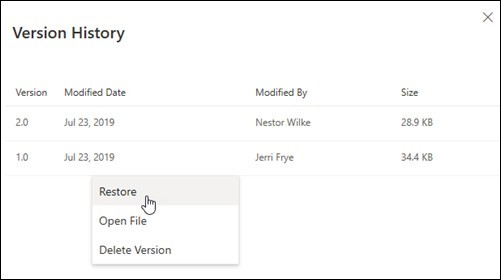
Locate the history for the actual cloud file
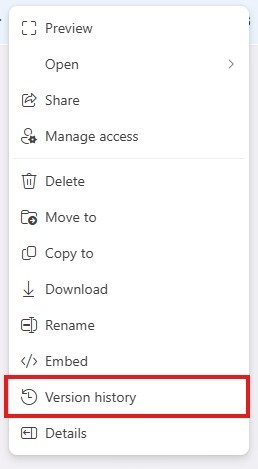
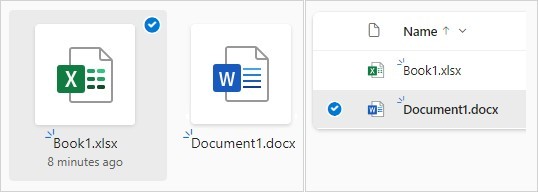
Microsoft describes version history for files stored in OneDrive or SharePoint, covering more than Office documents. The examples include PDFs, drawings, photographs and videos as well as Microsoft 365 files. Sign in with the appropriate account, select one file and open Version history from its context menu. The source notes that organizational administrators can affect versioning availability. Check the retention and configuration in the actual service rather than treating a general time period in an overview as a guarantee that every account retains every revision for exactly the same duration.
Inspect the candidate state before restoring it
In the version panel, choose the earlier entry relevant to the recovery need and use its actions menu to restore. Check the available date, time and other identifying information so a familiar filename does not substitute for identifying the correct state. Restoring one earlier version affects the current content of the file, which may include changes outside the passage or detail that prompted the recovery. Coordinate with collaborators where necessary, and consider whether viewing or obtaining an earlier copy would meet the immediate need without replacing the working version.
Confirm the restored result through the intended application
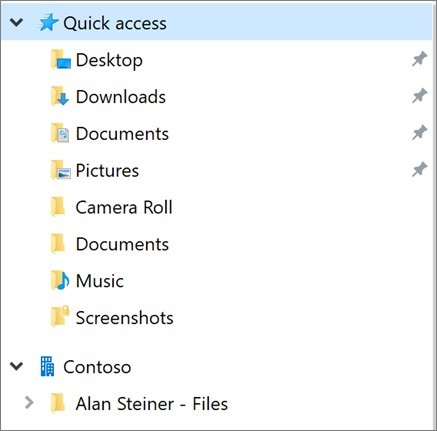
The source explains that the chosen version becomes current and the formerly current version moves into the earlier sequence in the described workflow. Where the OneDrive sync application supports it, File Explorer can also expose the version-history command. Check that the local item is connected to the correct cloud file before using that route. Open the restored content and verify what matters for its format, rather than assuming that the command alone establishes a successful recovery. Retained history is a useful recovery mechanism, while continued confidence depends on checking the result and preserving appropriate backup arrangements.
Identify the file and the available account context
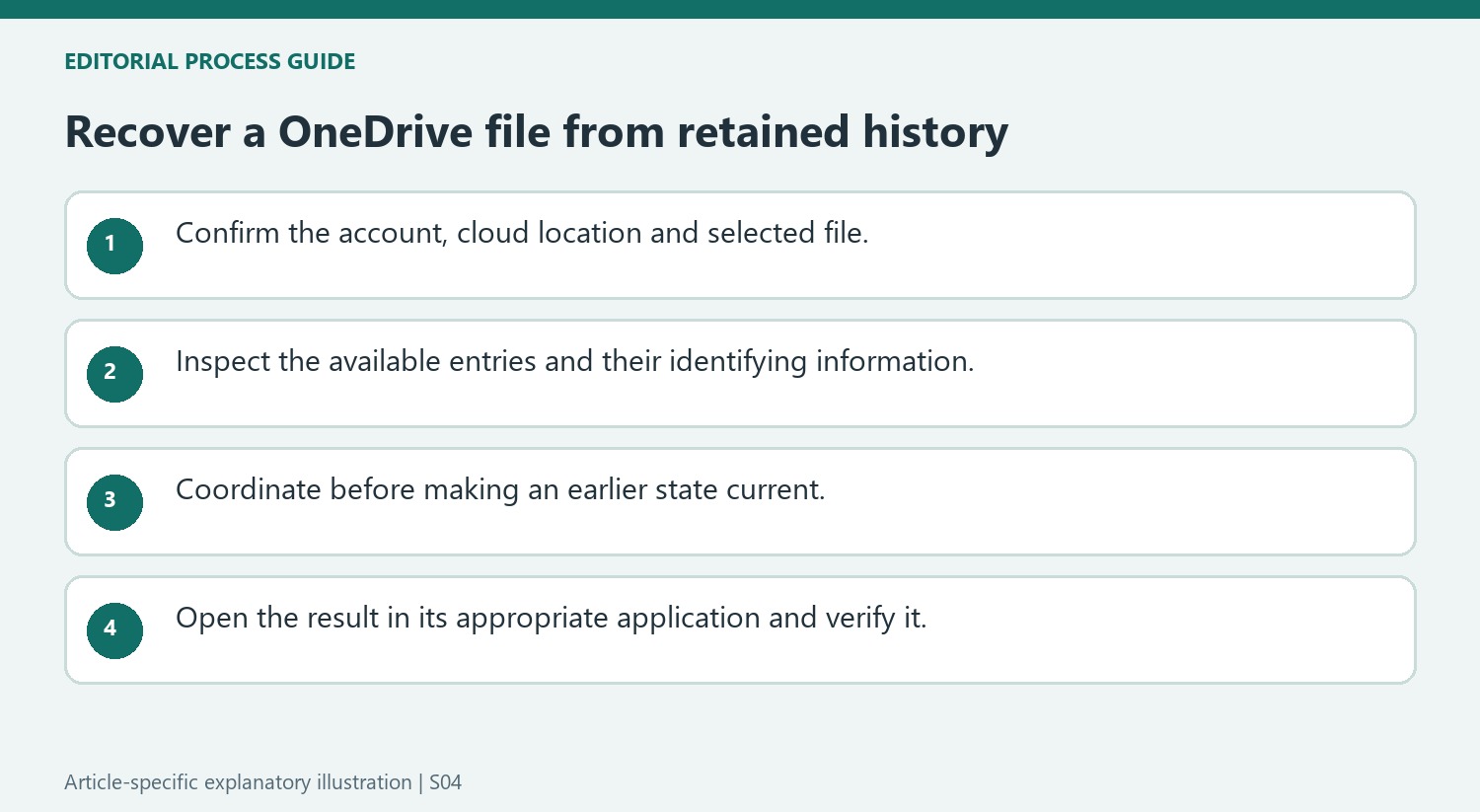
Confirm the account, cloud location and selected item before opening the history panel. OneDrive and SharePoint can contain similar filenames in different libraries or folders. The command applies to one selected file, so identify the actual resource whose earlier content is needed rather than treating a familiar name as sufficient evidence that the correct item is in view.
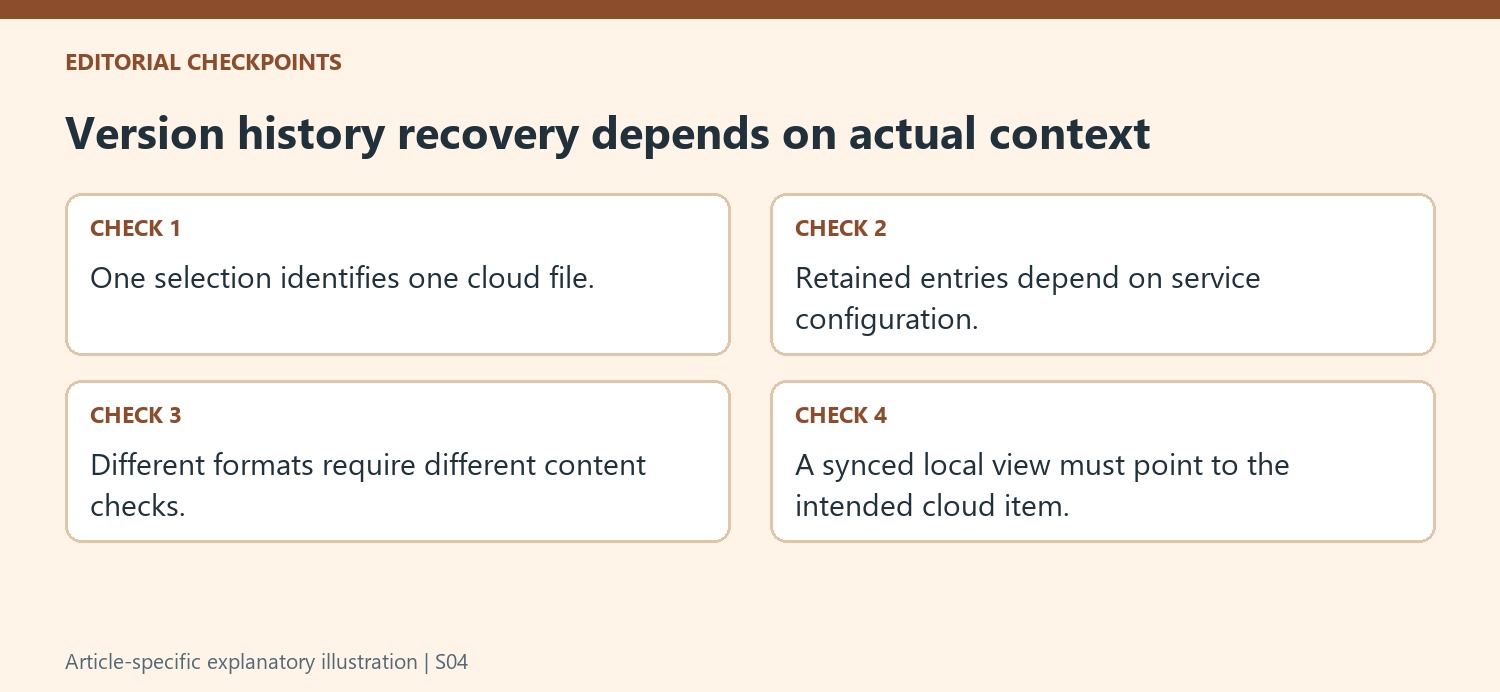
The source lists several supported file families, which means recovery is not limited to Word or Excel. The practical inspection still depends on the format: a photograph, drawing and spreadsheet require different checks. Availability and retention also depend on the service configuration, especially in organizational environments. Verify the entries actually present instead of assuming an overview’s example duration guarantees a particular revision will remain accessible.
Inspect the candidate as a whole-file state
Use the identifying information in the version panel to narrow the recovery period, then inspect the relevant candidate where the interface permits. Think about what changed after that point across the entire file. A version that restores one needed detail can also contain older material elsewhere, so the choice should reflect the complete working requirement.
Coordinate with collaborators before promoting an earlier version to the current state. The source explains that the previously current version becomes an earlier entry in the described sequence, but that relationship does not eliminate the need to understand the transition. Record which state was selected and why so that later readers can distinguish a deliberate recovery from an unexplained reversal during active work.
Verify the cloud result and any synchronized view
If using the File Explorer route, first confirm that the local item belongs to the intended synchronized account and cloud location. Then check the restored content through the application appropriate to its format. A successful menu action establishes that a command was issued, while opening and inspecting the result establishes whether the needed material was recovered. Retain an appropriate independent backup strategy for important information. Version history is valuable when a suitable earlier state exists, but its usefulness should be assessed through actual retained entries and verified recovery rather than assumed coverage of every possible loss.
References
- Restore a previous version of a file stored in OneDrive. support.microsoft.com.






Comments
0