 DocumentFlow Desk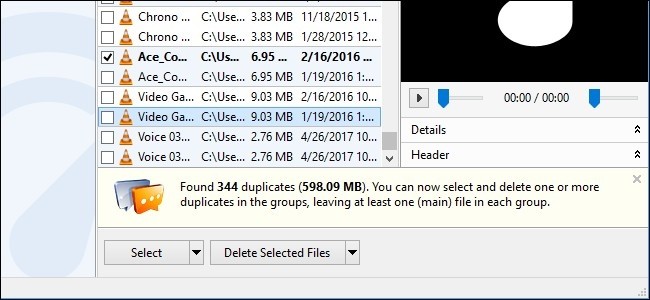
Choose a limited search scope before scanning
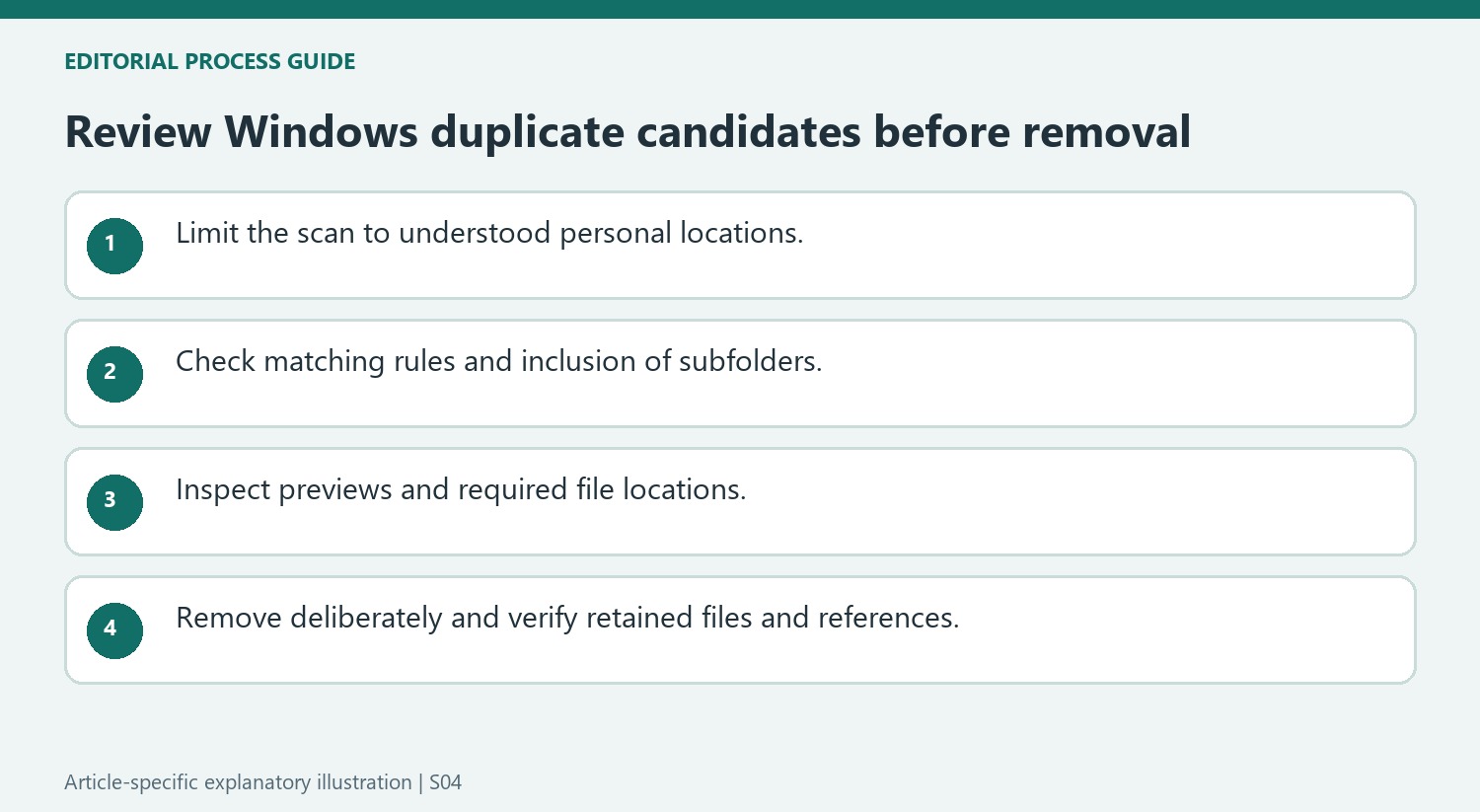
The article compares duplicate-finding tools with different interfaces and filtering options. Its most important warning is to avoid using them to remove apparent duplicates from Windows or application system folders, where repeated files may serve a necessary purpose. Begin with a personal collection whose contents and role are understood, such as a reviewed document or photo folder. Define which locations and file types the scan should include. A broad drive scan can produce many technically similar items without explaining whether each one is an unnecessary copy or part of a required working structure.
Inspect the match criteria and available previews
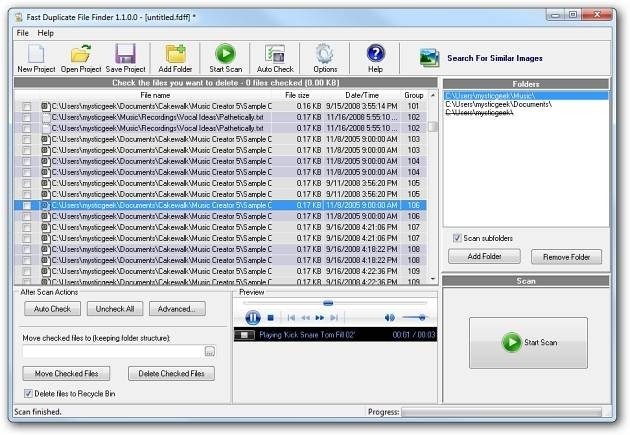
The source discusses tools such as Auslogics Duplicate File Finder, CCleaner's duplicate search and NirSoft SearchMyFiles, each with different filtering or preview capabilities. Check current support, distribution and features before installing any utility because the article's recommendations and compatibility statements are historical. Use preview and containing-folder controls to inspect candidates. Similar names, sizes or dates are useful clues, but the search method determines what the tool actually considers a duplicate. Understand that method before trusting the result, especially when two files may contain different revisions with only small visible differences.
Keep the intended original and verify the cleanup
Review each group and establish which location should retain the usable copy. A copy may be needed by another workflow even when its content matches, so consider references and shared-folder use before removal. Prefer a reversible cleanup route where appropriate, and keep a suitable backup for important material. The source describes sending selected files to the recycle bin in one workflow, but behavior varies by tool and destination. After cleanup, open representative retained files and confirm the intended structure. The goal is less redundant clutter without turning an automated similarity result into an indiscriminate deletion rule.
Define unnecessary redundancy before choosing a utility
Write down what the cleanup is meant to accomplish, such as removing accidental repeated downloads from a personal folder. This is more precise than trying to eliminate every byte that appears twice. The source specifically excludes system and application locations from indiscriminate duplicate removal because software can require matching files in different places to function correctly.
Inspect the proposed search locations and any inclusion rules before scanning. A folder added without its subfolders can yield a different result from a recursive search, while a broad search can mix material with unrelated purposes. Choose a manageable scope that allows every selected group to be reviewed. A smaller, understood collection is a better starting point than a large list whose file roles remain unclear.
Read match rules and preview limitations together
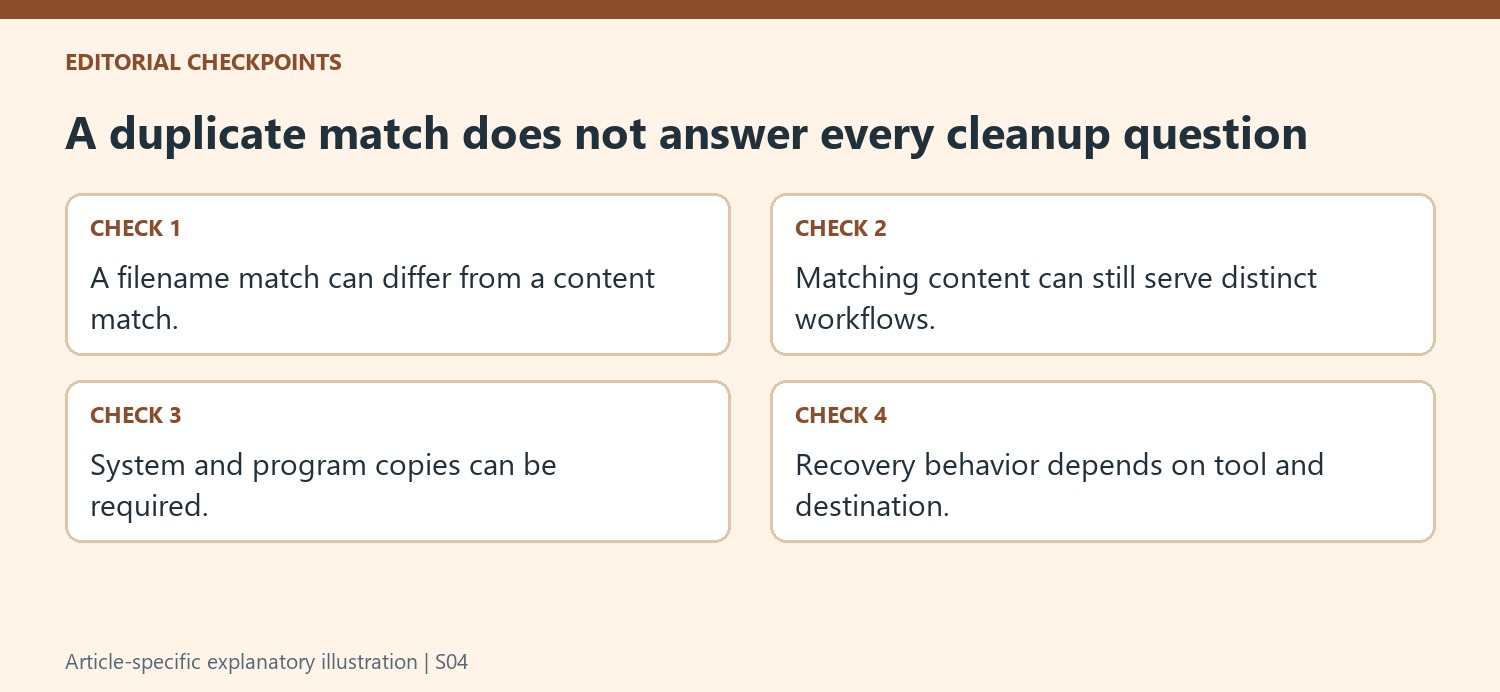
Determine what attributes the selected tool uses to identify candidates. A matching name or size does not answer the same question as a content comparison. Even matching content does not establish that both locations are unnecessary. Consider whether a project, shared folder or deliberate backup depends on a particular path before deciding which item should remain.
The source compares a guided finder, a built-in utility feature and a more advanced filtered search. Their interfaces and preview options differ, so choose according to the actual review task rather than a historical ranking alone. Open files in their normal application if a small preview cannot reveal important differences or confirm that the intended retained copy is usable. Confirm the current installer and available features independently of the old article.
Make deletion a deliberate final step
Review the selected candidates once more and check the destination’s actual removal behavior. A recycle-bin option in one illustrated tool does not guarantee the same recovery route on every drive, network location or current utility version. Preserve important material through an appropriate backup before cleanup. After the change, verify representative retained files and any path-dependent workflow that mattered to the selection. The useful outcome is a collection with fewer unwanted extra copies and a clear retained structure, supported by inspection rather than an automatic assumption that every detected match was safe to remove.
References
- How to Find and Remove Duplicate Files on Windows. How-To Geek; Chris Hoffman.




Comments
0