 DocumentFlow Desk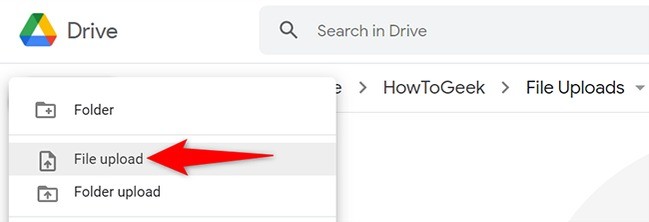
Choose the destination before selecting files
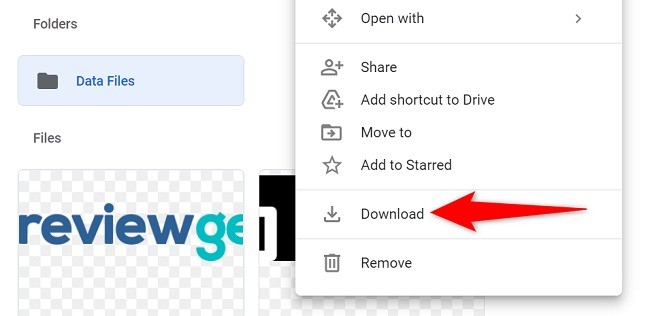
The article describes opening Drive on the web, signing in and navigating to the intended folder before using New and File Upload. Select the files from the computer's file picker and inspect the upload-status panel. Keep the browser session open until the transfer completes. A file visible in a local folder is not evidence that its cloud upload has finished. Confirm that the expected items appear in the destination and can be opened. Check current storage and size limits for the account rather than assuming that every item will upload successfully because its format can be stored.
Use the route supported by the device
On the desktop web, the source describes Folder Upload and dragging files or folders from the file manager into the Drive window. For mobile, it uses the Drive app's add control and Upload command to choose files. The available folder and file-selection behavior can differ by platform and app version. Choose instructions for the actual device and inspect progress before switching away. A broad folder upload may include more than the one document needed, so review its contents and choose an appropriate destination instead of treating the selected folder name as a complete description of what will be transferred.
Decide whether uploaded Office documents should be converted
The source discusses converting supported Word, Excel and PowerPoint documents to Google editor formats, including an automatic conversion setting where available. Enable that only when it matches the workflow. Retaining the original format and creating a converted document are different choices, especially when the recipient needs application-specific formatting or features. Open representative converted files and check the layout, formulas or presentation content as relevant. Keep the original identifiable until the result is verified. Uploading provides cloud storage, while conversion changes how the document will be edited and should therefore receive its own deliberate review.
Verify account, destination and selection before transfer
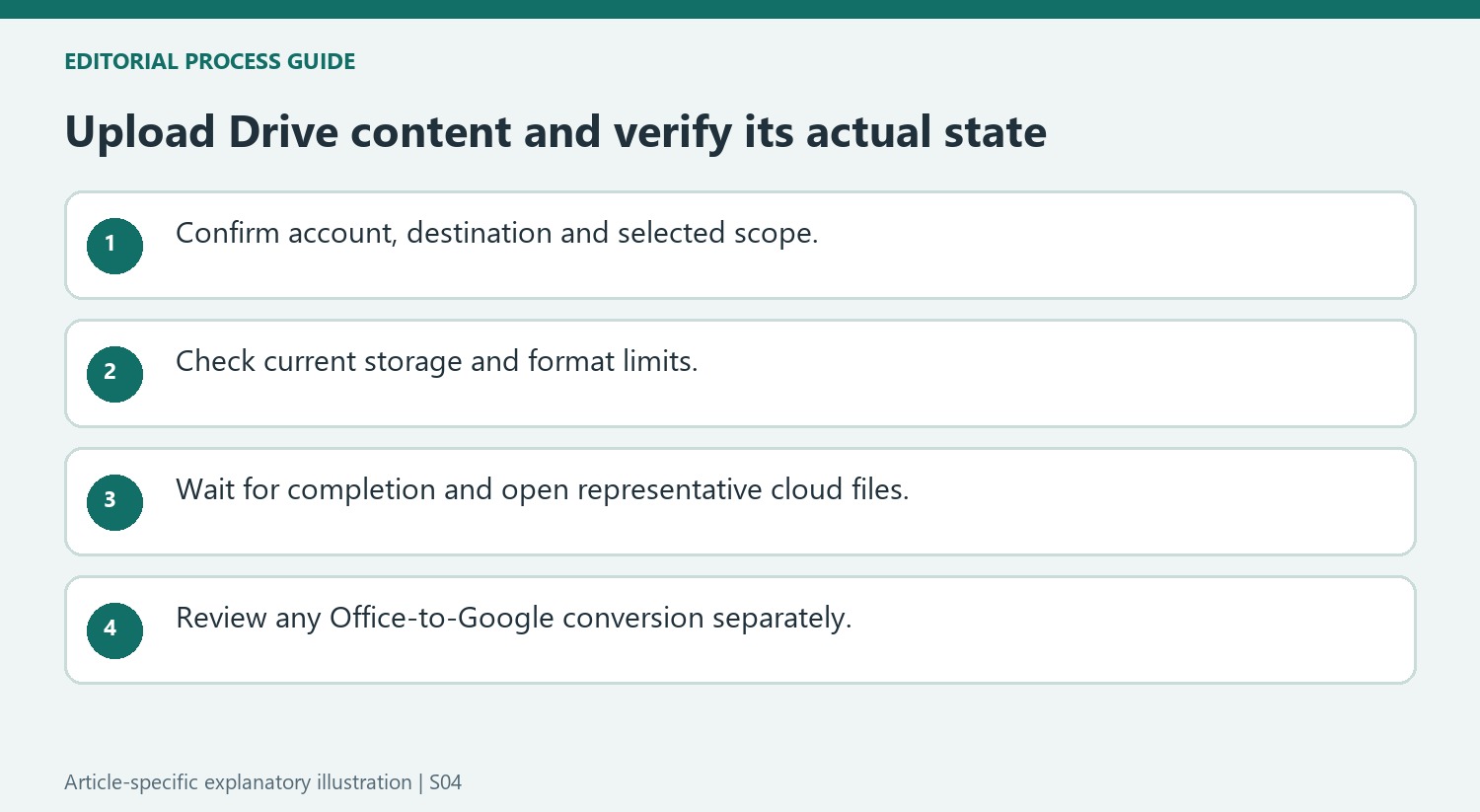
Sign in to the intended Drive account and navigate to the folder that should receive the material. Review selected files or the contents of a selected folder before starting the upload. A broad folder can contain unrelated drafts or sensitive material that its short name does not reveal. Choose the scope according to what belongs in that cloud location, not merely what is convenient to drag together.
Check current storage and file-size conditions for the account. Being able to store a format is different from being able to preview or edit it, and a large file can still encounter limits. Preserve the local source until the transfer has completed and the cloud result has been checked. A visible local item provides no evidence about the state of the browser's pending upload.
Use progress information and a representative opening check
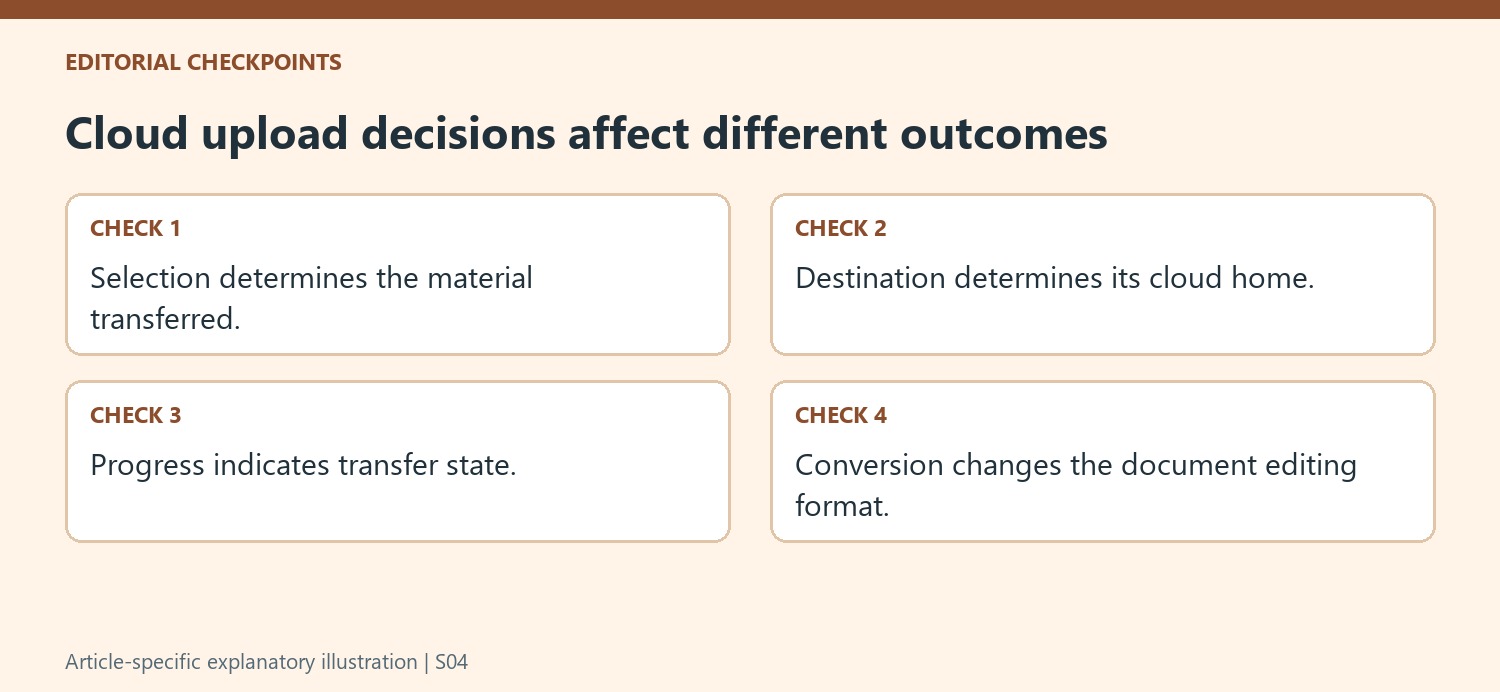
The desktop web workflow displays upload status for the selected items. Keep the required session open until completion and inspect failures as well as successes. Confirm the expected files appear in the intended folder and open representative items. This catches an incorrect destination or incomplete selection that a green indicator for one file cannot settle for the entire collection.
On mobile, use the available app upload route and review progress before assuming background activity finished. Folder support and selection behavior can differ by platform or release, so check the actual interface. Drag and drop on desktop is a convenient alternative, but it still needs the same destination and scope review as the explicit upload command. The gesture changes the initiation method, not the verification requirement.
Review format conversion as its own document decision
Automatic conversion of supported Office files changes the future editing format, so enable it only when the workflow calls for that result. Retaining a DOCX or XLSX and creating a Google editor document are distinct choices. Check important layout, formulas and presentation features after conversion in the intended tool. Keep the original identifiable until the result is accepted. Uploading establishes cloud storage, while conversion can alter document behavior; separating those decisions helps the team preserve both the correct content and the format needed for its next stage of work.
References
- How to Upload Files and Folders to Google Drive. How-To Geek; Mahesh Makvana.




Comments
0