 DocumentFlow Desk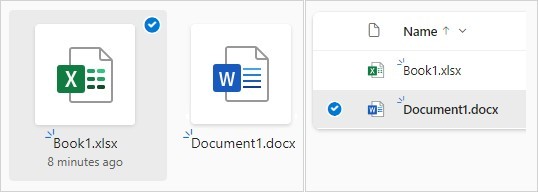
Select the intended files or the folder itself
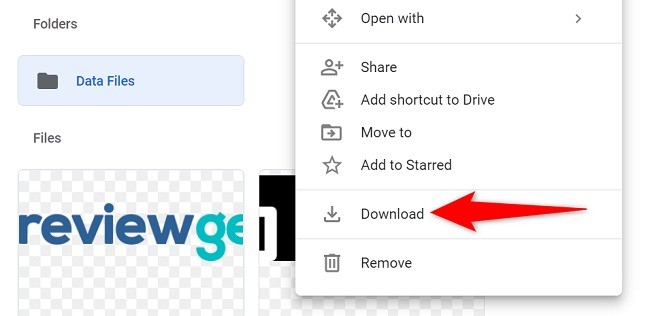
Microsoft recommends selecting the desired items on the OneDrive or SharePoint website before using Download. To download a folder as an item, move to the parent level when necessary rather than selecting only its current contents. Inspect the checkmarks for a multiple selection so the package contains the intended material. The Download control can depend on the selected items and the current view. If the interface does not show the expected command, revisit the appropriate location and verify the account's access rather than assuming the content is unavailable or already stored locally.
Review the archive and the local save location
The source describes multiple items being packaged into a ZIP file in supported environments. The browser may ask where to save it or use a configured Downloads folder. Choose a location that matches the goal. A download placed inside a synchronized OneDrive folder can remain part of the cloud workflow, so it is not automatically an independent local archive. Inspect the completed package and confirm that the expected files can be opened. Do not remove a cloud original solely because a browser download started; verify the usable local copy and any required additional protection first.
Check exclusions and platform differences
The guidance lists service-dependent limits and exceptions, including differences for on-premises SharePoint, OneNote notebooks and some rights-protected files. Check the current documentation for the exact account and file set rather than treating a supported multi-download as universal. A ZIP package can contain an error notice for an unsupported item, so count and inspect the expected contents. The mobile Keep offline workflow also differs from downloading an independent archive. Choose the method that fits the need for ongoing access, local editing or separate storage, and confirm the result in the actual environment where the files will be used.
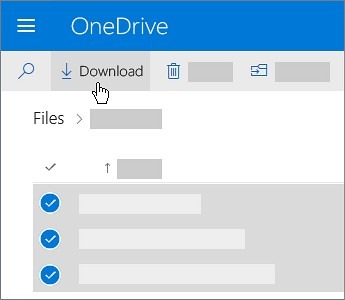
Confirm the selected scope before the browser prepares a package
Select the intended files or the folder itself and inspect the checkmarks. To retrieve a whole folder as an item, it may be necessary to go to its parent level rather than selecting only the contents currently visible. A range selection can include intervening items, so review it before downloading. The package should reflect the actual handover requirement, not simply everything that happened to be on screen.
If Download is not visible, inspect the current selection and location. The source describes cases where navigating back to the folder restores the expected control. Check the account and service context too. An absent command does not prove the file is already local or permanently unavailable; it calls for identifying which interface or permission condition is affecting the action.
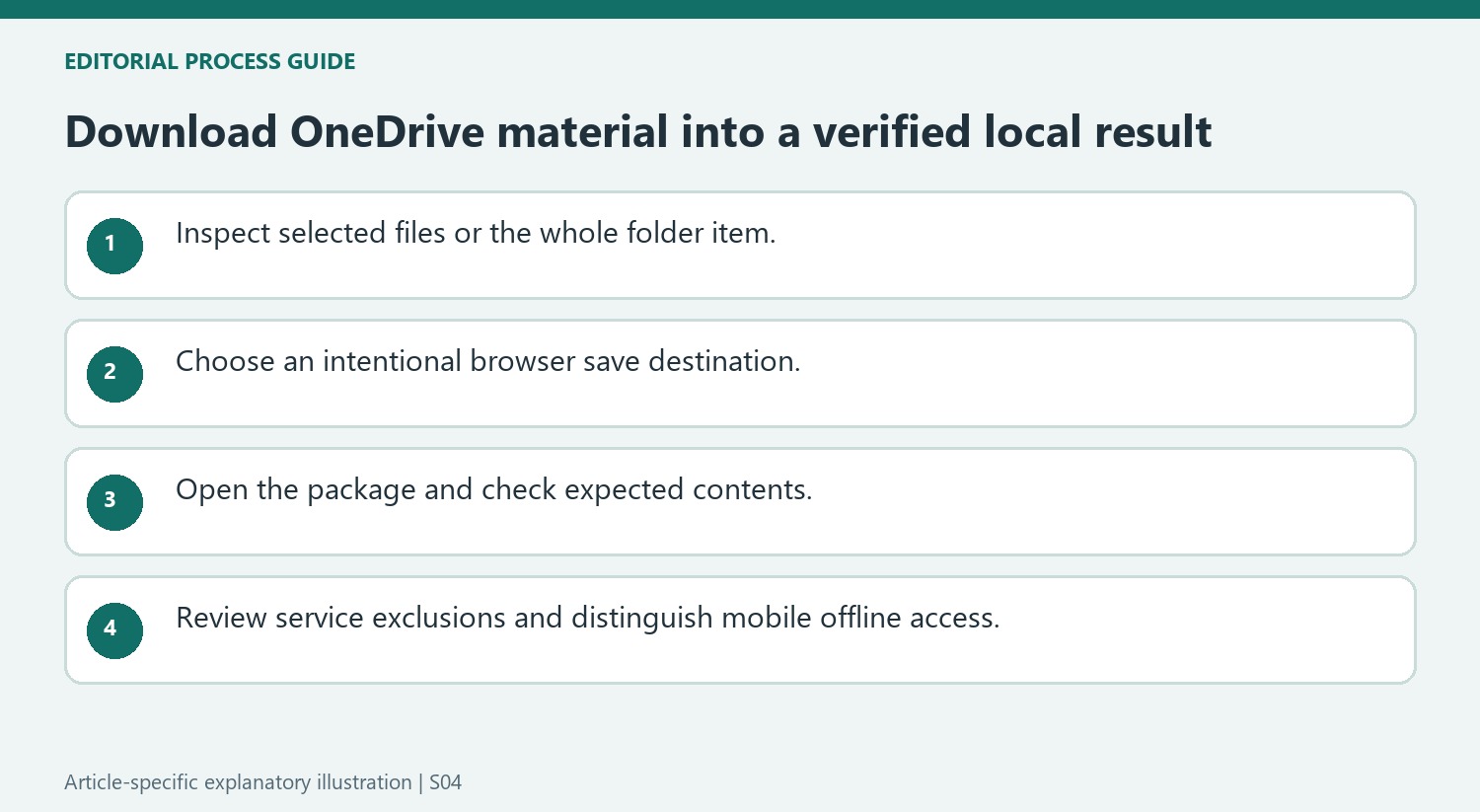
Choose a destination according to the relationship needed
A browser can save automatically to Downloads or ask for another location. Decide whether the result should be a separate local copy or remain inside a synchronized folder. Saving a download within OneDrive does not automatically create an independent archive outside the cloud workflow. Verify the final path before making any later storage-cleanup decision based on the existence of that download.
Open the completed ZIP or downloaded files and compare the contents with the intended set. Multiple-item support depends on the service, and exclusions can produce error notices instead of the expected document. Inspect representative files for usability rather than counting filenames alone. Do not remove a cloud original merely because transfer preparation began or a browser displayed an initial download entry.
Check exceptions and offline behavior in the actual environment
The source lists differences for server deployments, notebooks, protected files and package limits. Consult current guidance for the selected account and content instead of treating one supported example as universal. If an excluded item needs a separate route, verify that result too. Mobile Keep offline is an app-managed availability workflow, different from an independent download archive. Choose the method that supports the real need for disconnected reading, local editing or separate storage, and test it where the files will actually be used before considering the handover complete.
References
- Download files and folders from OneDrive or SharePoint. support.microsoft.com.



Comments
0