 DocumentFlow Desk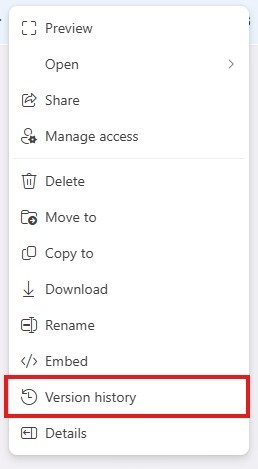
Check the error and locate the stored workbook
Microsoft's page addresses Excel for the web errors that report a changed extension or a corrupted file. It describes version history as a possible recovery method, rather than a guaranteed fix for every cause of an opening failure. Navigate to the folder containing the actual workbook and inspect its name and location. A browser shortcut or a downloaded copy may not expose the same history. Confirm the intended file before making a change that could affect the shared version used by other people.
Select an earlier version through the file's history
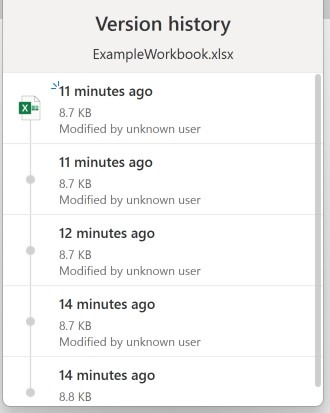
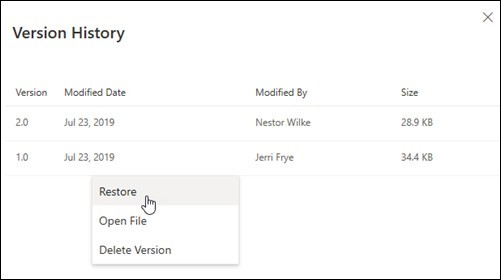
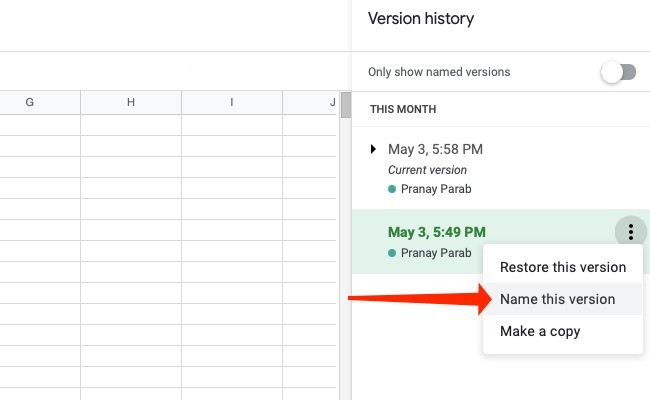
Open the context menu for the workbook and choose Version history, using the OneDrive-related submenu where that interface requires it. The panel lists versions with saved dates and times. Select an entry earlier than the latest one and use its additional-actions control to restore it. Choose the point deliberately: the most recent earlier version may preserve more work, while another state may be needed if the problem began before that. The available history and commands depend on the storage environment and the permissions assigned to the current user.
Verify usability and identify work that must be recovered
The source warns that the selected previous version replaces the current workbook state, so updates made afterward will no longer be present in the active content. Coordinate with collaborators and retain suitable copies where possible before making the recovery decision. After restoring, open the workbook and check the relevant sheets, formulas and data rather than stopping when the error message disappears. Determine whether newer work needs to be reintroduced from another source. If the problem remains, avoid repeatedly restoring arbitrary states without understanding the file and storage conditions that may be causing the failure.
Use the stored workbook history as a bounded recovery route
Start from the workbook in its actual cloud folder and confirm that its name and location match the file that failed to open. The source describes recovery through available earlier versions, so the route depends on such history being present. A local attachment or an unrelated duplicate may not expose the same entries even when the filename looks identical.
The reported opening error can mention a changed extension or corruption, but that message alone does not identify the exact underlying cause. Renaming an extension is not equivalent to converting a file into another workbook format. The suggested history workflow instead tries a previously stored state that may predate the problem. Keep that limited purpose clear while investigating the failure.
Choose the closest useful state rather than an arbitrary old date
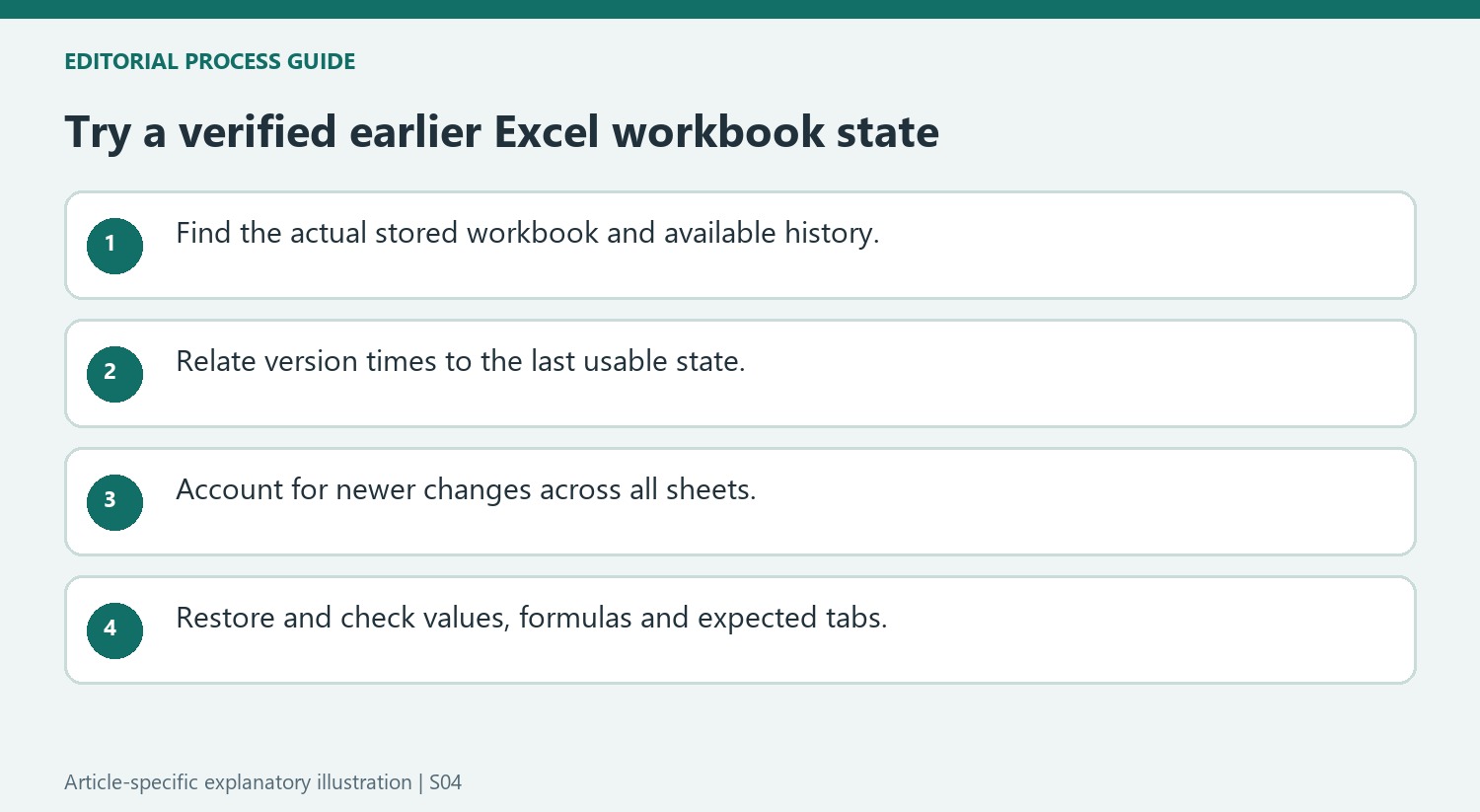
Review the dates and times in the history panel and relate them to when the workbook last opened correctly. Select a candidate that is early enough to avoid the suspected damage while retaining as much valid work as possible. If there is uncertainty, preserve available working copies appropriately and identify what each one represents before making the restoration decision.
Restoration concerns the workbook as a whole. A change intended to recover one damaged sheet can also replace updates in other sheets, including values, formulas and notes. Coordinate with the people who maintain those areas. The source explicitly warns that updates made after the selected version will be absent from the restored active content, so the time comparison should include business changes as well as the error’s appearance.
Judge recovery by usable workbook content
Open the restored file and examine the sheets needed for the real task. Check representative values and formulas, the presence of expected tabs and the recent work that matters to collaborators. Merely passing the initial opening step does not establish that the recovered state is complete enough to resume operations. If the candidate remains unsuitable, record what failed before considering another version or a different support route. This makes the recovery sequence an informed investigation instead of a series of unexplained replacements that obscures which state contained the last useful data.
References
- Restore a previous version of an Excel file. support.microsoft.com.







Comments
0