 DocumentFlow Desk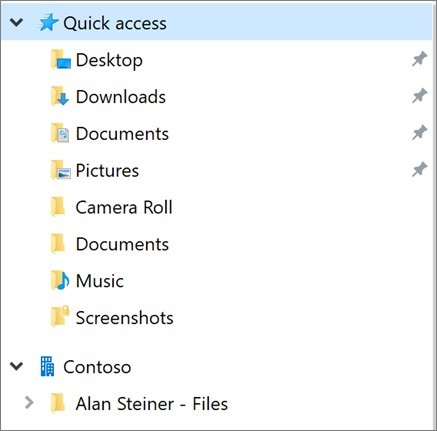
Use the access link provided for the handover
Microsoft's guidance begins with a Microsoft 365 administrator granting access to another person's work or school OneDrive. Open the location through the link supplied for that purpose and inspect the intended files. This is an authorized organizational workflow, not a method for bypassing another user's permissions. Confirm the scope of the transfer and the required destination before copying material. A handover may include information with different owners or audiences, so do not assume that every file in the accessible account belongs in the same new shared location.
Choose a browser copy or a local download for a small set
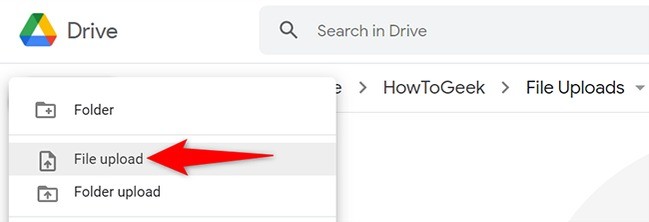
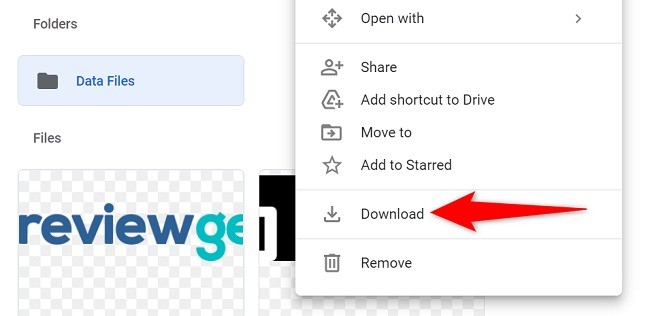
For a few files, select the relevant items and use Copy to when the destination is the current user's OneDrive or an appropriate SharePoint site. Use Download when the intended result is a local copy on the computer. These actions have different relationships to the organization's shared storage, so choose deliberately. Inspect the resulting files and their destination rather than relying only on the completion message. Saving the supplied OneDrive location as a favorite can simplify a repeated authorized task without changing the access that the administrator granted.
Use synchronization carefully for larger transfers
The source recommends the OneDrive sync application when working through many folders or a large number of items. Start Sync from the authorized browser location and complete the setup, after which the files appear under the organization's entry in the local file manager. A synchronized location is connected to the source, so dragging an item may perform a move rather than create the independent copy intended. Plan the operation, inspect the destination and confirm completion before removing source material. Keep the transfer aligned with the organization's retention and ownership process so a convenient local view does not obscure which files remain in which account.
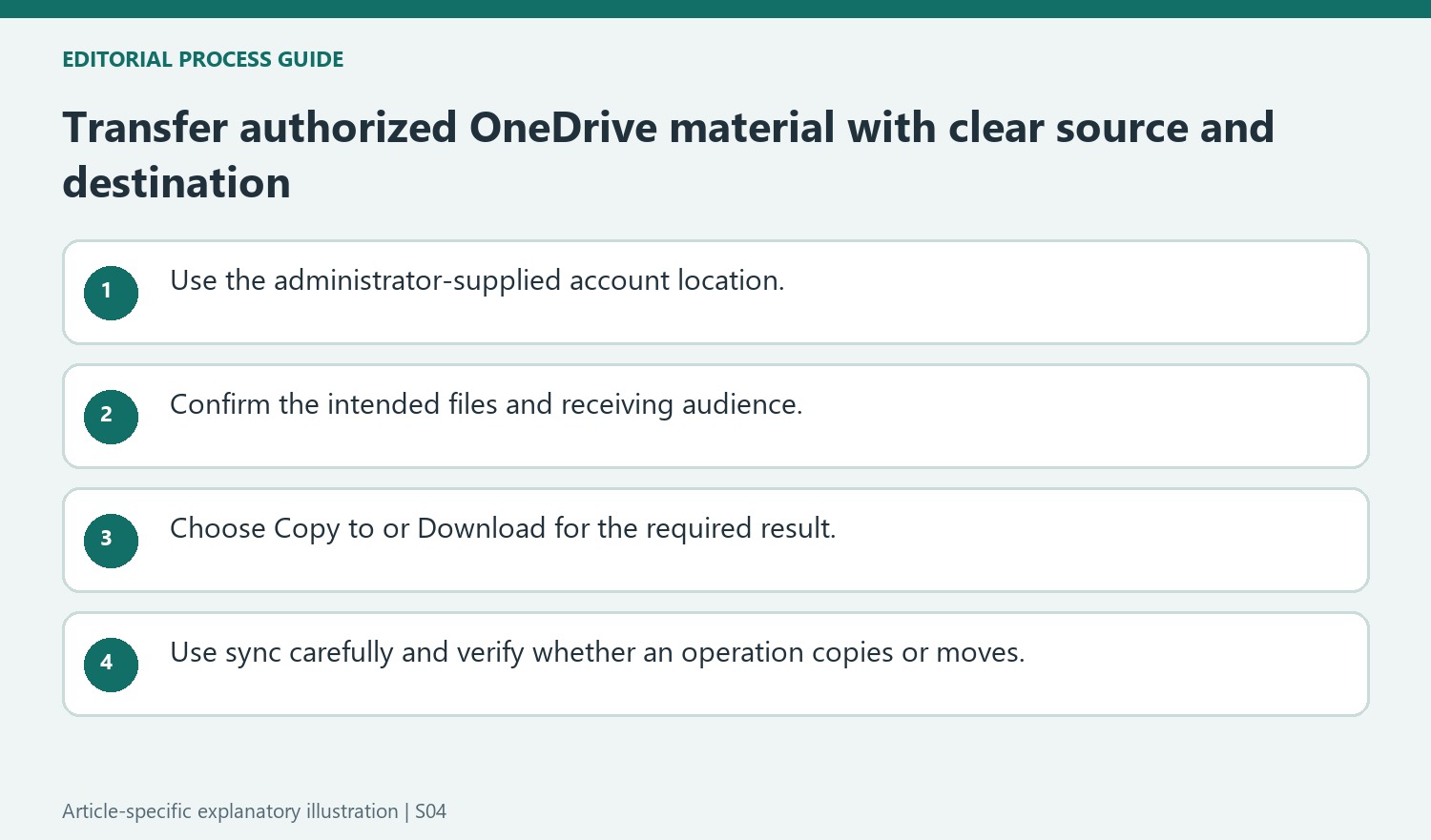
Keep the administrator-granted scope visible during the handover
Open the other person's work or school OneDrive through the access link supplied by the organization. Confirm the identity of that location and the transfer purpose before selecting files. This is an authorized handover workflow; the fact that a collection is accessible does not mean every item should be copied to one new audience. Review ownership, sensitivity and destination according to the organization's process.
For a repeated task, a saved favorite can make the supplied location easier to reach without changing its permission scope. Check the source again when returning later, particularly if the handover spans several sessions. Similar account names or folder titles can otherwise lead a familiar-looking selection into the wrong destination. Keep enough context to explain which source each transferred collection came from.
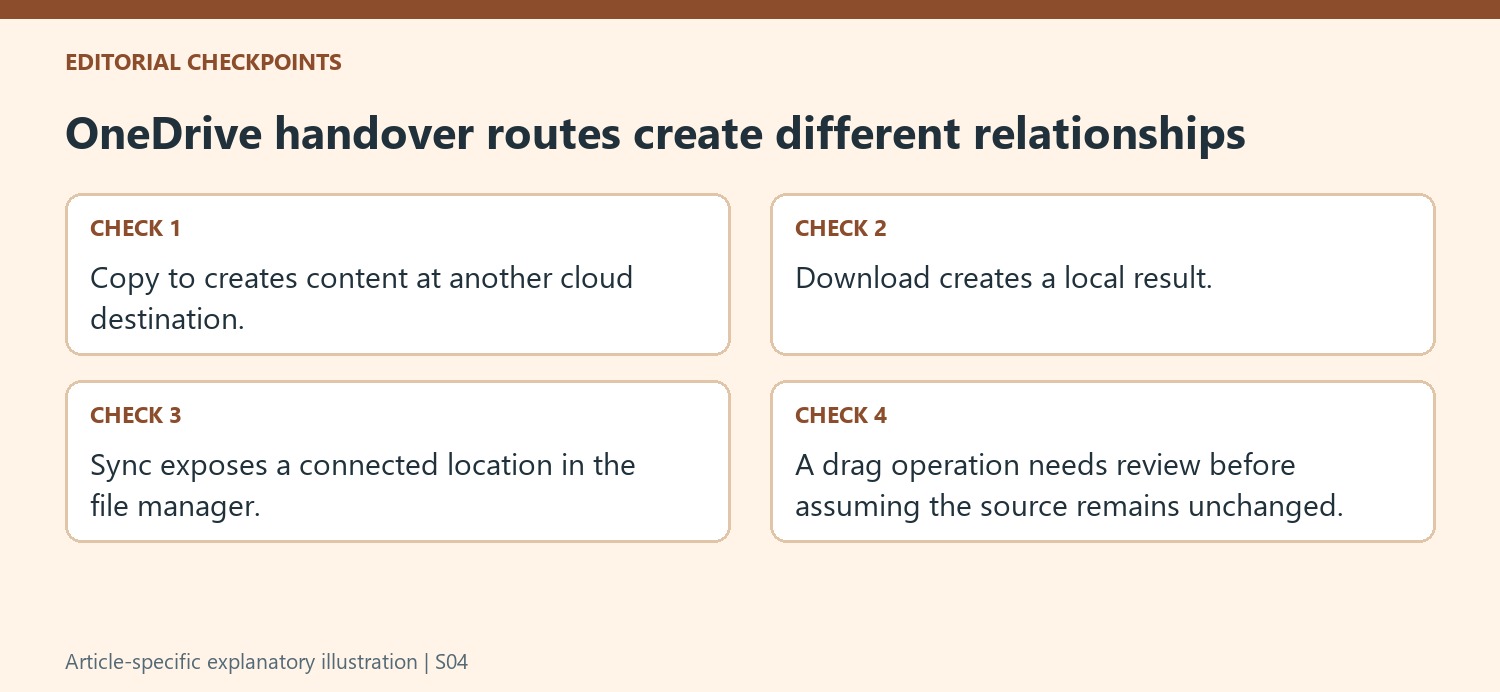
Choose a small-set copy route according to the required result
Copy to can place selected material into the current user's OneDrive or an appropriate SharePoint site. Download creates a local result on the computer instead. Choose deliberately and inspect the destination afterward. A local file is not automatically available to the receiving team, while a copied shared-site item may be reachable by a wider audience than the original source.
Verify that the expected files open and represent the intended versions. The transfer completion message does not establish that the selection was complete or that the new location's access is appropriate. Retain source context until those checks are done. A successful handover provides usable material in the right place, with a clear understanding of who now maintains the copied content.
Use synchronization without accidentally changing the source
The source recommends syncing for large collections and multiple folders. After setup, identify the organizational entry in the file manager and distinguish source and destination paths. Dragging can move rather than copy depending on the operation, so verify the intended action before applying it broadly. Check synchronization progress and representative destination files before removing source material through any authorized retention process. A convenient local view should make the transfer easier to manage while preserving an explicit account of which files remain in each location and which item is now the maintained reference.
References
- Copy files from another person's work or school OneDrive. support.microsoft.com.




Comments
0