 DocumentFlow Desk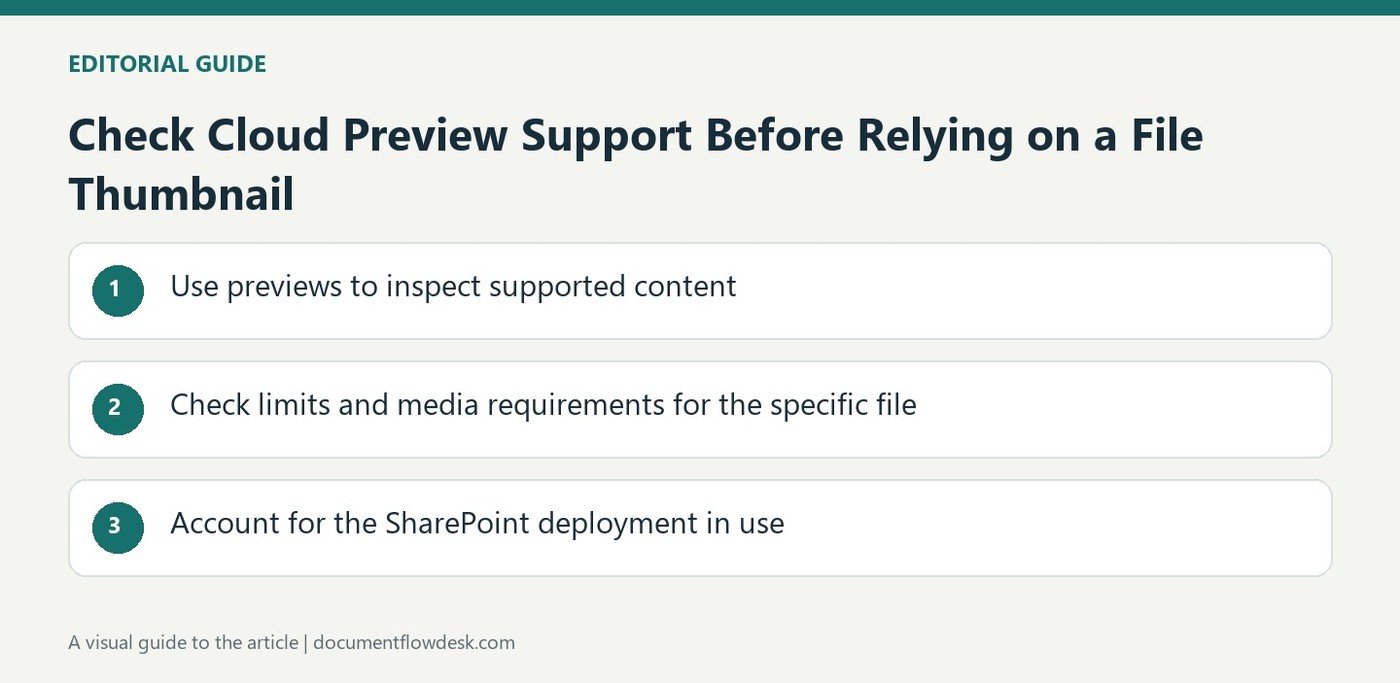
Use previews to inspect supported content
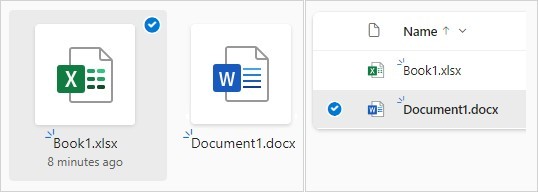
Microsoft lists a broad range of previewable formats across OneDrive, SharePoint and Teams, including common Office documents, images, PDFs, media and text-based files. This can help a reader identify content without installing the application that originally created it. A preview is still a viewing capability rather than proof that the service can edit the file or reproduce every application-specific feature. Check the actual document when a specialized layout, embedded object or other detail matters to the next step, rather than relying only on a small thumbnail.
Check limits and media requirements for the specific file
The source identifies size limits and exclusions for some formats. Its examples include restrictions on large images and three-dimensional files, as well as unsupported external resources associated with some models. Media playback can depend on the browser, bitrate and codecs, so a recognized extension does not guarantee that every file with that extension will play. Inspect the current support guidance for the exact format and environment. When a preview fails, distinguish an unsupported characteristic from a damaged file before attempting unnecessary conversions or rebuilding the content.
Account for the SharePoint deployment in use
The page distinguishes the cloud services from SharePoint Server configurations, where supported previews can depend on the server edition and Office Online Server. Do not assume that a format listed for one environment is available in every library. Test a representative file in the actual location where recipients will open it. Provide another approved viewing route when a preview is unavailable, while preserving the correct original format. The practical aim is predictable access: readers should understand whether they are seeing a convenient preview, downloading a source file or opening it in the application needed for a complete review.
Use preview support as a viewing capability with boundaries
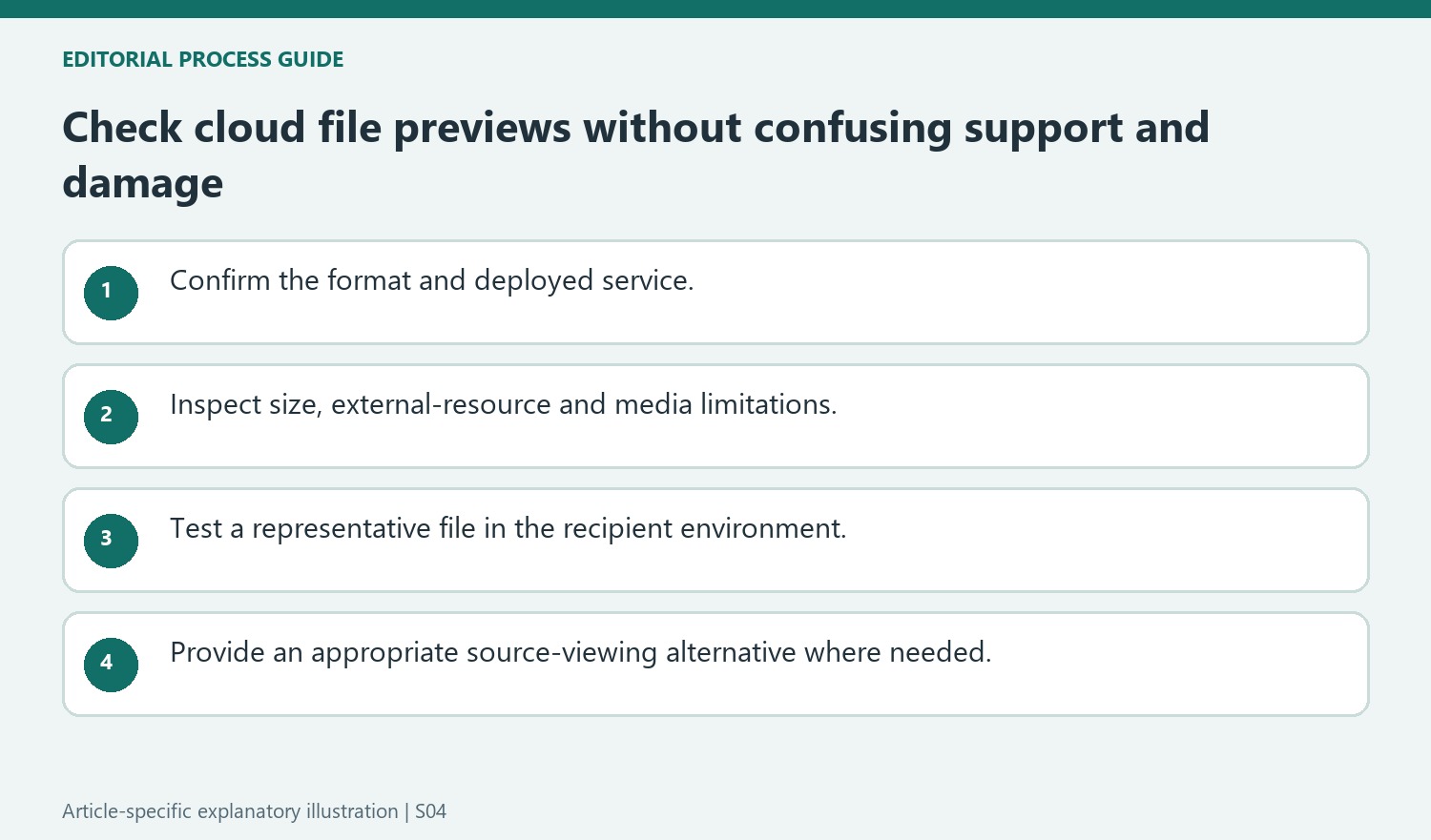
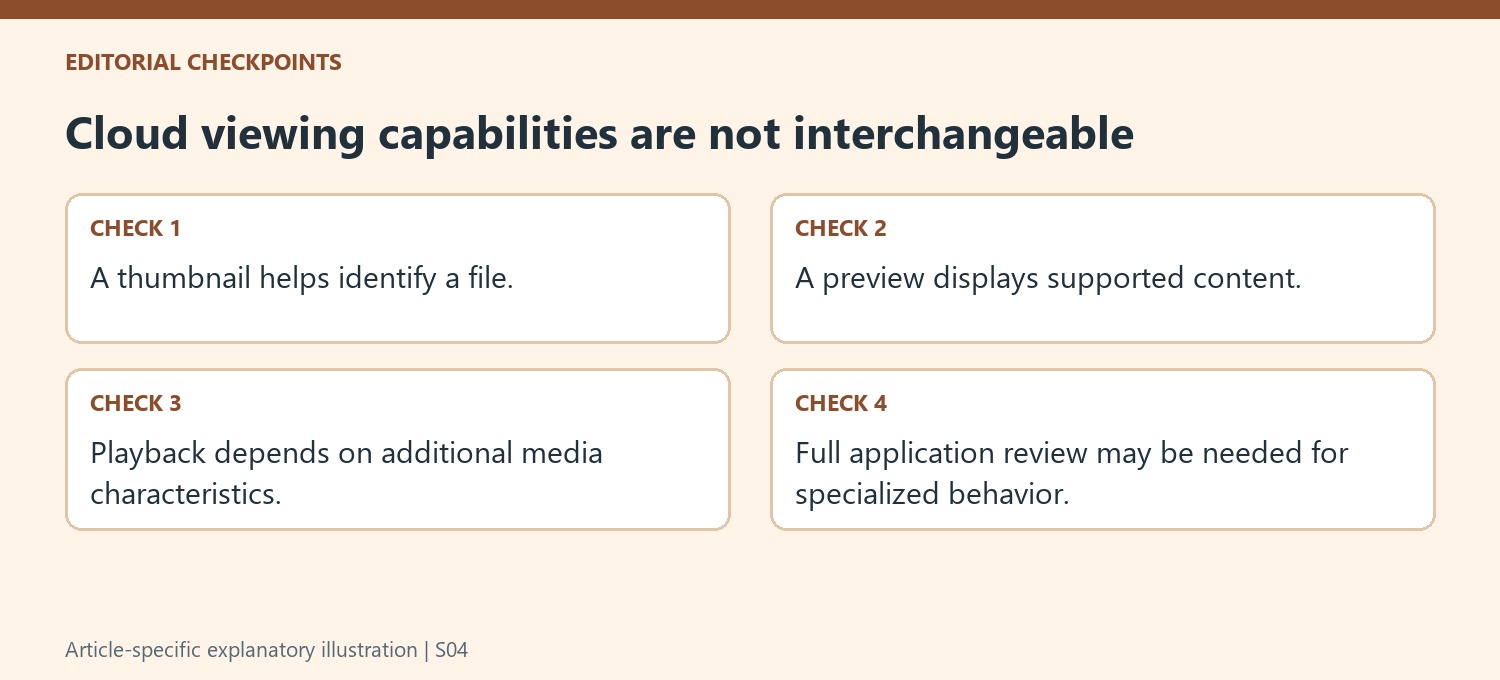
A supported preview can help identify or read a file without installing its authoring application. It does not establish that the cloud service can edit the format or reproduce every specialized feature. Check the original through an appropriate application when a detailed layout, embedded object or application-specific behavior affects the next decision. A thumbnail is particularly limited evidence of the full document state.
Confirm that the file format and environment match the current support list. The source covers a wide range of documents, media, images and code, but the same extension can contain characteristics that change the preview result. A recognized file type is therefore the beginning of the check rather than a guarantee that every example will display identically.
Investigate limits before concluding that a file is damaged
The guidance gives size limits for images and three-dimensional models and notes that external resources such as textures may not be supported for model previews. A model can therefore appear incomplete without its source file being corrupt. Inspect the actual resources and supported viewing route before converting or rebuilding content unnecessarily. Keep the original intact while diagnosing the limitation.
Media behavior can depend on browser, bitrate, encoding level and audio codec. Thumbnail support is not the same as playback support, and one browser's success does not prove another recipient will have the same experience. Test a representative file where it will actually be opened. If playback fails, compare the relevant technical characteristics with the current guidance rather than changing formats blindly.
Account for cloud and server deployment differences
The source distinguishes cloud services from SharePoint Server configurations, including cases where Office Online Server affects document preview availability. Confirm the actual deployment before treating a cloud support table as a promise for an internal library. Provide an approved alternative for viewing when necessary, tested with the intended recipient environment, and explain whether the reader is seeing a preview, downloading a source or opening an application. A predictable handover preserves the correct original while giving recipients a route that supports the completeness and fidelity required for their actual review task.
References
- File types supported for previewing files in OneDrive, SharePoint, and Teams. support.microsoft.com.




Comments
0