 DocumentFlow Desk
Check whether the file is personal or channel material
Microsoft describes deleting files through Teams on the desktop or web, with recovery through OneDrive or SharePoint. For personal files, open OneDrive in Teams and locate the item under My files. Use its action menu to delete it, which moves it to the recycle bin in the documented workflow. Review the file before confirming the action. A file linked in a conversation can be part of an ongoing shared task, so understand the storage item and its use rather than treating the visible chat reference as the entire document.
Use the channel's shared-file controls for channel documents
Open the relevant channel and its Shared tab to locate a channel file. The source describes deleting a selected item through its menu or selecting several files before applying the deletion command. Check the whole selection for a bulk action. For a file attached to a message already sent in a chat, the guidance points to editing the message to remove that reference. Removing an attachment reference and deleting a stored file are not necessarily the same action, so choose the workflow that matches the actual cleanup requirement.
Restore through the appropriate recycle bin
For a personal file, use OneDrive's Recycle bin, select the item and choose Restore. For a deleted channel file, open the channel's shared location in SharePoint and restore the selected item from that site's recycle bin. The source says the restored file returns to its previous location in the described workflow. Inspect that location afterward and confirm that collaborators can find the intended version. Recovery depends on the applicable permissions and retention behavior, so act through the correct storage service rather than assuming that every missing Teams file can be recovered from the same place indefinitely.
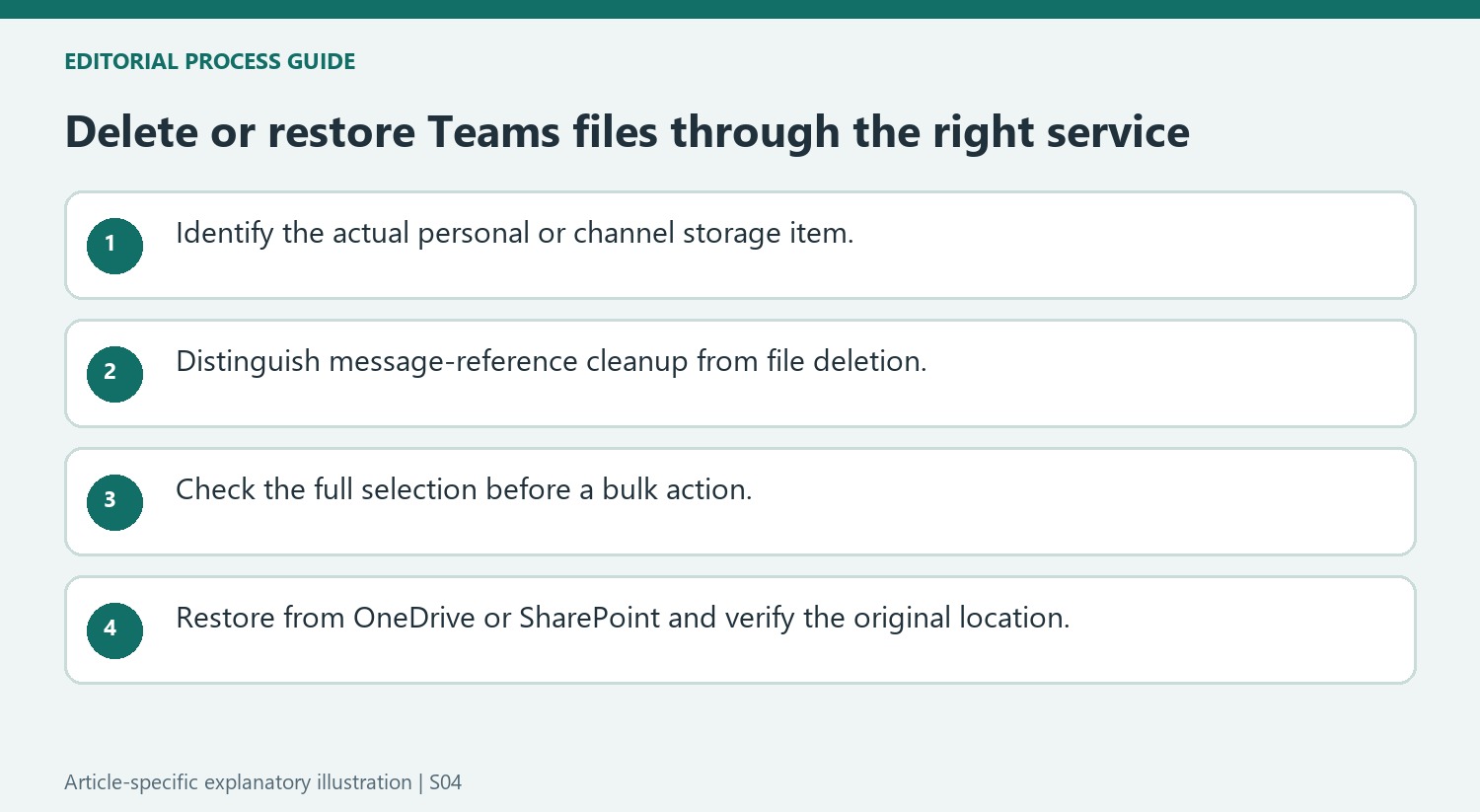
Identify the stored item before choosing a cleanup action
Teams presents files through personal storage, channels and chat messages, but those surfaces do not all represent the same underlying operation. Locate the actual item and decide whether the requirement is to remove a message reference or delete a stored file. A visible attachment in a conversation may still be used elsewhere, so check its role before treating chat cleanup as document disposal.
For a personal file, the source uses OneDrive within Teams and My files. For a channel file, it points to the relevant channel's Shared tab. Verify the channel and filename, especially when different teams use similar document names. A bulk selection deserves a full review: every checked item participates in the deletion action, not only the row whose menu was opened.
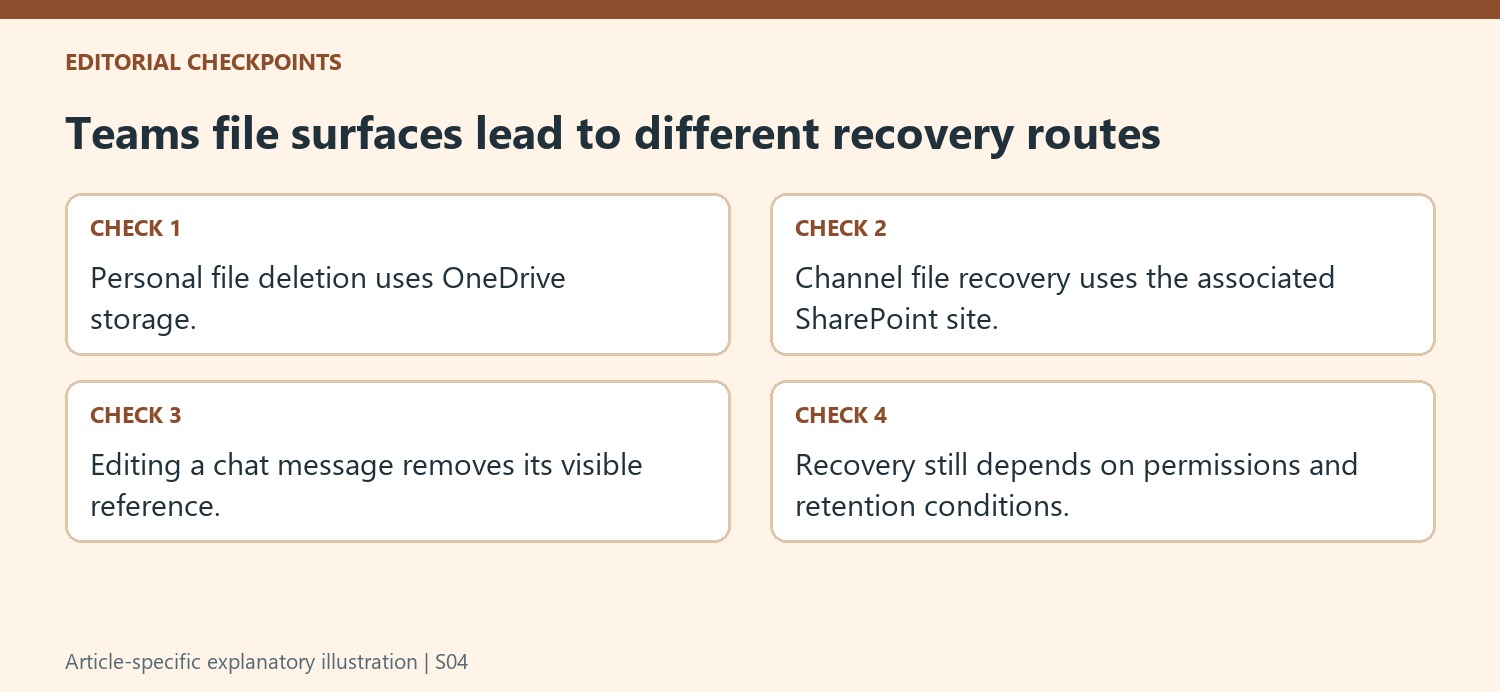
Keep deletion and reference removal conceptually separate
Deleting the stored file through the documented controls moves it to the appropriate recycle-bin workflow. Editing a sent chat message can remove the attachment reference from that message. These actions serve different needs and should not be assumed to have identical effects on the underlying document. Choose the one that matches the intended cleanup rather than whichever control happens to be easiest to find.
When others still need the material, communicate the intended change and retain an appropriate version where required. A document that disappears from one visible surface is not necessarily gone from every storage route. Conversely, deleting the underlying item can affect more than the single conversation currently on screen. Review the actual location and relevant permissions before deciding what a disappearance means.
Recover through the service responsible for the original location
For personal material, inspect OneDrive's Recycle bin and restore the intended item. For channel material, open the associated SharePoint location and use that site's recycle bin. Check the restored file at its previous location and verify that the expected version is available to collaborators. Recovery depends on permission and retention conditions, so act promptly and avoid promising indefinite availability. A successful recovery restores usable access to the correct content, not merely a familiar filename in a bin that belongs to a different account or project.
References
- Delete and recover files in Microsoft Teams. support.microsoft.com.





Comments
0