 DocumentFlow Desk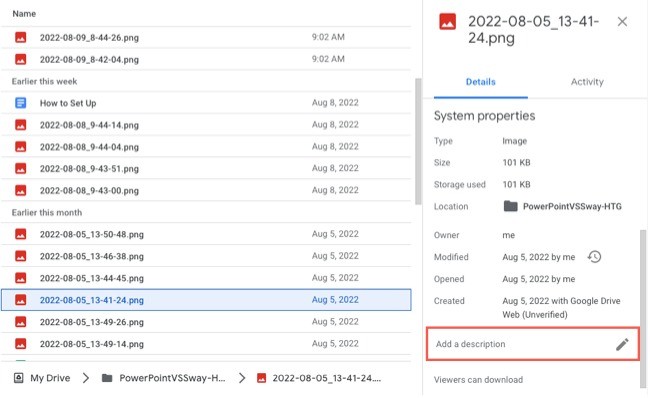
Use descriptions where names alone are ambiguous
The article recommends descriptions for files and folders that are difficult to distinguish, such as similarly named screenshots or collections of related material. Explain what an image shows or what a folder contains using terms that a future searcher is likely to remember. A description should add useful context rather than simply repeat the filename. It can help someone decide whether an item is relevant before opening it. Keep the text connected to the actual contents and revise it when a folder's purpose or a document's role changes materially.
Open the details area and edit the description
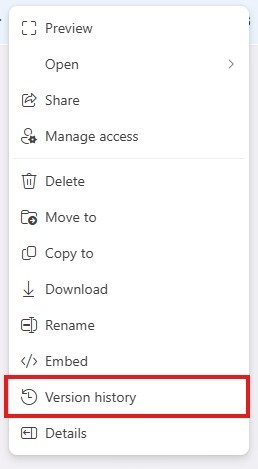
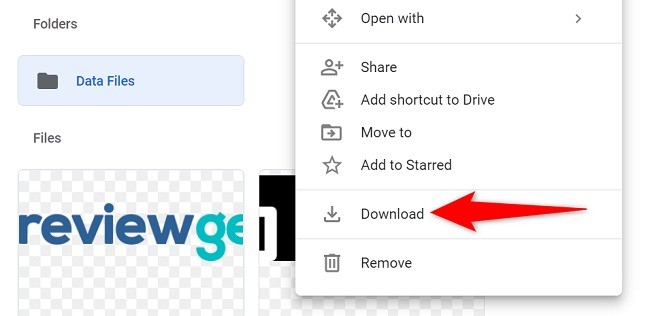
In Drive on the web, select the relevant file or folder and open View Details through the information icon or context menu. The source's interface places the description in the Details tab of the right-hand sidebar, with a pencil control for editing. Enter the text and finish through the available save behavior. Interface details can change, so locate the current description control rather than assuming its position is identical to the article's screenshots. Reopen the details afterward to confirm that the intended text was stored on the correct item.
Search using the context you added
The source explains that words or phrases in descriptions can help an item appear in Drive search results. Use a distinctive term from the description to check that the file can be retrieved as expected. Descriptions complement consistent naming and folder organization; they do not remove the need for those foundations. Avoid filling them with broad keyword lists that make unrelated items appear equally relevant. A concise explanation of subject, purpose or contents is more useful than repetitive labels, especially when several collaborators need to understand why one of many similarly named files is the one they should open.
Write context that distinguishes the item from similar names
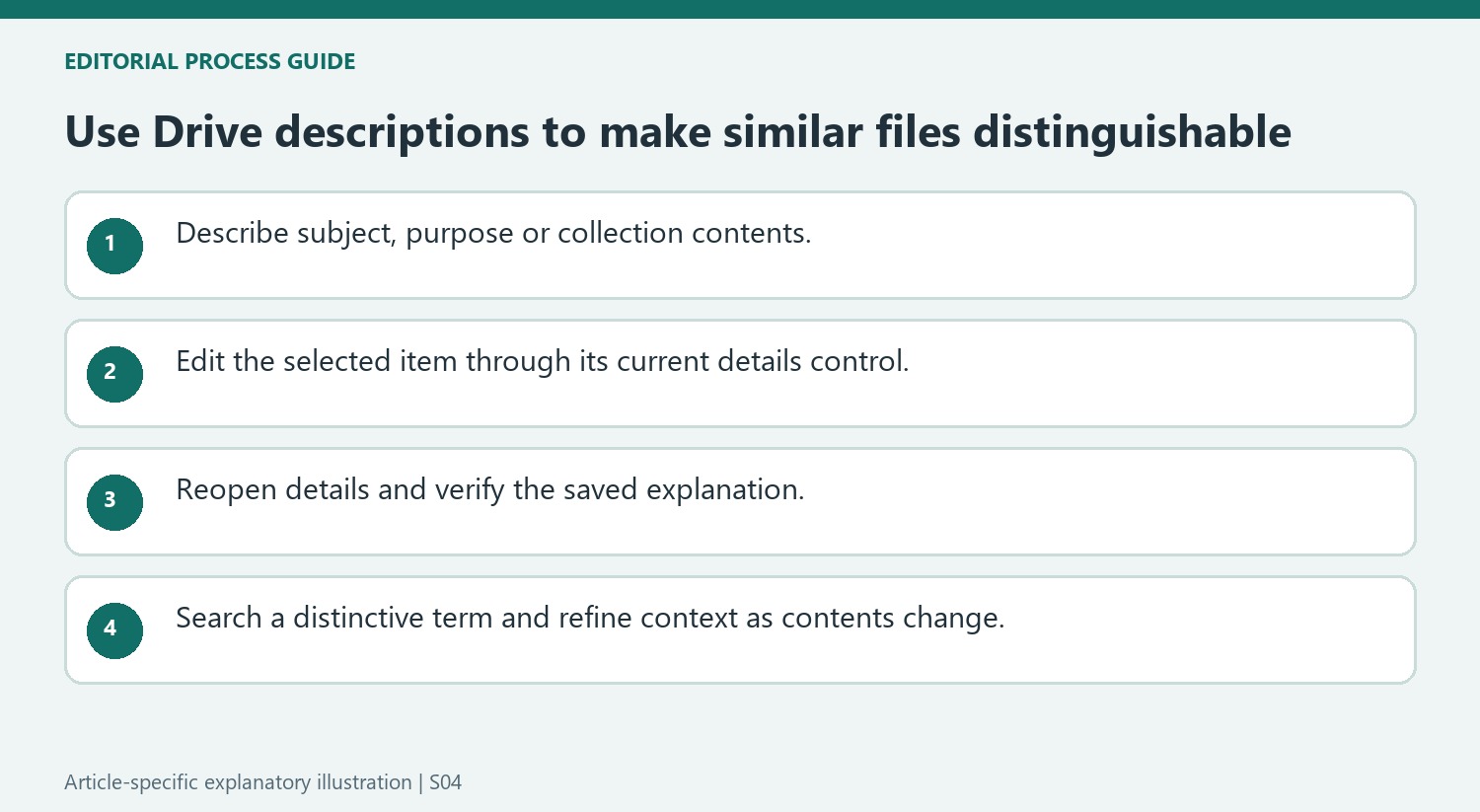
A useful description explains subject, purpose or contents that the filename leaves ambiguous. For screenshots, identify what the image shows; for a folder, describe the collection and its intended use. Choose terms that a future reader is likely to remember, rather than copying the existing name into another field. The description should help decide whether opening the item is worthwhile.
Keep the wording grounded in the actual contents. A broad list of unrelated keywords may create more search matches while making results less trustworthy. If a folder changes role or a document becomes obsolete, revise the description so it does not continue to recommend an outdated resource. Descriptive metadata needs maintenance just as filenames and folder locations do.
Verify the stored description on the intended file or folder
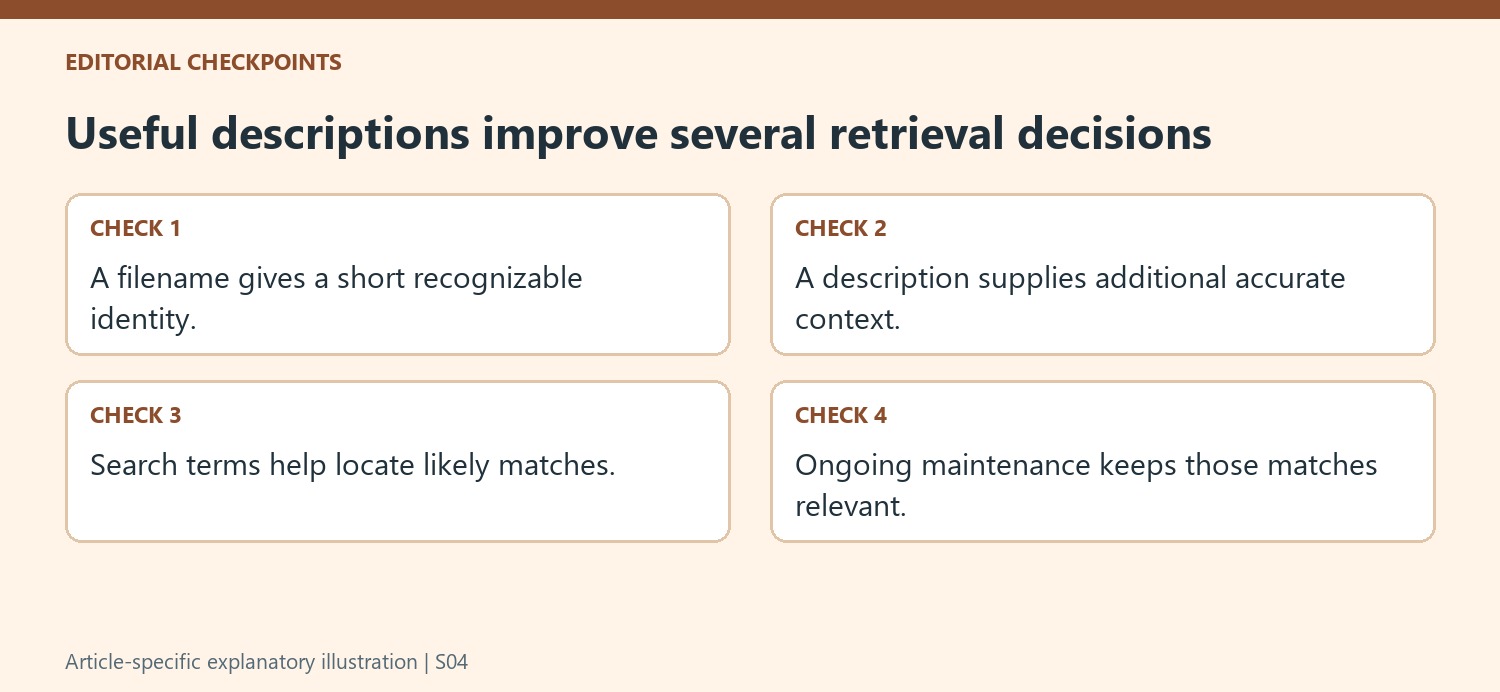
Select the item in Drive on the web and open its details through the available information control or context menu. The source shows a Details tab and an edit control near the description field. Locate the current equivalent rather than assuming its placement exactly matches an older screenshot. Similar filenames make checking the selected item especially important before entering a detailed explanation.
Finish through the current save behavior, then reopen the details to confirm the text persisted. Read it from another person's perspective: does it add enough information to distinguish the item without requiring the author's private context? Keep any sensitive or unnecessary information out of descriptive text that may be visible to the item's collaborators. A description should improve discovery without becoming an uncontrolled second location for unrelated document content.
Test retrieval and refine the terms when needed
Search for a distinctive word or phrase from the description and inspect whether the intended item appears. Compare the results with similarly named files to see whether the added context actually helps. Descriptions complement meaningful names, folders and other search tools rather than replacing them. Use a small number of accurate differentiating terms and update them when the underlying material changes. The practical test is whether a future searcher can identify the right resource more reliably, not whether every available metadata field has been filled with the largest possible amount of text.
References
- How to Add Descriptions to Files and Folders in Google Drive. How-To Geek; Sandy Writtenhouse.




Comments
0