 DocumentFlow Desk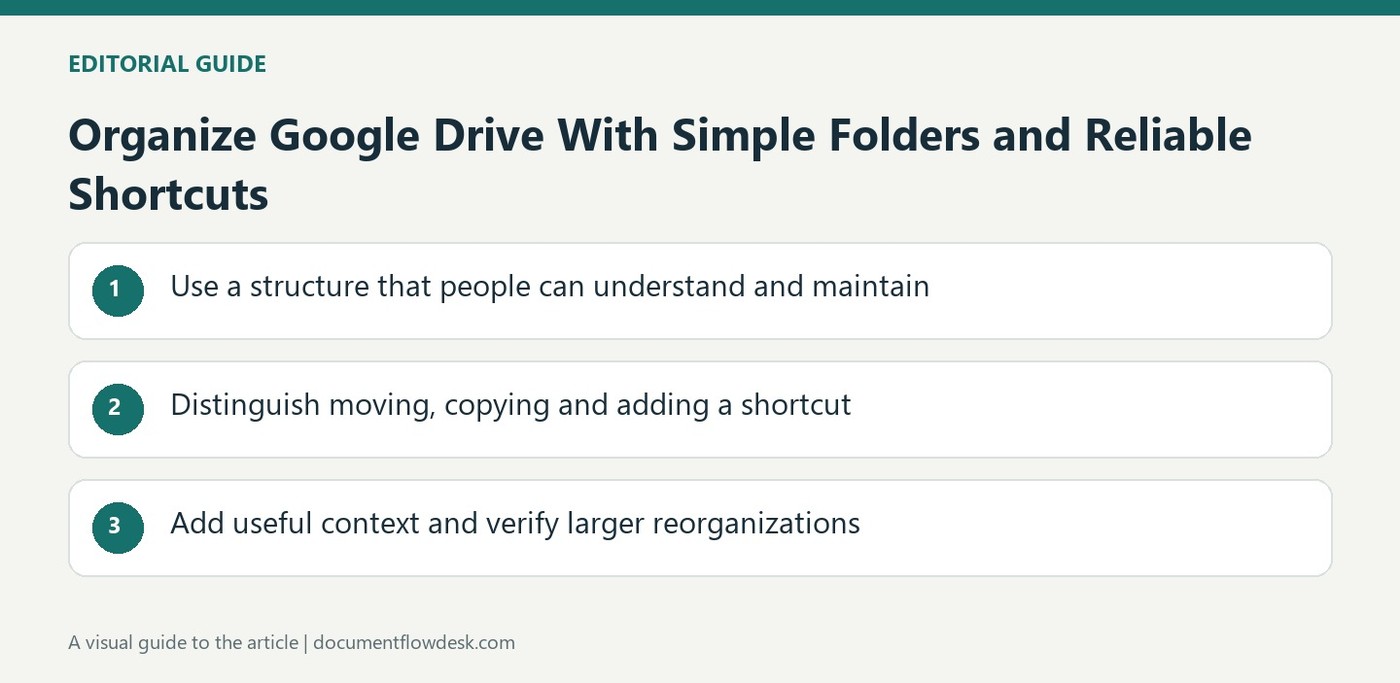
Use a structure that people can understand and maintain
Google recommends short, meaningful filenames and a simple hierarchy of folders and subfolders. Start with the categories or projects that match the work, then add detail only where it improves retrieval. Dates and keywords can help distinguish similar records. Folder colors provide a visual aid, but the source notes that these choices apply to the user's own view. Stars can make frequently needed items easier to reach. Keep these visual and convenience features tied to a clear underlying structure so navigation does not rely on remembering a private color convention alone.
Distinguish moving, copying and adding a shortcut
Drive offers context-menu and drag-and-drop routes for moving items. The source warns that moving requires permission at both the original and destination locations; without it, a shortcut may be created instead. A copy becomes another file with its own working content, while a shortcut points to the original item. Use the action that matches the need. A shortcut can expose the same resource in another navigation location without intentionally creating competing document versions. Deleting a shortcut does not delete its target, which is important when cleaning up a shared navigation structure.
Add useful context and verify larger reorganizations
Descriptions can explain what a file or folder contains and provide additional context beyond its name. The current source describes editing them through the details area, including supported rich-text controls. After moving many items, allow time for changes to appear and inspect the resulting organization. Confirm that expected files are in the intended location and that access still fits the task. Do not assume that every browser shortcut is available in Drive for desktop or another client. Choose instructions for the actual interface and maintain a clear distinction between a renamed item, a relocated original and a newly created copy.
Keep the basic structure simple enough for daily use
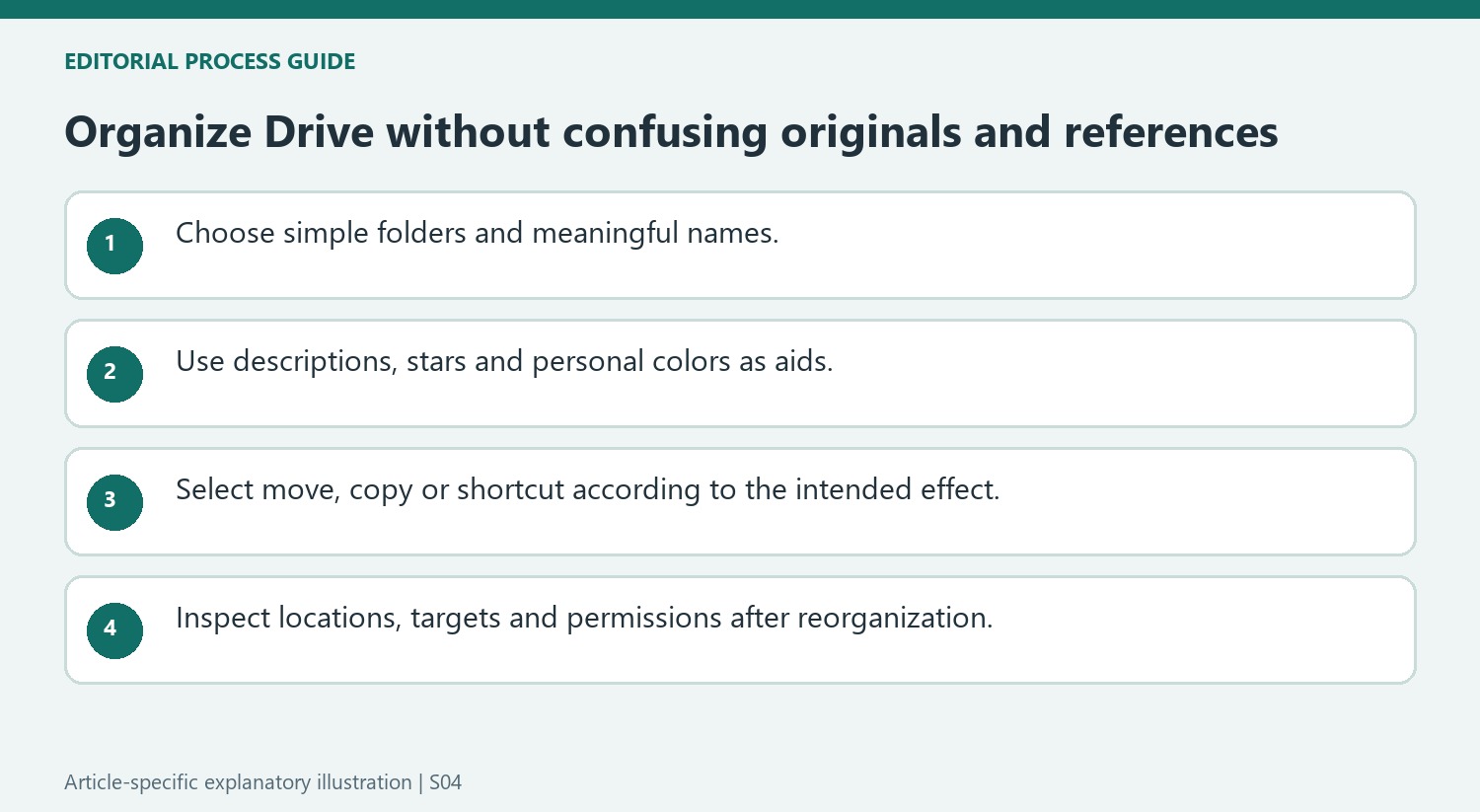
Choose short meaningful names and a small set of folders that reflect the actual projects or categories. Add subfolders when they make retrieval clearer, not merely because another level is available. Dates and relevant keywords can distinguish related files. Stars provide a convenient route to frequently used items, while folder colors support personal scanning without establishing a shared meaning for every collaborator.
Use descriptions to explain context that a filename cannot carry comfortably. Keep that information accurate as the item's purpose changes. A strong structure helps a new contributor understand where a document belongs without relying on the original organizer's memory. It also reduces the temptation to create several copies just to make one resource visible from different navigation locations.
Choose moving, copying or a shortcut by its actual effect
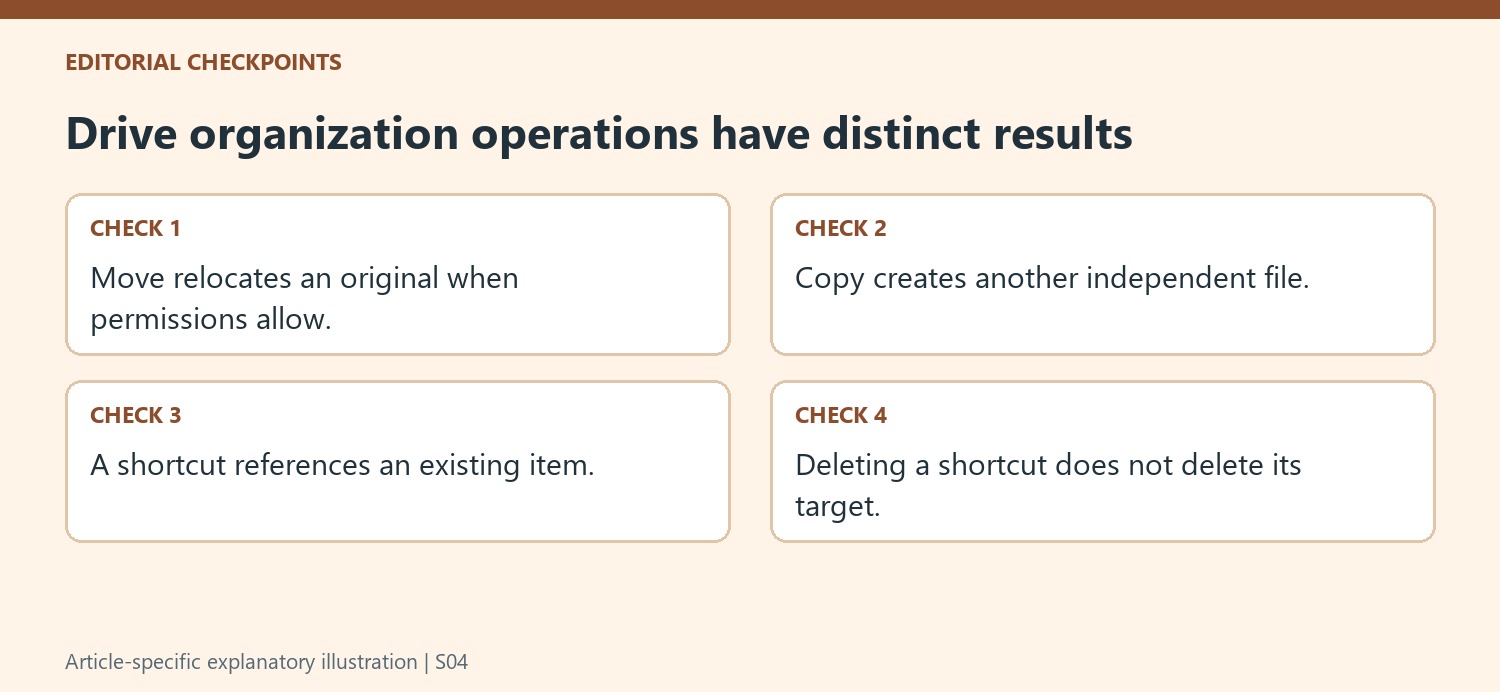
A move relocates the original item when the required source and destination permissions are available. The source warns that a shortcut may be created instead when those permissions do not support moving. Inspect the resulting item and location rather than assuming a drag gesture always performed the operation intended. A destination entry can look useful while still pointing to an original stored elsewhere.
A copy is a new file with its own content lifecycle, while a shortcut references the original. Use a shortcut when the same resource should be reachable through another folder without creating competing versions. Deleting the shortcut does not delete its target. Explain those distinctions during shared cleanup so someone removing a navigation entry does not assume the underlying document has been removed or archived.
Verify the result of a larger reorganization
Allow time for extensive changes to appear and inspect representative items afterward. Confirm the intended locations, shortcut targets and relevant permissions. Browser keyboard shortcuts described by the source have particular client requirements and should not be assumed to work identically in Drive for desktop. Check the interface in use before applying a repeated workflow. A good reorganization leaves the collection more understandable while preserving a clear relationship between the stored originals, new copies and convenient references that help people find the current material.
References
- Organize your files in Google Drive. support.google.com.




Comments
0