 DocumentFlow Desk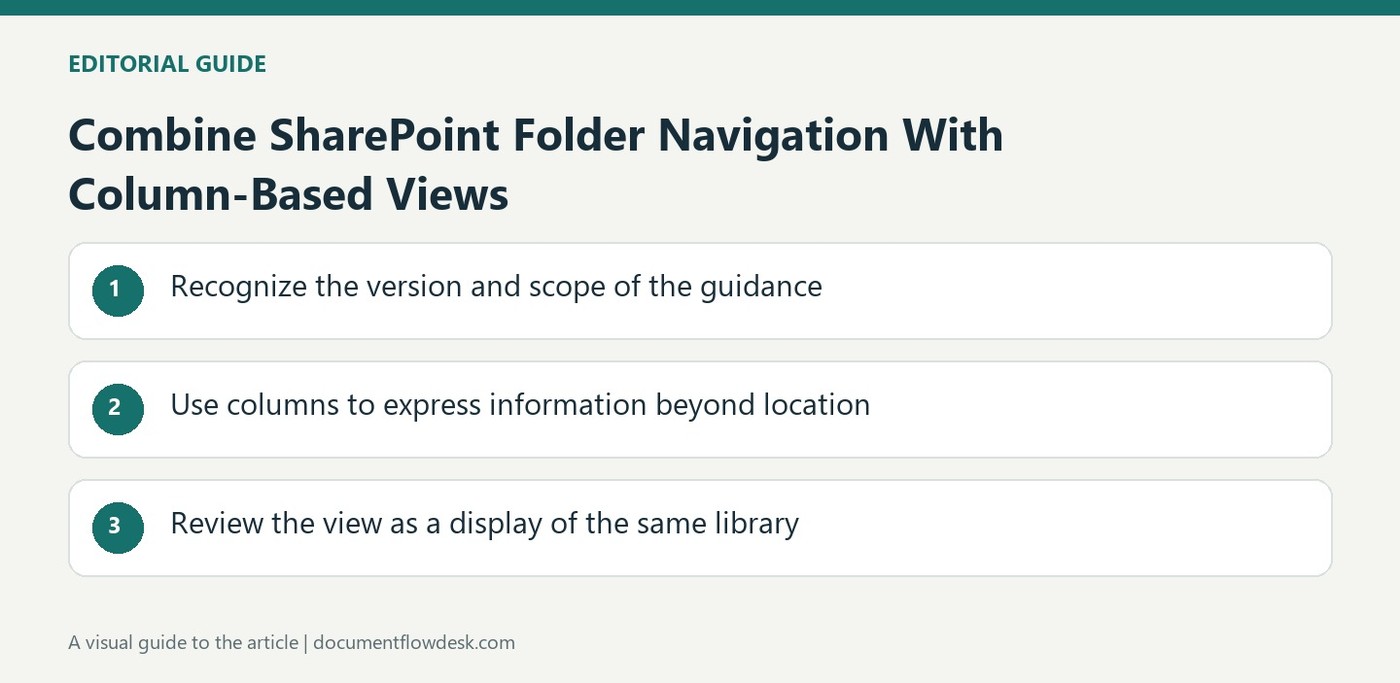
Recognize the version and scope of the guidance
Microsoft's short video page applies to SharePoint Server 2013 Enterprise and SharePoint Server 2016. It introduces a way to customize library displays when many items and folders make navigation difficult. The available source is an overview, not a full written procedure, so it should not be read as a detailed set of current SharePoint Online commands. Confirm the interface and version in use before following a related demonstration. The central idea is to combine existing folders with information stored in library columns rather than choosing one organization method for every task.
Use columns to express information beyond location
A folder places a document within one part of a hierarchy. A library column can describe another property that helps people identify or group it. The source explains that added columns can support sorting and filtering across folders. Choose properties that reflect real retrieval needs, and make their meaning understandable to the people who maintain them. A view is useful only if the underlying values are accurate enough to support the intended question. Adding fields without a clear purpose can create more maintenance work while leaving the original navigation problem unresolved.
Review the view as a display of the same library
Create or select a view that exposes the relevant columns and applies the appropriate sort or filter. Check its scope across the intended folders and inspect whether expected documents appear. A customized view is a way of presenting library items; it should not be mistaken for a separate archive or a copied set of files. Keep permissions and document ownership distinct from display preferences. When the library changes, revisit the view and its metadata so the arrangement continues to help readers locate the right material rather than merely reflecting an earlier folder structure or an outdated classification scheme.
Define the retrieval question before adding library columns
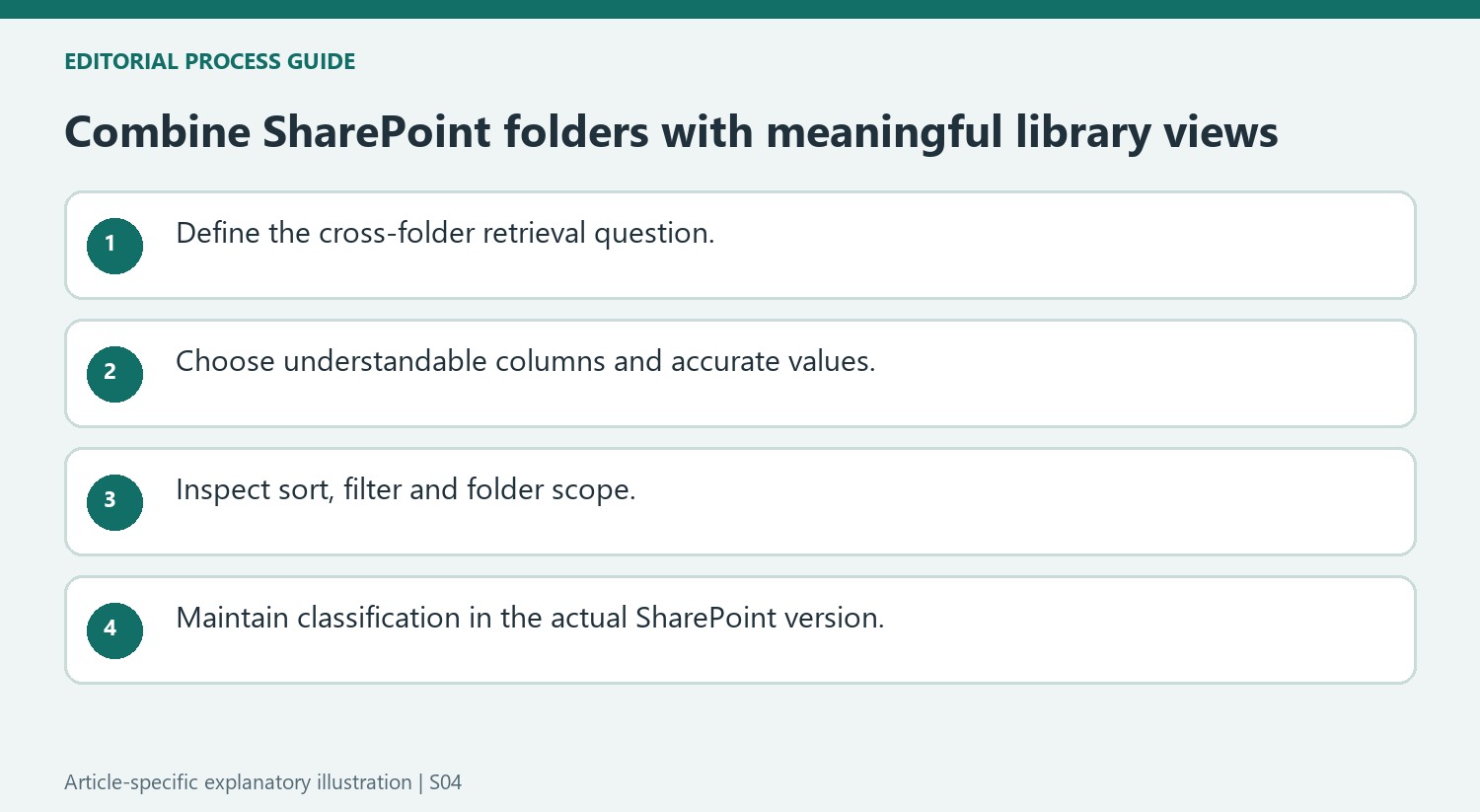
The overview describes combining folder navigation with column-based sorting and filtering. Begin with a practical question, such as finding documents that share a meaningful property across several folders. Choose a column only when its value will help answer that question. More fields do not automatically improve navigation, and unclear classifications can create a maintenance burden without making any document easier to locate.
Decide what each property means and how people will maintain it. If two contributors use different terms for the same category, a filter can omit relevant material even though the files remain in the library. Keep the terminology understandable and avoid asking users to supply information they cannot know reliably. The quality of the resulting view depends on the quality of those underlying values.
Use folders and views as complementary navigation routes
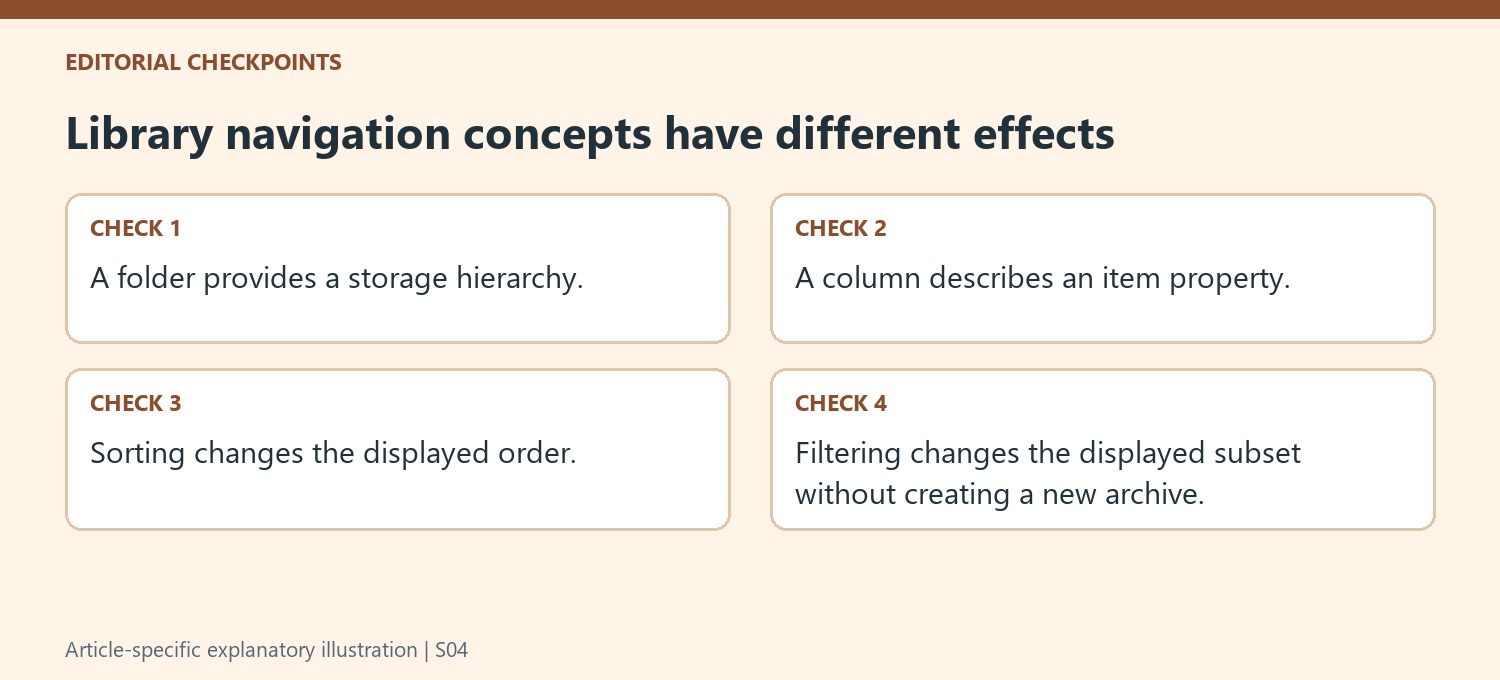
Folders provide a familiar hierarchy and can remain useful for browsing related work. Column values can express another dimension that cuts across that hierarchy. A customized view presents the same library items according to selected criteria; it does not create a new archive or separate set of document contents. Keep that distinction clear when introducing the view to people who normally navigate through folders.
Inspect the intended scope across folders and compare the displayed result with known examples. A sort order changes arrangement, while a filter changes which matching items are shown. If an expected document disappears, check its property values and the view scope before concluding that the file was deleted. This review makes the display useful without allowing a navigation preference to be mistaken for a storage operation.
Verify the product context and maintain the classification
The source is a short video overview for SharePoint Server 2013 Enterprise and 2016, rather than a detailed current SharePoint Online procedure. Confirm the deployed version and available controls before following a demonstration literally. Review the view as the library grows and update metadata when a document's role changes. Keep document ownership and permissions separate from display choices. A durable arrangement helps users answer real retrieval questions while retaining a clear understanding of where the files live, which criteria are being applied and who is responsible for keeping those criteria meaningful.
References
- Video: Use columns and folders together to view library items. support.microsoft.com.





Comments
0