 DocumentFlow Desk
Create a meaningful heading hierarchy
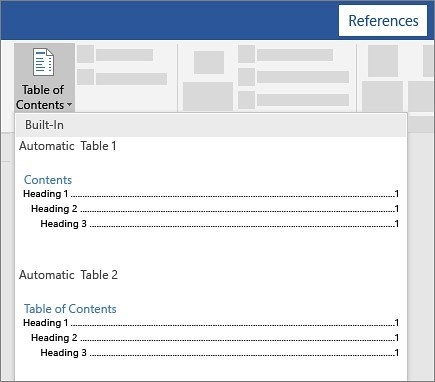
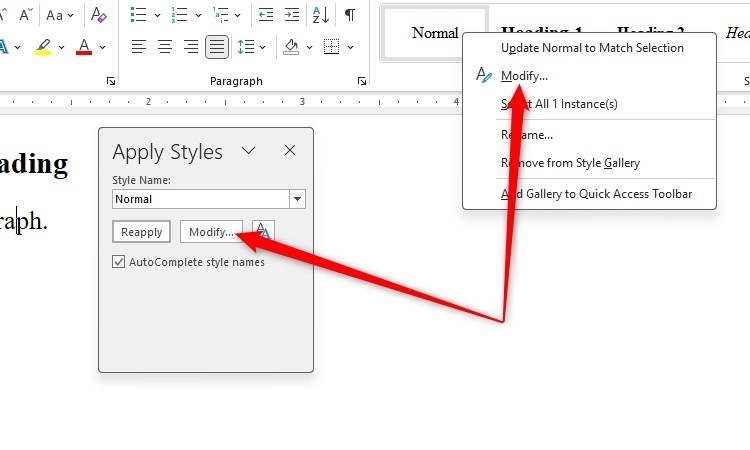
The guide explains that Google Docs uses built-in heading styles to identify the entries in an automatic table of contents. Heading 1 represents a main section, with lower heading levels nested beneath it. Select an appropriate style for each heading before inserting the contents page. Enlarging ordinary text may make it look like a heading, but does not provide the same structural signal for automatic navigation.
Insert the contents and keep it current
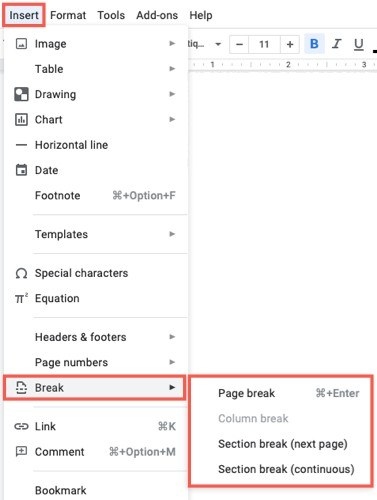
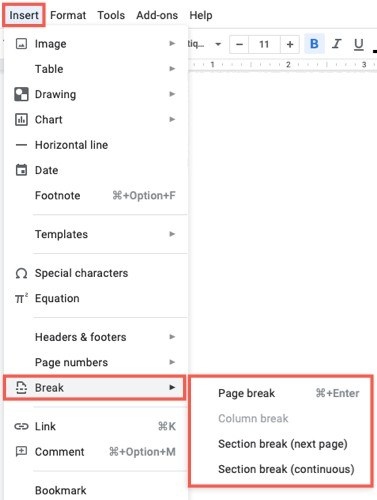
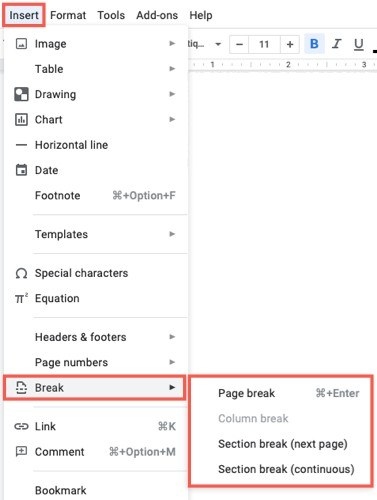
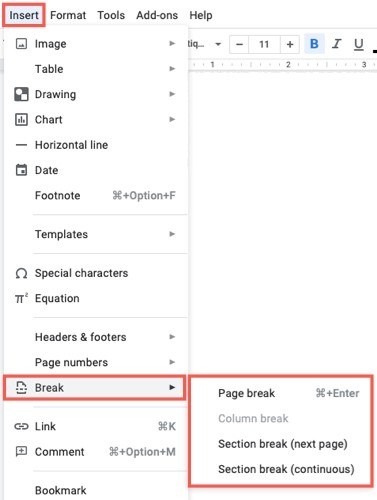
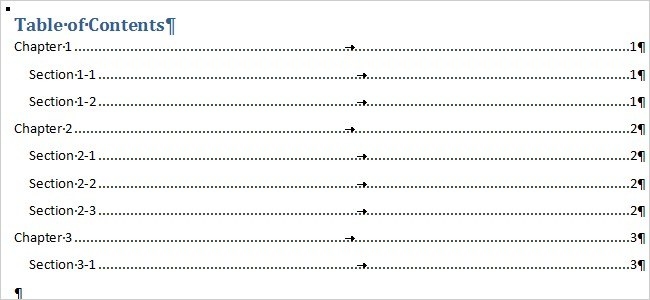
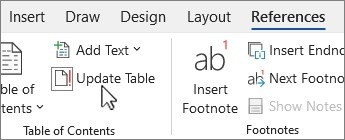
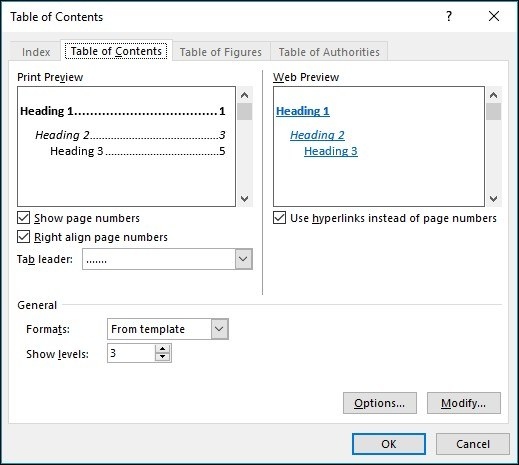
Place the cursor where the contents should appear and choose the table of contents option from Insert. The guide describes formats suited to printed page references or linked online navigation. When a heading is added, removed, or renamed, click the contents and use its refresh control. Review the resulting order and indentation so the navigation reflects the document’s actual structure rather than an earlier draft or an accidental choice of heading level.




Comments
0