 DocumentFlow Desk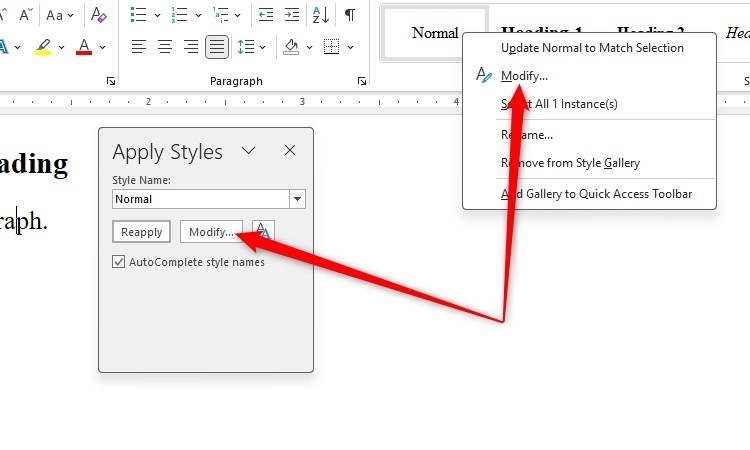
Apply a consistent heading hierarchy first
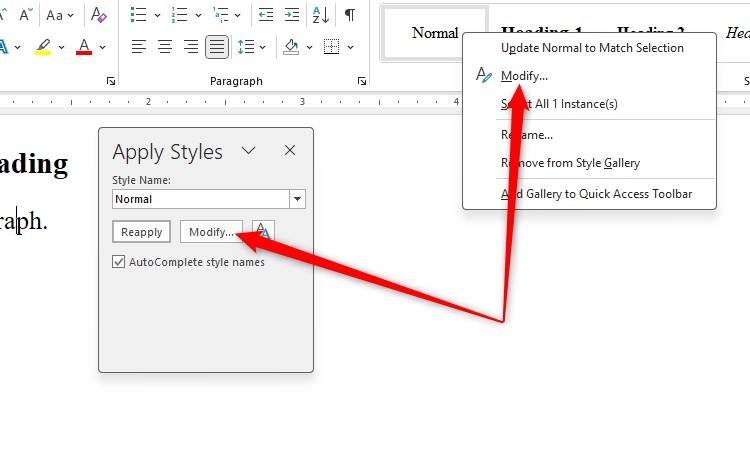
Word builds an automatic contents page from heading styles, commonly Heading 1 through Heading 3. Apply those styles to the actual section titles instead of making ordinary text look like a heading through manual bolding alone. If the appearance needs adjustment, modify the style rather than formatting every occurrence separately. This creates a document structure that both the author and the contents feature can use.
Insert and update the automatic table
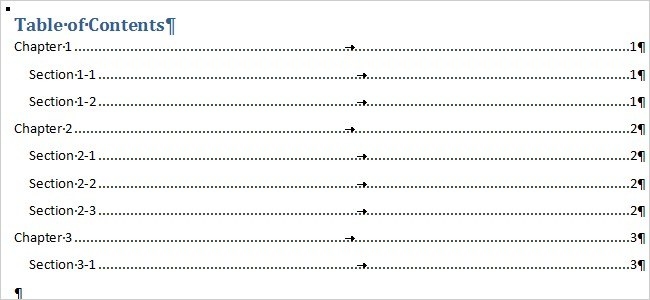
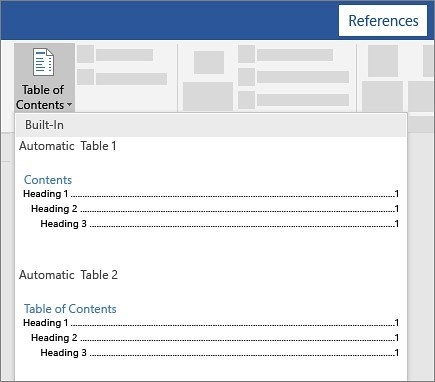
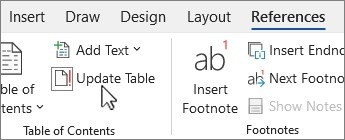
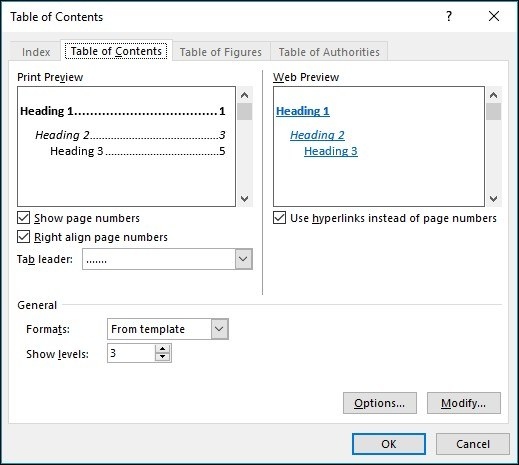
Place the cursor where the contents page belongs and select an automatic table from the References tab. The entries reflect the heading hierarchy rather than copying every visual detail of the original headings. As the document develops, update the table so that page numbers and renamed sections remain accurate. This is especially useful in longer reports, where manually maintaining each entry creates unnecessary work and a greater chance of inconsistency.



Comments
0