 DocumentFlow Desk
Reveal the boundary before removing it
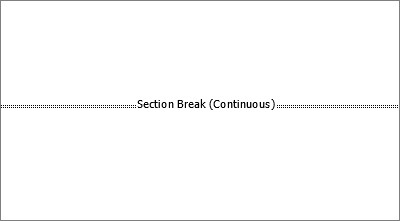
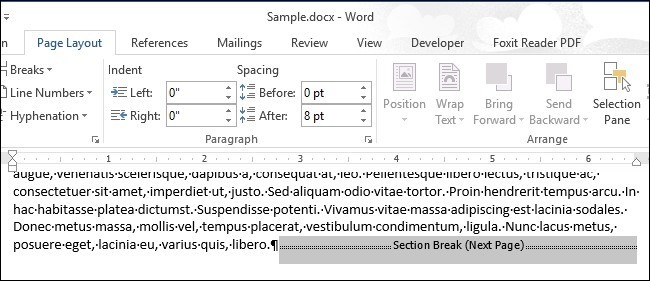
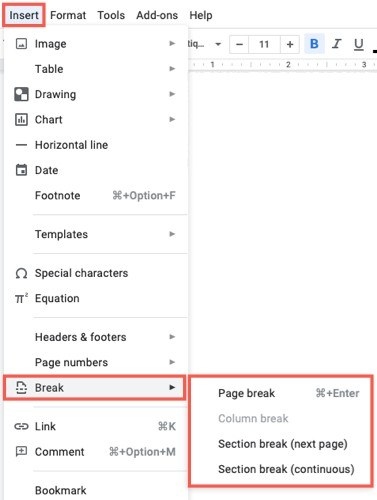
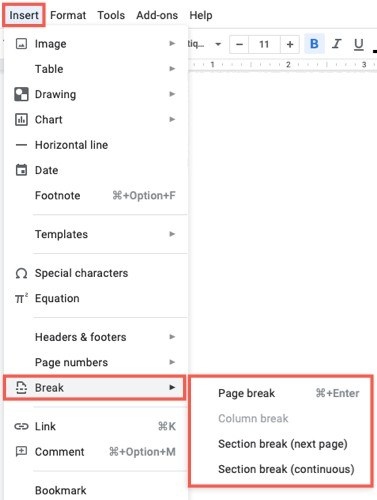
Turn on Show or Hide from the Home tab to make section breaks visible. Locate the correct boundary before using Delete or the appropriate backward-delete action for the platform. This is safer than removing an apparently empty area without understanding what it contains. A break can carry an important structural role even when it does not appear as ordinary printed content.
Check which section formatting remains
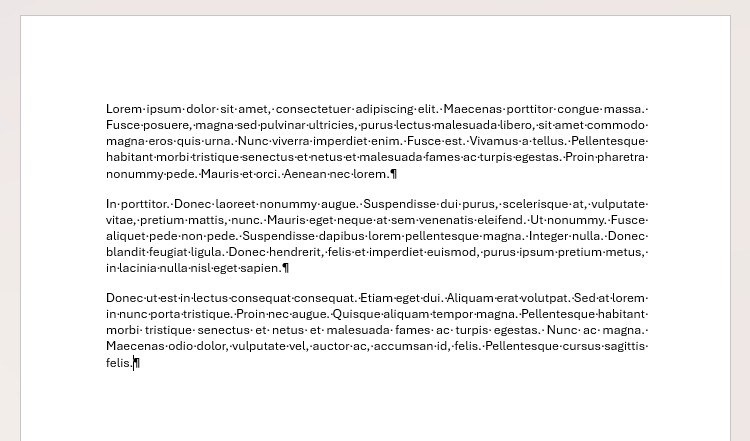
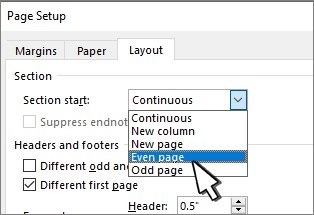
When the break is deleted, the text before and after it becomes one section. The combined section takes the formatting from the section that followed the removed break. Headers, footers, and other layout choices may therefore change. If the intention is to preserve a relationship with the preceding section, consider the relevant linking controls instead of automatically deleting the boundary. Inspect the affected pages after the change, retaining a copy when the layout is important.



Comments
0