 DocumentFlow Desk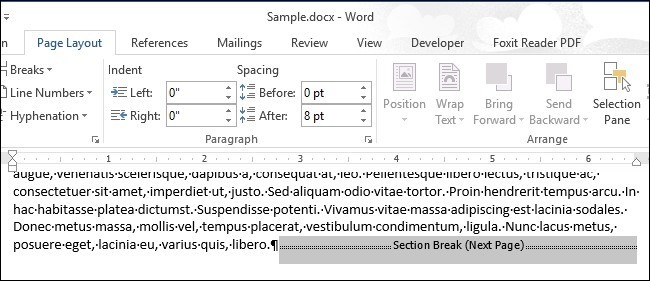
Search for the section-break character
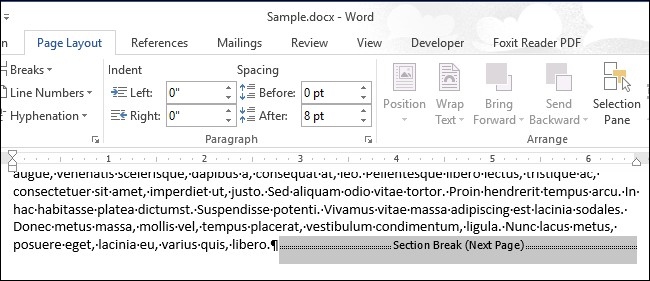
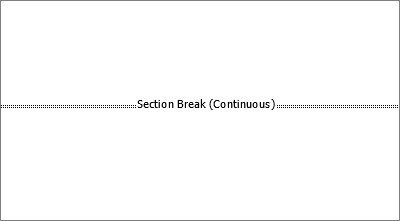
The guide demonstrates opening Find and Replace and using More and Special to choose Section Break. Word inserts the search code for that character, and Find Next moves through its occurrences. Searching this way is useful when the document contains many boundaries that are difficult to spot by scrolling. A section break divides independently formatted areas, so finding the precise boundary is the first step in understanding an unexpected layout change.
Inspect each match before making a change
The article also describes searching for the section-break code in the Navigation pane. After locating a match, inspect the surrounding content and formatting before deleting a boundary or changing its type. Continue through the remaining matches when reviewing the whole document. The screenshots use an older Word version, so the interface may differ, but the distinction between finding a break and deliberately altering the document structure remains relevant.



Comments
0