 DocumentFlow Desk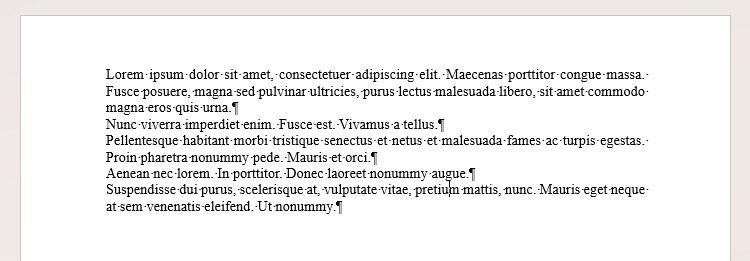
Control spacing through paragraph settings
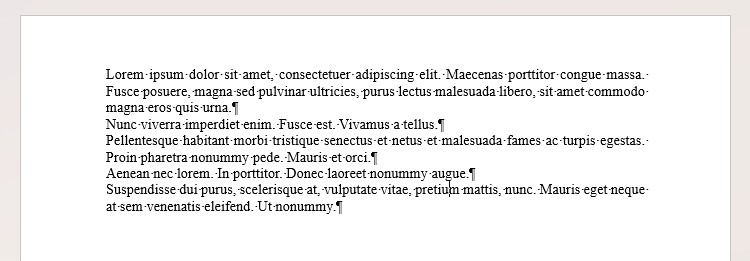
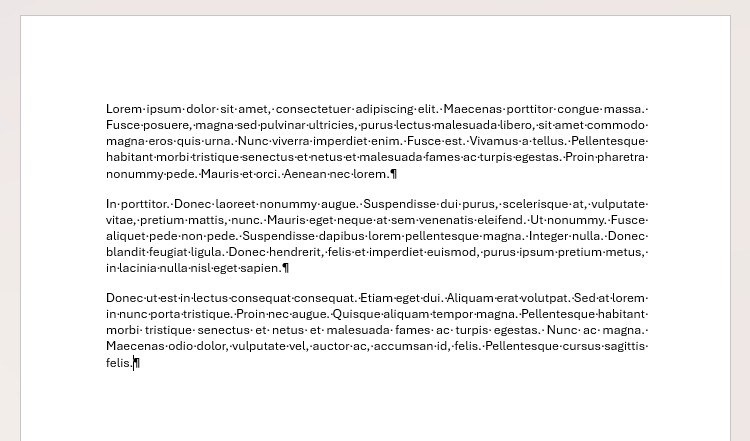
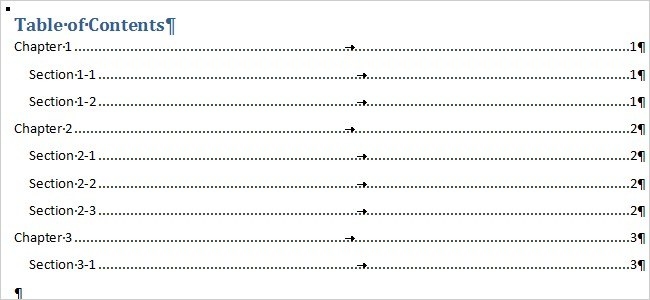
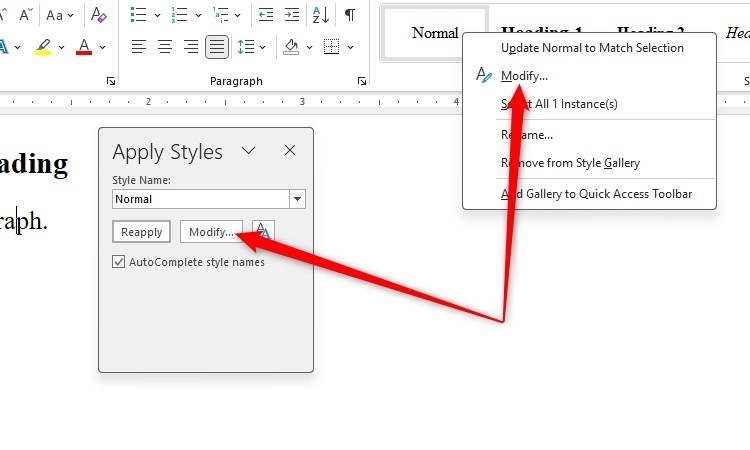
The guide explains that pressing Enter twice creates extra paragraphs that can shift unpredictably when text or font sizes change. Use the Paragraph dialog’s spacing before and after settings instead. Applying a shared style lets you adjust the appearance of matching paragraphs together. Show non-printing characters when diagnosing the layout so that manual spaces, paragraph marks, and other hidden controls are visible during the review.
Let Word maintain numbered structures
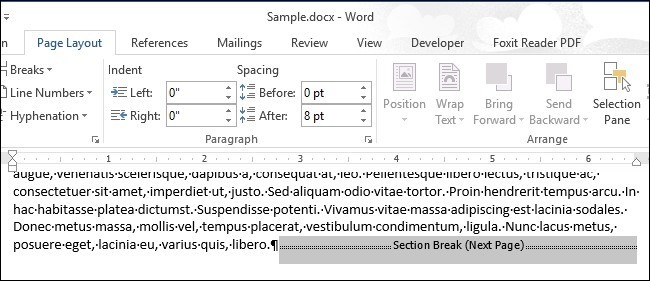
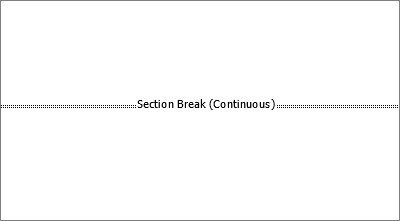
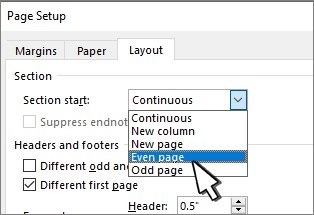
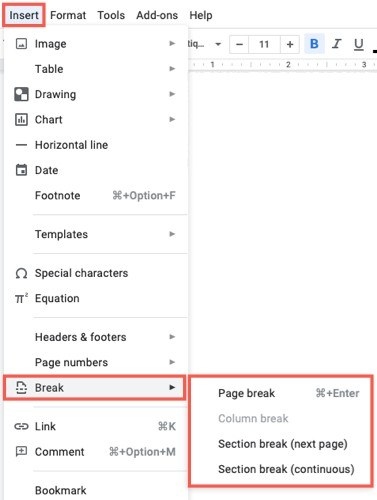
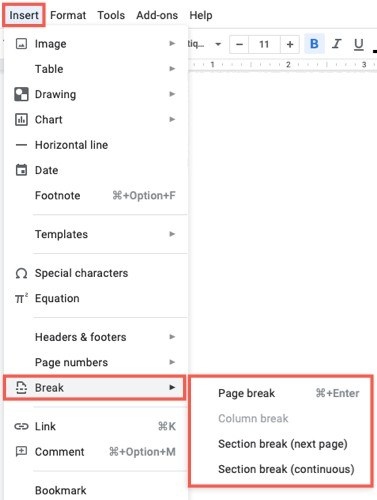
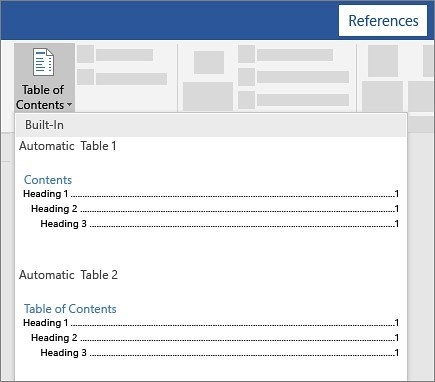
For lists with several levels, use Word’s multilevel list controls rather than typing each number. Automatic numbering can accommodate inserted sections without requiring every later number to be corrected manually. Heading-based list options can work with the document’s heading styles, while custom definitions allow a different structure. Choose the level of each paragraph intentionally, and use page or section breaks when the layout needs a genuine boundary rather than extra empty lines.



Comments
0