 DocumentFlow Desk
 -
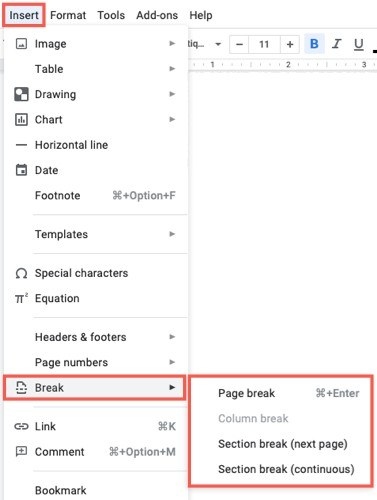
Use Google Docs Breaks to Control Document Structure
Page breaks and section breaks provide different ways to separate content without relying on repeated blank lines.
-
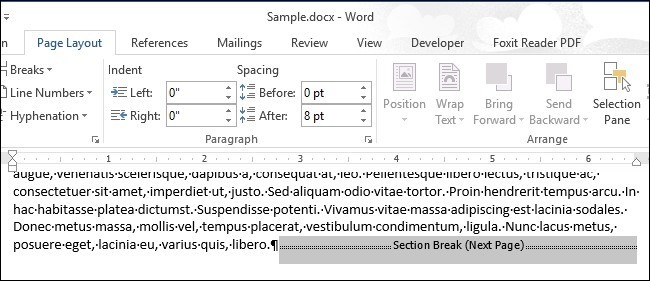
Find Hidden Word Section Breaks Before Revising Layout
Word’s search tools can locate section boundaries throughout a long document.
-

Choose the Correct Word Section Break
Next Page, Continuous, Even Page, and Odd Page breaks establish different section starting points.
-
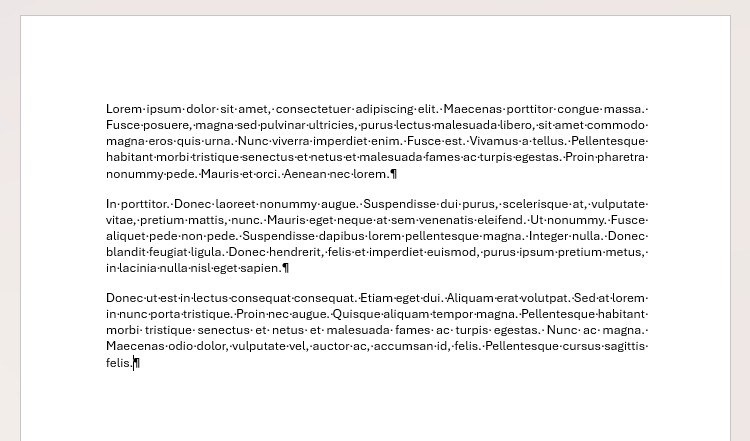
Use Word Breaks Instead of Repeated Empty Paragraphs
Page and section breaks preserve intentional boundaries as document text and formatting change.
-
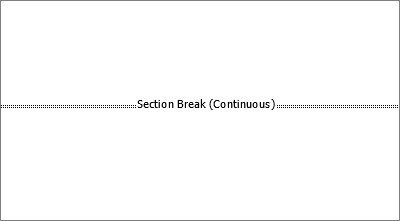
Understand the Formatting Effect of Deleting a Word Section Break
Removing the boundary combines sections and can change which formatting controls the resulting text.
-
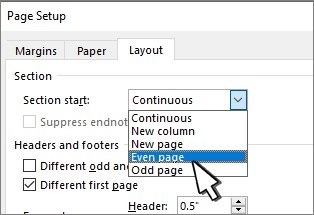
Change the Type of an Existing Word Section Break
The section-start setting can be changed without rebuilding the entire document section.
-
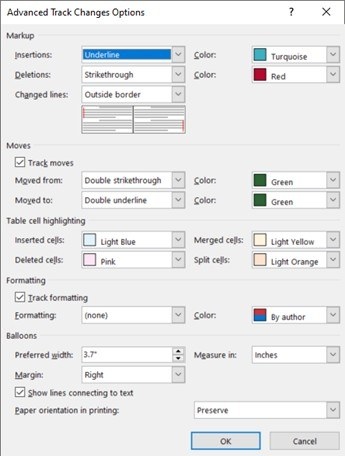
Adjust Word Revision Colors Without Changing the Review Decisions
Track Changes display settings affect how revisions appear on your computer, including colors assigned by author.
-
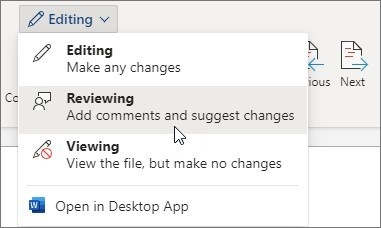
Review Word Documents in the Browser with the Appropriate Mode
Editing, Reviewing, and Viewing provide different behavior for a shared Word document.
-
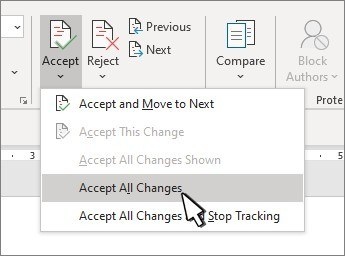
Remove Word Revision Markup through Actual Review Decisions
Accepting or rejecting revisions is different from choosing a display that temporarily hides them.
-
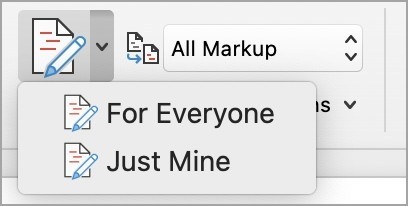
Use Word Tracking to Separate Proposed Edits from Final Text
Track Changes records revisions, while markup views control how those revisions appear during review.
-
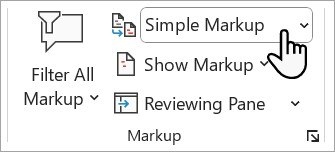
Finish Word Review by Accepting or Rejecting Changes
Turning off tracking does not remove edits that were already recorded in the document.
-
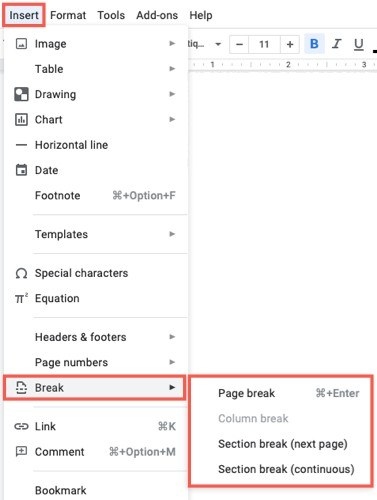
Place Google Docs Breaks at Intentional Document Boundaries
Page and section breaks control where content begins without relying on repeated empty paragraphs.
-
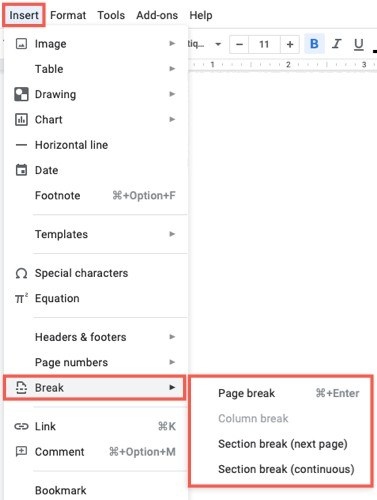
Choose Google Docs Pages or Pageless for the Intended Output | Page Breaks In Google Docs
The document format determines whether page breaks and repeating page elements are available.
-
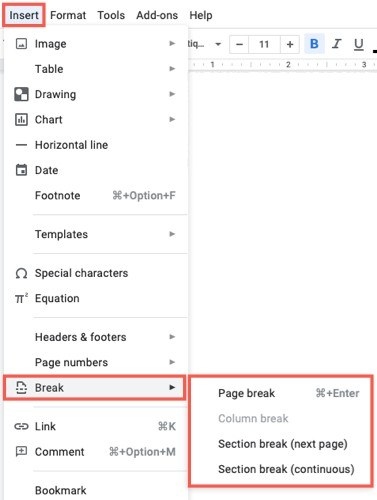
Use Google Docs Sections for Headers and Page Numbers
Section breaks provide control over repeating page elements when a document needs different layouts.
-
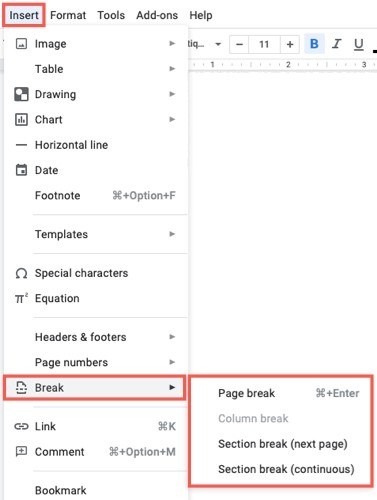
Set Google Docs Page Layout at the Right Scope
Page setup controls margins and orientation, while section breaks allow selected portions to use another layout.
-
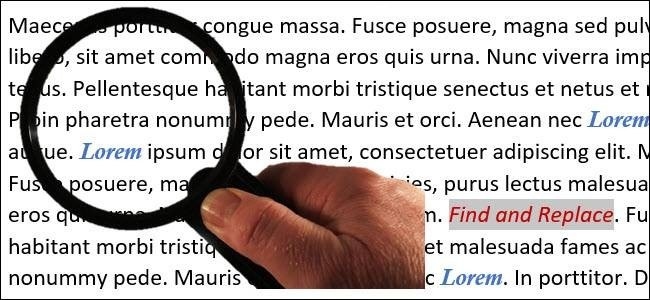
Replace Formatting Across a Word Document More Precisely
Find and Replace can locate character or paragraph formatting as well as particular words.
-
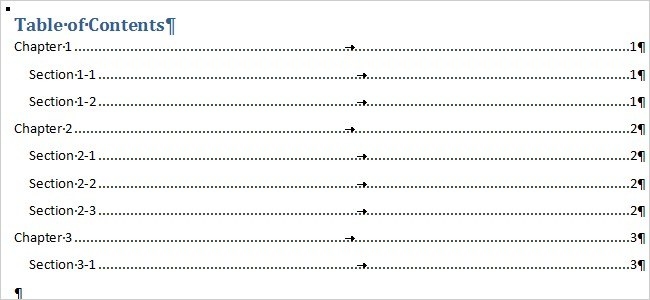
Build a Word Contents Page from Separate Chapter Files
Reference Document fields can collect headings from multiple Word documents, with page numbering maintained separately.
-
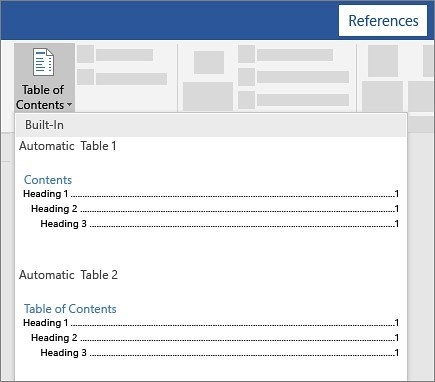
Fix Missing Entries in an Automatic Word Contents Page
An automatic contents table uses heading styles rather than the appearance of ordinary text.
-
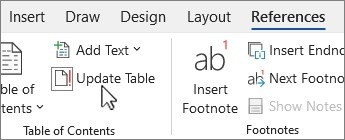
Update Word Contents Entries after Editing a Report
Page-number-only updates and full table updates solve different kinds of changes.
-
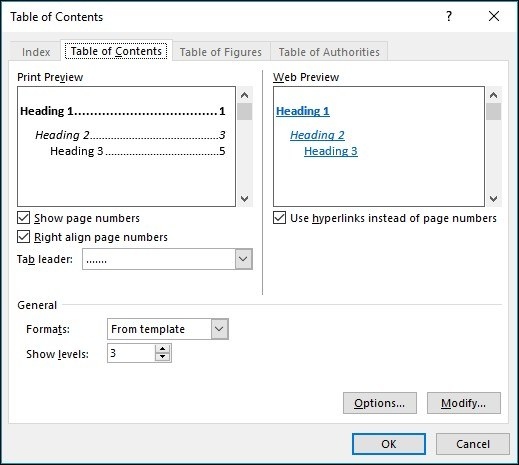
Customize a Word Contents Page without Rebuilding It
Page numbers, leaders, visible heading levels, and contents styles can be adjusted through the table settings.

