 DocumentFlow Desk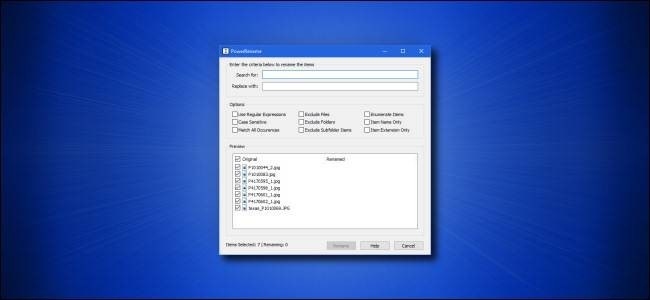
Set up a focused replacement
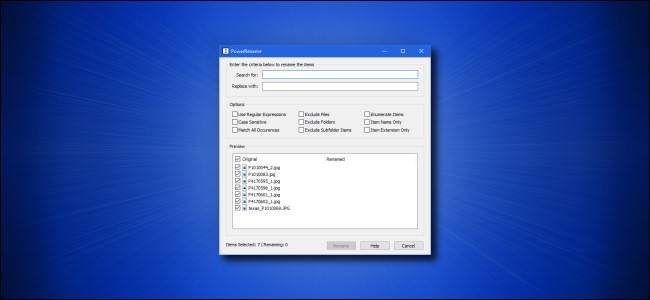
Microsoft PowerToys includes PowerRename for changing many filenames from one dialog. How To Geek's guide starts by enabling the module, selecting the intended items in File Explorer and opening PowerRename from the context menu. Enter the existing term in the search field and the replacement term below it. The preview shows the proposed names before the operation runs, making it easier to check a shared project label or corrected spelling.
Limit the scope deliberately
PowerRename includes options for case sensitivity, repeated matches, subfolder items and whether to change names or extensions. Keep the operation restricted to the intended material, especially when a parent folder contains unrelated documents. Enumeration can add sequential numbers, while regular expressions support more complex patterns for experienced users. Read the preview rather than assuming every matching word belongs to the same project. After applying a batch rename, verify a few representative files in Explorer. Clear naming improves discovery, but it does not replace version history or document ownership.
















Comments
0