 DocumentFlow Desk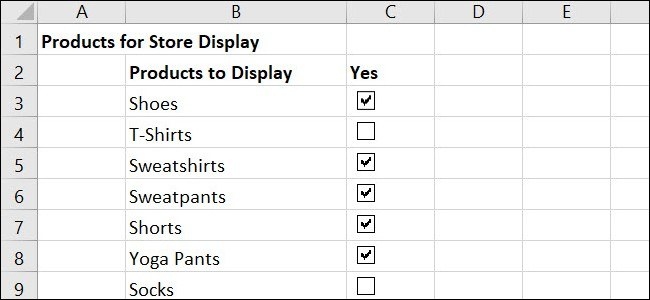
Place controls beside the task list
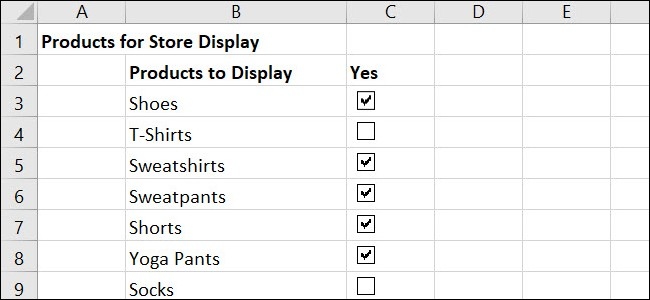
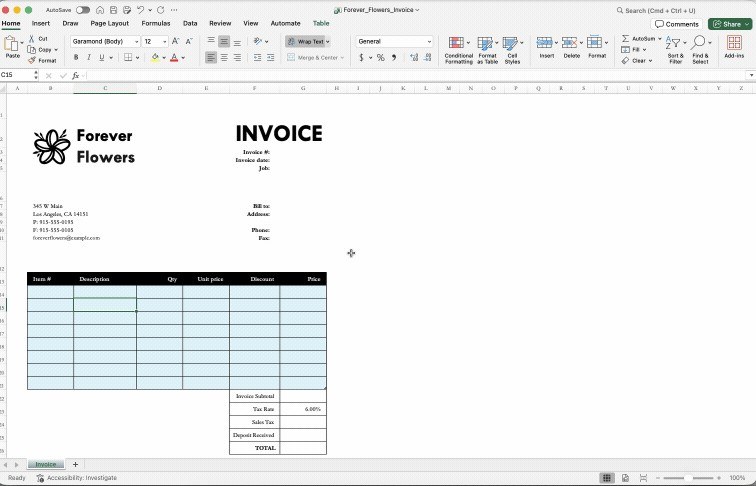
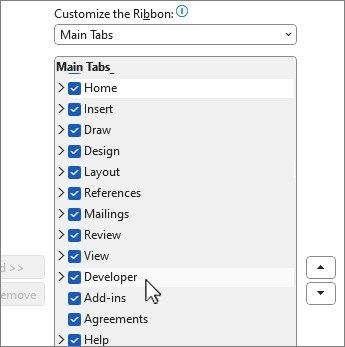
An Excel checklist can combine visible task labels with completion values that formulas can use. How To Geek's tutorial uses checkbox form controls from the Developer tab. Enter the task list first, then insert a checkbox beside each relevant item. Remove the control's default label if the description already appears in a neighboring cell, and adjust its size or position so the sheet remains easy to read.
Link the checkbox when formulas need it
The Format Control dialog includes a cell link setting that displays TRUE or FALSE according to the checkbox state. Those linked values can support a completion count or other formula based summary. The tutorial also covers default checked states and copying controls to additional rows. Check each link after copying rather than assuming every control points to the intended cell. These instructions describe form controls, which differ from newer in cell checkbox features. Keep the template consistent with the Excel version and control method the team actually uses.









Comments
0