 DocumentFlow Desk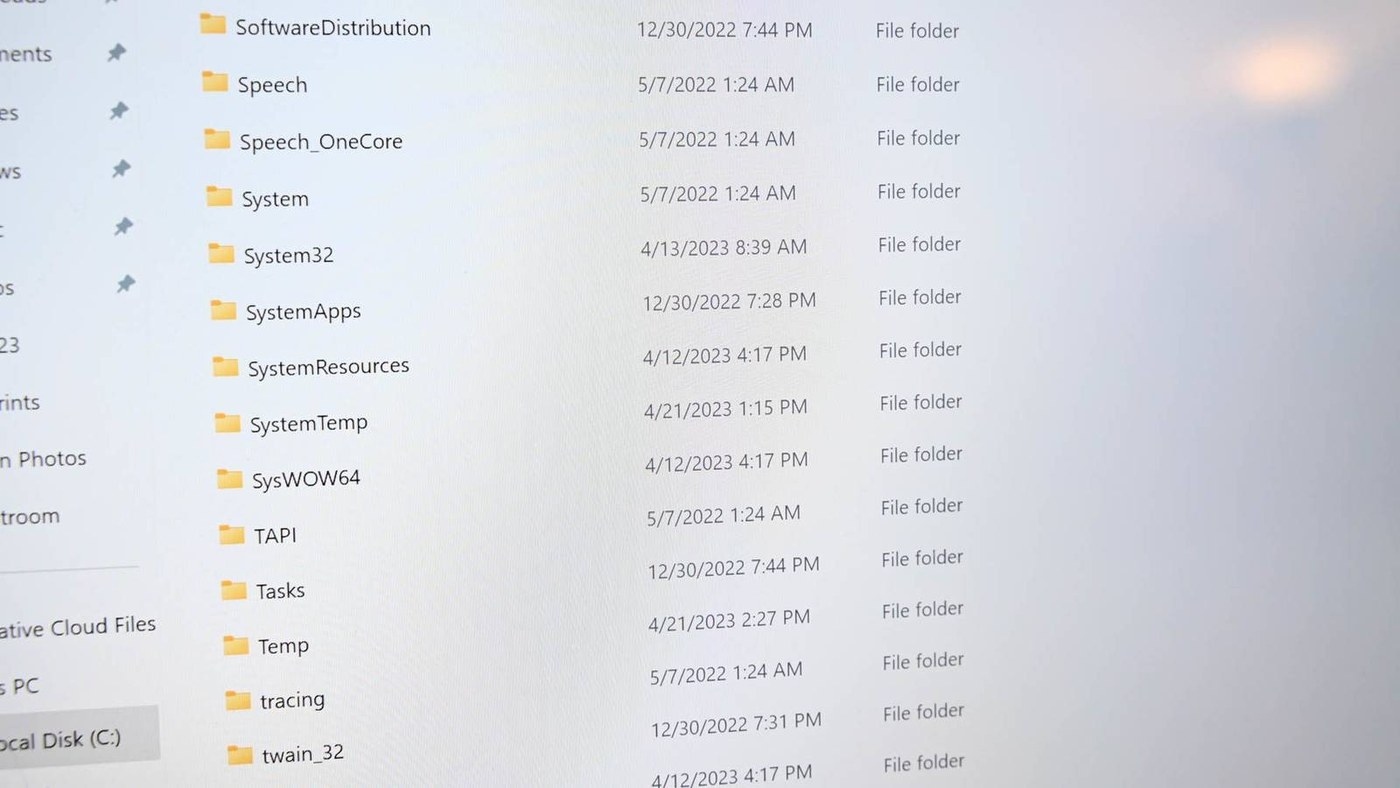
Choose a straightforward rename method
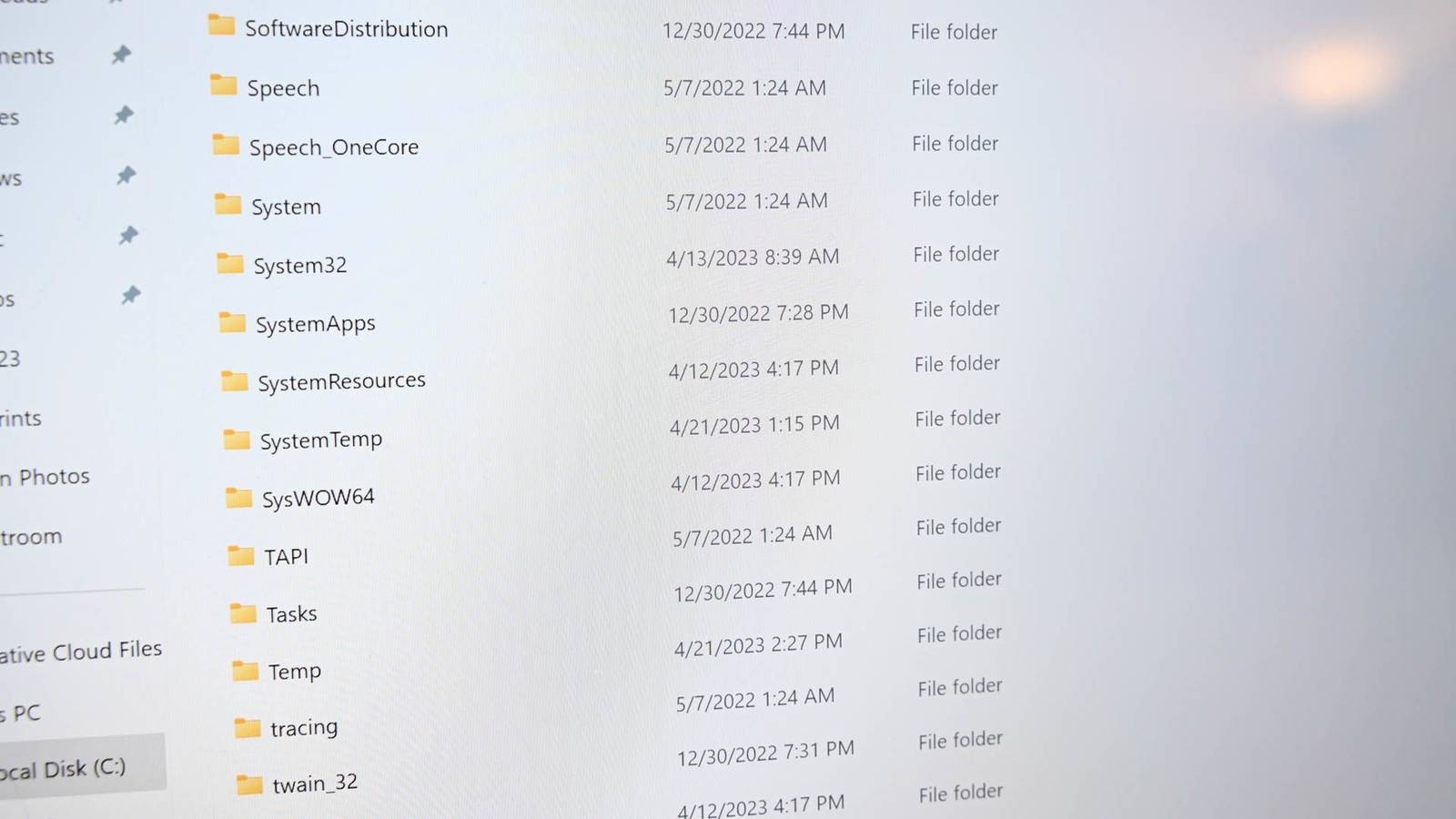
A team's naming convention becomes useful only when people can apply it consistently. How To Geek describes several Windows methods for changing file and folder names, including File Explorer's Rename action and the F2 keyboard shortcut. Select the item, activate Rename, type the descriptive name and press Enter. If extensions are visible, preserve the extension unless changing it is specifically intended, because it identifies the file format to applications.
Scale the method to the task
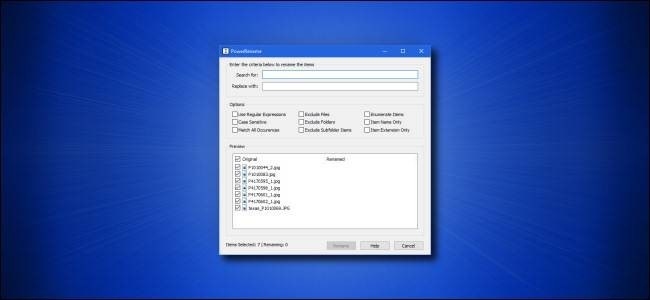
A few documents are easy to rename individually, while larger groups may justify PowerToys PowerRename or a carefully planned script. PowerRename offers search and replacement across selected filenames, and PowerShell provides the Rename-Item command for more flexible operations. Choose the rule before making changes so project codes and descriptive terms stay consistent across the group. Check the selected folder and filenames first, especially when using a batch operation. Renaming changes identification; it does not alter the document's contents or establish an approval history.

















Comments
0