 DocumentFlow Desk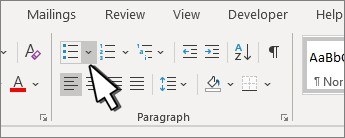
Choose the checklist method first
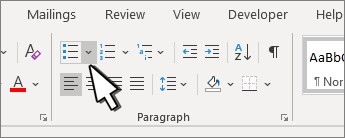
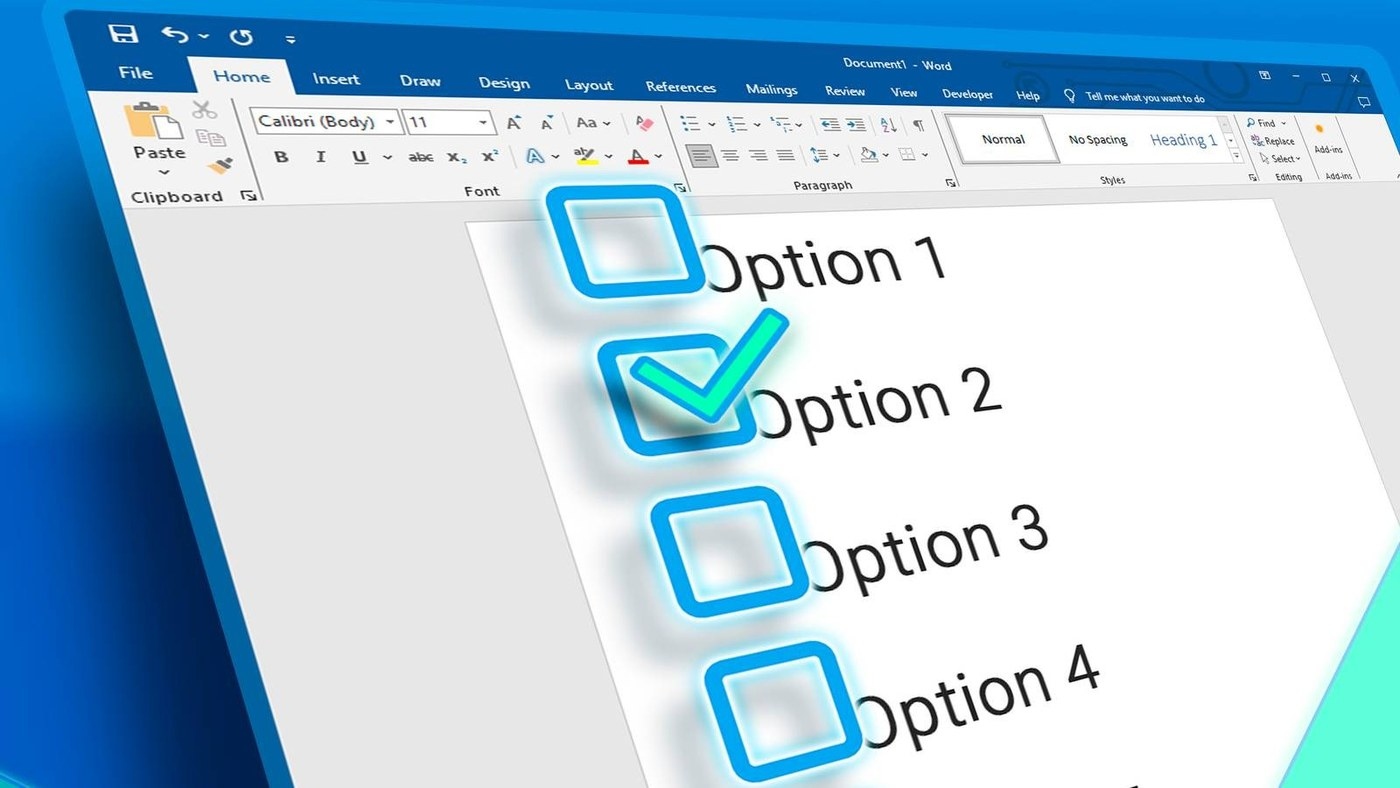
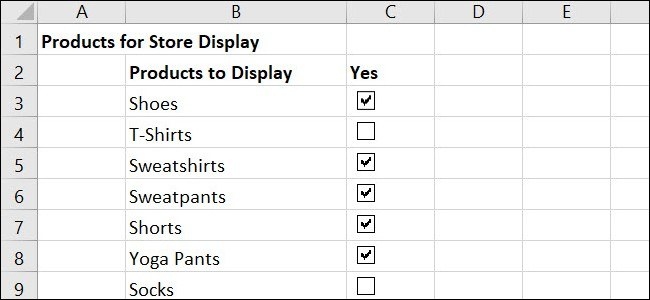
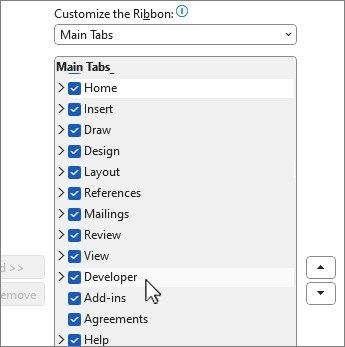
Microsoft's official guidance separates interactive checklists from lists intended only for printing. In desktop Word, checkbox content controls are available through the Developer tab. Insert a control at the beginning of the first task, then copy it to the other lines. For a paper checklist, define a new bullet and choose a box symbol instead. Word for the web also provides a checklist option through its Home ribbon where that feature is available.
Align long entries consistently
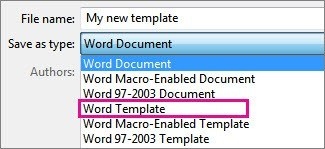
A task that wraps onto another line should remain easy to scan. Microsoft recommends hanging indentation so additional lines align with the task text rather than the checkbox. Adjust the paragraph's left and hanging settings to suit the layout, then inspect both short and long entries. The guidance also describes grouping the text and controls in applicable desktop versions to help prevent accidental changes. Test the chosen layout and completion method before keeping it as a reusable checklist template for other people.









Comments
0