 DocumentFlow Desk
Choose which reviewers’ comments belong in the output
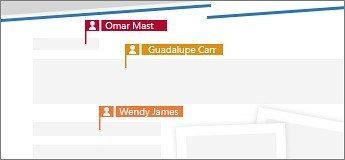
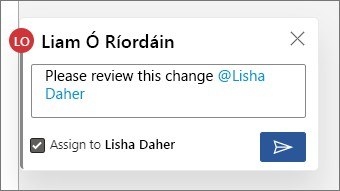
The guide begins on Word’s Review tab with Show Markup and Comments enabled. Specific People can limit the displayed feedback to a particular reviewer; All Reviewers includes the full group. Make that selection before printing, because a comments-only handout should reflect the discussion you intend to hold. Keeping feedback separate from page content can make a review meeting easier to follow without crowded markup on every page.
Select the markup list in print settings
Open File and Print, then use the settings menu to choose List of Markup under the document information options. The guide also specifies enabling Print Markup. Inspect the preview and printer selection before sending the job. This produces a record of the review comments, rather than resolving or deleting them inside the Word file. Retain the shared document when participants still need to reply or connect an item with its original passage.


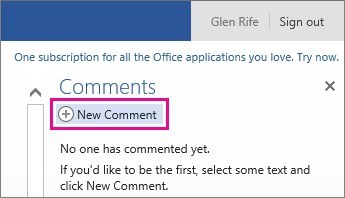





Comments
0